

The following procedure describes how you create a service offering using VM template and later the Service Consumer can consume this service.
Follow these steps:
The Server Automation Services page opens.
A list of all chargeback services appears.
A form opens.
Specifies the details of the service.
Specifies a name for the service.
Specifies the description of the service.
Specifies an image to the service. Click Select Image to select the image from the %USM_HOME%\filestore\images\offerings folder.
Specifies the location where the published service appears.
Select the organization name from the drop-down menu, click + to add a new row to provide package details. You can specify the cost of components and can save the details. If you have more than one package to be associated with the current service then each package will be represented as independent service option group after you publish the service. To add more packages click + again and complete the required information.
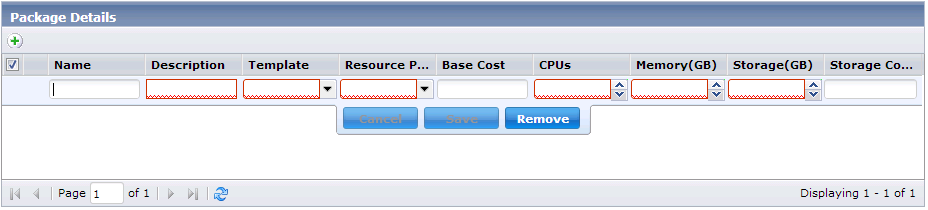
Complete the following to add a package:
Specifies a name for the package. Type a name for the package.
Specifies a description for the package name.
Specifies the SSRM VM template to use.
Specifies the name of resource pool to be used for VM provisioning.
Specifies the cost for the reservation.
Specifies the number of CPUs for the reservation.
Specifies the memory size in GB.
Specifies the predefined size of primary storage in GB.
Specifies the cost for 1 GB of storage space.
Note: Optionally, to delete an item from the package details list, select, and click Remove.
Select the user groups to grant access to the service. You can search for the group name and then add the required groups to the list.
Note: Before you submit the request, make sure that you select all the required package items from the list.
The request is added to the cart.
You have enabled your Service Consumer to request a new reservation using the new service offering.
|
Copyright © 2014 CA.
All rights reserved.
|
|