

Baselines help you determine whether a performance condition is normal. The management console includes the following parameters in the baseline calculations. Configure these parameters by setting the associated database parameter.
|
Parameter |
Default |
Database parameter |
Description |
|---|---|---|---|
|
Days Back Factor |
7 |
maxDaysBack |
The maximum number of days back from which to derive the baseline. The default is the past week. |
|
Weeks Back Factor |
12 |
maxWeeksBack |
The maximum number of weeks back from which to derive the baseline for day of the week. The default is the last quarter. |
|
Months Back Factor |
6 |
maxMonthsBack |
The maximum number of months back from which to derive the baseline for day of the month. |
Follow these steps:
The Operations: Metric Details page opens.
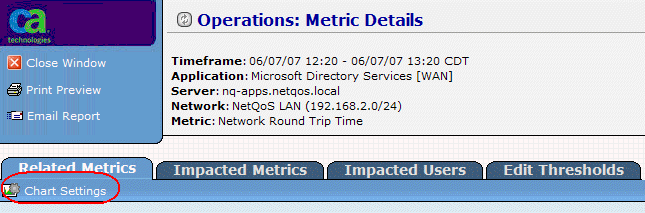
Chart Settings opens.
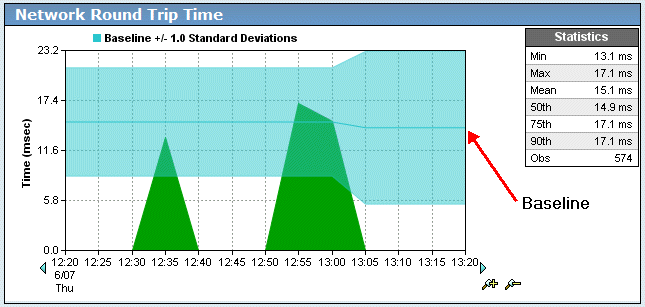
The detail view shows the selected baseline.
|
Copyright © 2015 CA Technologies.
All rights reserved.
|
|