

In the Operations, Incidents, or Engineering tab of the management console, the current reporting context, including the timeframe, network, server, and application, is applied to the drilldown views in the CA Multi-Port Monitor.
Unlike a CA Standard Monitor, which analyzes TCP sessions at the network level with a 5-minute granularity, a CA Multi-Port Monitor can analyze a TCP session between a server and a particular client at a 1-minute granularity. In addition, a CA Multi-Port Monitor enables you to analyze traffic volume for all traffic observed by the CA Multi-Port Monitor, including TCP and non-TCP traffic.
To follow a troubleshooting path from a management console report to a default analysis in the CA Multi-Port Monitor, it is a good idea to start with a relatively narrow timeframe, such as one hour, selected in the management console report settings. Any filtering you apply to the report, such as narrowing the data to a single network, server, or application, remains in place after drilldown to the default view in the CA Multi-Port Monitor and can help direct your troubleshooting efforts toward the right area of the network.
In the CA Multi-Port Monitor, the Analysis Menu displays response time metrics based on the context of the report settings. In the following example, the Analysis Menu displays performance metrics for each server with BP SMTP traffic:
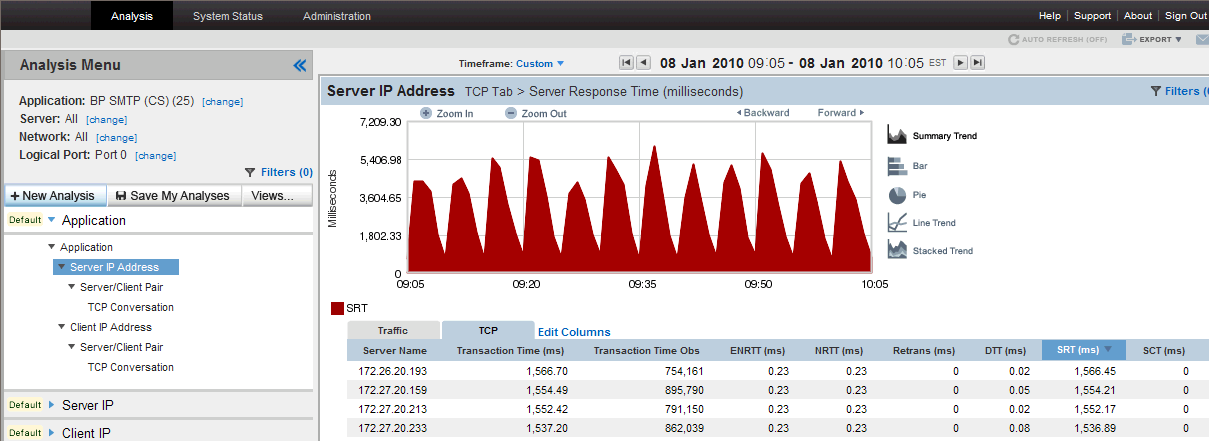
To enable the drilldown to automatically select the logical port that observes the server traffic, you must configure the report settings in the management console to select a particular server. If you configure the report settings to show All Servers, and the CA Multi-Port Monitor is configured with more than one logical port, the Session Analysis dialog box prompts you to choose the logical port that observes the server traffic you want to analyze.
For more information about working with the Analysis Menu, see the product documentation provided with CA Multi-Port Monitor.
|
Copyright © 2015 CA Technologies.
All rights reserved.
|
|