

After you add a NI GigaStor to the management console, assign it to a CA Standard Monitor or CA Multi-Port Monitor to process digest files from the GigaStor Connector into response time data. Do not assign a NI GigaStor to a CA Virtual Systems Monitor.
To maximize the available resources on the CA Standard Monitor, disable packet monitoring when you add a CA Standard Monitor.
To load-balance the monitor feed from a single NI GigaStor for scalability reasons, assign the NI GigaStor to more than one CA Standard Monitor or CA Multi-Port Monitor. When you load-balance a NI GigaStor between two monitoring devices, the GigaStor Connector automatically distributes traffic to each monitoring device based on the IP address of one of the endpoints:
The GigaStor Connector sends packet digest files for traffic from servers with an even IP address to one monitoring device, and traffic from servers with an odd IP address to the other.
As shown in the following example, you can assign a NI GigaStor to more than one CA Standard Monitor or CA Multi-Port Monitor.
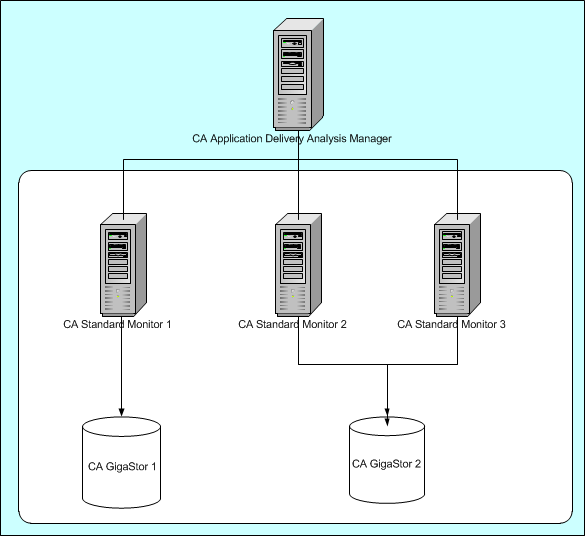
If your deployment consists of a single management console and a NI GigaStor, assign the NI GigaStor to the monitor on the management console.
Follow these steps:
 to edit the CA Standard Monitor or CA Multi-Port Monitor to which you want to assign the NI GigaStor. Use the Active Feeds column to determine whether a NI GigaStor is assigned to a monitor.
Monitor Devices opens.
Monitoring devices temporarily stop monitoring application performance during synchronization. To minimize interruptions to monitoring, complete all of your changes before synchronizing monitoring devices.
|
Copyright © 2015 CA Technologies.
All rights reserved.
|
|