

Latest Version: 3.0.1-1
LampX4 - Scalable Lamp Web Application
Latest Version: 3.0.1-1
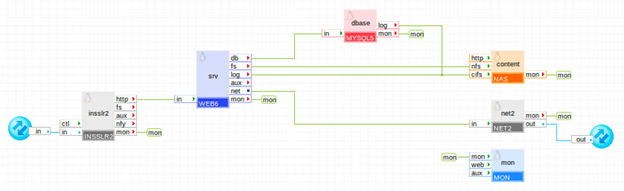
The Lamp and LampX4 reference applications are simple 2-tier web applications that allow you to port your applications. Simply provision one of the Lamp applications, ssh into the web server using the web shell, install the necessary software, and the application is ready for production.
The Lamp application consists of a single web server, a database server, a file server, a gateway for external network access and an input gateway for user access. In addition, the application contains a monitor which allows the maintainer to monitor various data, such as CPU or memory usage and hit rate on a web, of the application.
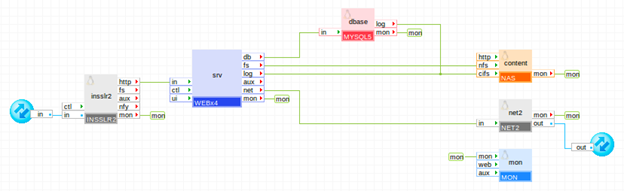
The LampX4 application adds a load-balanced web tier to the Lamp. The load-balanced web tier consists of a load balancer plus four web servers. LampX4 is designed for applications that incur heavy traffic, for example, those accessed by hundreds of users.
Lamp and LampX4 are made for simple applications that do not require the following:
If either of these are needed, refer to the LampCluster reference application
|
Property Name |
Type |
Description |
|
hostname |
String |
Host name of the SMTP mail server through which the application should send e-mail notifications of bug changes. The mail server can be specified as a host name (for example, mail.CA.com) or as an IP address (for example, 12.34.56.78). Default: 0.0.0.0 (mail is disabled).. |
|
dns1 |
IP |
IP address of a DNS server for host name resolutions. Used to resolve the mail server name. This property is mandatory. |
|
dns2 |
IP |
IP address of a backup DNS server for host name resolutions. Used to resolve the mail server name. Default: 0.0.0.0 |
|
timezone |
String |
Specifies the time zone used in the application. If this property is empty, the timezone is not modified. A list of supported time zones is available here. Default: empty |
|
mon_standby |
Integer |
Determines whether application monitoring is disabled upon application start. If non-zero, monitoring is disabled, otherwise monitoring is enabled. The monitoring can be enabled at runtime by manually starting the mon appliance. Default: 1 (monitoring is disabled). |
|
Srv2_standby |
Integer |
Specifies whether the second server is in standby mode. If non-zero, the second server is in standby mode. If zero, the server is not in standby mode. Default: 1 |
|
Srv3_standby |
Integer |
Specifies whether the third server is in standby mode. If non-zero, the third server is in standby mode. If zero, the server is not in standby mode. Default: 1 |
|
Srv4_standby |
Integer |
Specifies whether the fourth server is in standby mode. If non-zero, the fourth server is in standby mode. If zero, the server is not in standby mode. Default: 1 |
Note: Valid IP addresses must be configured for in and out terminals of the application.
To configure the IP addresses, access the GUI and verify the IP address range on the Dashboard, then open the application and set the IP address in the Infrastructure Editor. The Netmask and Gateway for in and out terminals are configured automatically from the Grid Controller.
These are the only settings that you must configure before starting a new copy of the application. Note that certain settings are automatically distributed to multiple appliances, such as the DNS servers and the admin e-mail. You do not need to understand the internal structure of the application in order to be able to configure it.
Lamp
|
Resource |
Minimum |
Maximum |
Default |
|
CPU |
0.45 |
60 |
1.11 |
|
Memory |
992 MB |
102 GB |
1.812 GB |
|
Bandwidth |
6 Mbps |
10.5 Gbps |
1.1 G |
LampX4
|
Resource |
Minimum |
Maximum |
Default |
|
CPU |
0.85 |
124 |
2.8 |
|
Memory |
1.531 G |
230 G |
3.311 G |
|
Bandwidth |
10 Mbps |
18.5 Gbps |
1.55 G |
The application itself uses several volumes. They are part of the application and are already configured into the appliance instances.
|
Volume |
Description |
|
mysql_data |
Volume for the database data storage. This volume is assigned to the MYSQL appliance. By default, an empty volume called mysql is supplied for the application to use. |
|
fs_data |
Volume for storing the Lamp application web pages, code and scripts as well as anything else that is required by the application). It is also used to store the web server and database logs. This volume is assigned to the NAS appliance. By default, an empty volume, called fs, is supplied for the application to use. |
|
mon_data |
Volume for storing monitoring data for the application. You should not access or modify this volume. This volume is used internally by the MON appliance. By default, a volume, called mon, is supplied to store the application monitoring data. |
This section describes how to use and operate the Lamp applications. It is intended for maintainers and regular users. The initial setup and maintenance of the Lamp applications requires access to a grid.
Lamp and LampX4 are designed to allow you to quickly port your application to your grid. All instructions apply to both Lamp and LampX4 applications.
This example creates a scalable Lamp application based on LampX4 named mylampapp.
Follow these steps:
'app provision LampX4 mylampapp hostname=www.myapp.com iface.in=1.2.3.4 iface.out=1.2.3.5 dns1=1.2.3.50 dns2=1.2.3.51 mon_standby=0 srv2_standby=0 srv3_standby=0 srv4_standby=0 fs.size=250MB mysql.size=250MB'
This command provisions a new Lamp application named mylampapp based on the LampX4 reference application. All properties, such as IP addresses and DNS servers, are set to their appropriate values. All four web servers are enabled to accommodate heavy traffic loads. Also, the sizes of the fs and mysql volumes are increased to 250MB.
A dialog displays the provisioning progress. Once complete, the application starts. .
You now have a running Lamp application on your grid.
To install your own software on your Lamp application
ssh mylampapp:main.srv.srv1
This is the default database that is set up automatically when the application is first created. It is created with permissions for the root user of any of the web server appliances.
/mnt/fs
This is the path to your fs application volume. This volume is also used to store all of the apache files (for example, /var/www/html is linked to /mnt/fs).
You do not need to restart the application after your software is installed and configured unless required by your software.
You can now access your application by using the configured hostname or IP address (iface.in).
You can use the monitor GUI to monitor specific parameters, such as CPU or memory usage, traffic load, and number of hits, in the application.
To monitor your application, access the GUI, then do one of the following:
If you started your application with the monitor in standby state, you can manually start it at runtime using the following command:
comp start mylampapp:main.mon
Latest Version: 2.0.4-1
Latest Version: 2.0.4-1
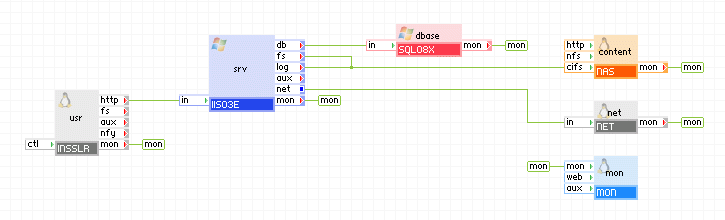
The WISA and WISAx4 reference applications are two-tier web applications that allow you to easily port your applications.
The WISA application consists of a single web server, database server, file server, gateway for external network access, and input gateway for user access. The application also contains a monitor that the maintainer can use to monitor application data (for example, CPU/memory usage, website hit rate, and so on).
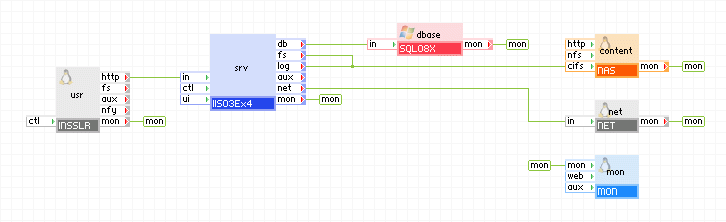
The WISAx4 adds a load-balanced web tier that contains a load balancer and four web servers. WISAx4 is designed for applications that incur heavy traffic, such as being accessed by hundreds of users.
Important! WISA and WISAx4 are not automatically installed on a grid. See the installation reference for more information.
|
Property Name |
Type |
Description |
|
in_ip |
IP |
IP address where the WISA application provides services to users. This property is mandatory. |
|
out_ip |
IP |
IP address used by the WISA application to access an external network outside of the application (that is, the internet). This property is mandatory. |
|
netmask |
IP |
Network mask for the network on which in_ip and out_ip reside. This property is mandatory. |
|
gateway |
IP |
Defines the IP network gateway (router) for all outgoing traffic to the external network using in_ip and out_ip. This property is mandatory. |
|
dns1 |
IP |
IP address of the primary DNS server used for host name resolutions. This property is mandatory. |
|
dns2 |
IP |
IP address of the backup DNS server used for host name resolutions. Default: empty (not used). |
|
mon_standby |
Int |
Specifies whether application monitoring is disabled upon application start for the WISA application. If non-zero, monitoring is disabled. If zero, monitoring is enabled. The monitoring can be enabled at runtime by manually starting the mon appliance. Default: 1 (disabled). |
|
srv2_standby |
Int |
Specifies whether the second IIS server is in standby mode. If non-zero, the second IIS server is in standby mode. If zero, it is not in standby mode. This property is valid only for the WISAx4 application. Default: 1 (standby mode). |
|
srv3_standby |
Int |
Specifies whether the third IIS server is in standby mode. If non-zero, the third IIS server is in standby mode. If zero, it is not in standby mode. This property is valid only for the WISAx4 application. Default: 1 (standby mode). |
|
srv4_standby |
Int |
Specifies whether the fourth IIS server is in standby mode. If non-zero, the fourth IIS server is in standby mode. If zero, it is not in standby mode. This property is valid only for the WISAx4 application. Default: 1 (standby mode). |
Important! The IP addresses configured in the in_ip and out_ip properties must be IP addresses available on your grid. You can find them, and the netmask, gateway, and DNS servers on your grid dashboard.
WISA
|
Resource |
Minimum |
Maximum |
Default |
|
CPU |
0.75 |
68 |
2.45 |
|
Memory |
2.375 GB |
166 GB |
2.781 GB |
|
Bandwidth |
6 Mbps |
10.5 Gbps |
950 Mbps |
WISAx4
|
Resource |
Minimum |
Maximum |
Default |
|
CPU |
1.6 |
108 |
3.451 |
|
Memory |
4.718 GB |
390 GB |
4.906 GB |
|
Bandwidth |
10 Mbps |
18.5 Gbps |
1.4 Gbps |
The application itself uses several volumes which are already part of the application and are configured into the appliance instances.
|
Volume |
Description |
|
sql_data |
Volume for the database data storage. This volume is assigned to the SQL08y appliance. By default, an empty volume named SQL is supplied for the application to use. |
|
fs_data |
Volume for storing the WISA application web pages, code, scripts, and anything else that is required by the application. It is also used to store the web server logs. This volume is assigned to the NAS appliance. By default, an empty volume named fs is supplied for the application to use. |
|
mon_data |
Volume for storing monitoring data for the application. You should not access or modify this volume. This volume is used internally by the MON appliance. |
This section describes how to use and operate the WISA applications. It is geared towards both administrators and regular CA AppLogic users. The initial setup and maintenance of the WISA applications requires access to a CA AppLogic grid.
WISA and WISAx4 are designed to allow the user to quickly port their application over to CA AppLogic.
Initial Application Setup
Use the following steps to get your own WISA application up and running on a CA AppLogic grid.
To run a WISA application on a CA AppLogic grid
app provision WISAx4_r3 mywisaapp in_ip=1.2.3.4 out_ip=1.2.3.5 netmask=255.255.255.0 gateway=1.2.3.1 dns1=1.2.3.50 dns2=1.2.3.51 mon_standby=0 srv2_standby=0 srv3_standby=0 srv4_standby=0 fs.size=250MB sql.size=3GB
CA AppLogic will provision the mywisaapp application and start it on the grid.
You can now access your application using a browser.
Application does not serve any page prior to loading content, so if you have not setup web content yet - application should return an error page (for example, 503). If you do not see web response on this stage, verify your IP addresses are configured correctly and restart the application if needed.
You now have a running WISA application on your grid.
Your application will be ready to go.
Install Your Application
WISA applications are designed to allow you to quickly port your existing applications to a CA AppLogic grid.
To install your own software on your WISA application, SSH into the web appliance from within the CA AppLogic shell: ssh mywisaapp:main.srv1
After all of your software is installed and configured, there is no need to restart the application (unless the software you installed requires a reboot).
You should now be able to access your application by using the configured hostname or IP address (in_ip).
Serve Dynamic Content from the Remote Filesystem
To serve dynamic content from the remote file system share, each IISx appliance in the application must configured as given in the following procedure.
To configure each IISx appliance in the application
Monitor Your Application
After your application has started, you can monitor the application by using the monitor GUI accessible through the CA AppLogic GUI.
To monitor your application, do one of the following:
If you started your application with the monitor in standby state, you can manually start it at runtime: comp start mywisaapp:main.mon. The monitor must be started before you can access it through the CA AppLogic GUI.
After the monitor has started, you may now access the monitoring GUI to monitor your application. This is used to monitor CPU/memory usage, number of hits your website is getting, traffic load, and so on.
Note: The mon appliance properties are not configured by default; See the MON datasheet on how to configure mon for things like setting the monitor title, enabling background alarms, and so on.
|
Copyright © 2013 CA Technologies.
All rights reserved.
|
|