

The Canvas is the drawing area where you assemble your application by dragging elements from the catalog palette, selecting instances, and re-routing connections. As you assemble your application, the Canvas displays the components of an application with their interface connections. Components can be either appliance instances of classes defined in a catalog or singleton classes.
You can access the following tools:
Dynamic Canvas
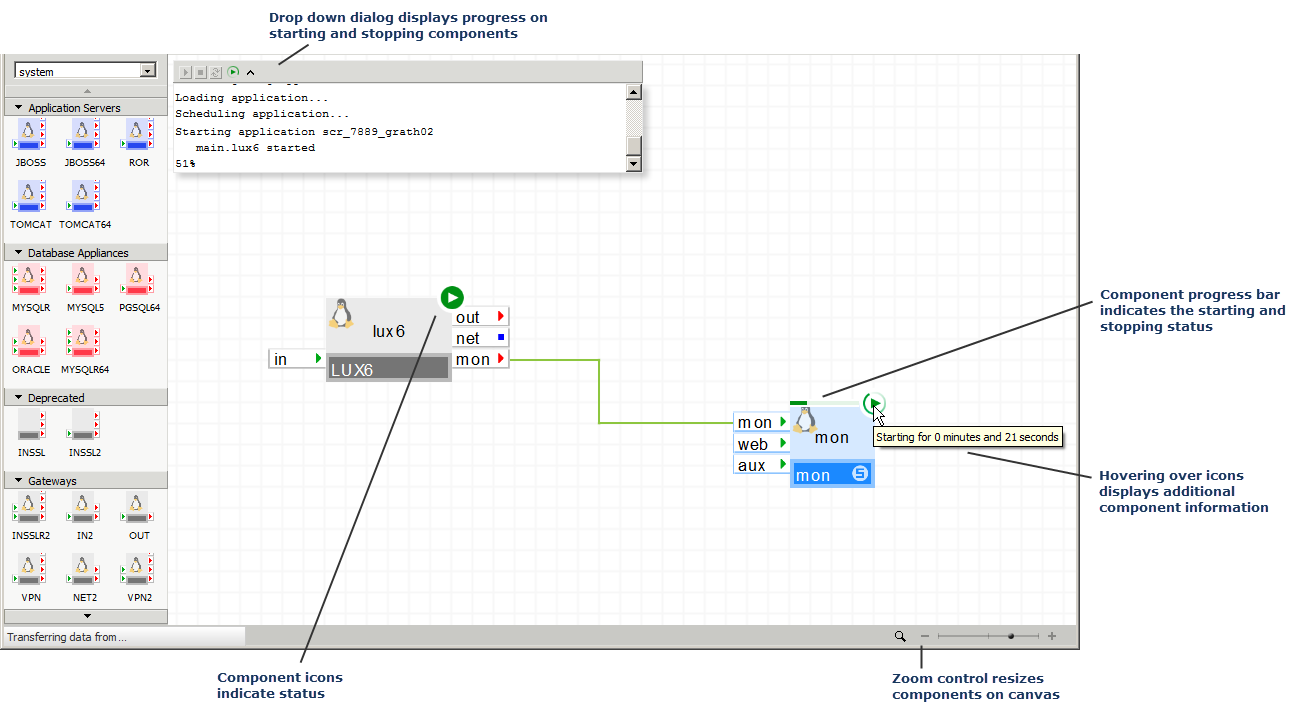
The dynamic canvas allows you to monitor component state changes including:
The application status displays as a badge in the upper left corner of the canvas. If an application action has been performed from an Infrastructure Editor session, the status display area is expandable by clicking the arrow head.
In addition, you can perform the following application actions using those control buttons. These buttons are disabled if you do not have control access to the application:
Component Status Badges
When the application is in any state, except stopped, each of its components is also decorated with a status badge that indicates the component’s state.
The status badges for applications and components are:
 Start
Start
 Standby
 Stopped
 Error
Error
 Starting
 Stopping
While an application is starting or stopping, a progress bar displays the duration of the starting or stopping operation.
Editor Zoom Control
You can use the zoom control to zoom in and out of the canvas to view complex configurations that are difficult to see at normal size. The zoom control allows you to:
To view the zoom options, click the zoom magnifying glass and select the option.
You can also use the mouse wheel to increase or decrease the zoom. Clicking near the center divider of the zoom slider resets the zoom to 100%.
Note: Internet Explorer is not supported.
Accessing Operations
In addition, you can access the following operations by right-clicking the canvas to display the sub menu:
Canvas Operations
Application Access Operations
Application Editing Operations
Application Documentation Operations
|
Copyright © 2013 CA Technologies.
All rights reserved.
|
|