Using Decision Tables › How to View and Modify Decision Table Properties › Add and Modify Actions
Add and Modify Actions
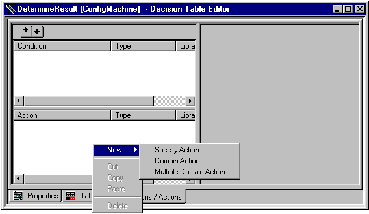
Actions define the activities to be taken by the decision table rule if the conditions are met. Actions are composed of an action and a number of selector cells. Actions can be defined in three ways: Specify Action, Domain Action, and Multiple Domain Action.
To add a action
- Right-click in the Action pane and select New from the right-click pop-up menu.
Or
From the Logic menu, choose New, Action
- Select Specify Action, Domain Action, or Multiple Domain Action from the pop-up menu.
The action properties pane appears to the right of the Conditions/Actions page.
- For Specify Action: enter a name to describe the action in the Name field. If no name is entered, the name defaults to newActionRow.
- For Domain Action: select the label of an Action domain interface member from the Name field drop-down list. Notice that, if present, the type of input argument to the domain interface member is indicated; otherwise (none) is indicated. The description of the selected domain interface member is provided.
- For Multiple Domain Actions: enter a name to describe the action in the Name field. If no name is entered, the name defaults to newActionRow. A list of labels of Action domain interface members that are possible values for Multiple Domain Action is provided
- For Specify Action only: enter the statement(s) that are to be executed when the action is to be performed in the Implementation field. This can be any Aion executable statement or block of code, including
- An assignment statement; for example, Department = "CS"
- A fully specified Aion method; for example, SetDepartment("CS").
Actions should be limited to a few lines of code.
To modify action properties
- In the Decision Table Editor's Table page, right-click an Action Name cell.
- Select the Edit <name> pop-up to display action properties in the Conditions / Actions page.
To view the effect of changes, click the Table tab. Changes are automatically applied if Auto Refresh is checked in the Table page pop-up menu. Or you can select Refresh from the Table page pop-up menu to apply changes.
Note: You can tell Aion to use Auto Refresh to refresh the table each time a condition or action is modified or added by checking Automatically Refresh in the Decision Table Options dialog (select Tools, Options, Decision Table).
- Specify Action: Like Specify Condition, Specify Action follows the 8.1 style of defining Actions.
You must create a name for the Action and specify the implementation of that action by means of an explicit method call or attribute-value assignment.
Where the implementation is a method call without arguments, this style is satisfactory. However, when the implementation requires different arguments to be passed to a method, or different values to be assigned to an attribute, this style tends to produce large decision tables, because each different argument or value has to be explicitly defined in a separate Action. Domain Interfaces provide a means to address this problem. Both Domain Action and Multiple Domain Action make use of Domain Interface Members. Using Domain Interface members provides additional capabilities not provided by specifying an Action. For this reason, the use of Domain Action and Multiple Domain Action is encouraged over Specify Action.
- Domain Action: Like Domain Condition, Domain Action allows you to choose a previously defined Domain Interface Action as the Action by selecting its label from the Name drop-down list, and, again, the implementation is automatically provided by the Domain Interface Member. However, in the case of Domain Actions, there are two possibilities:
- The Domain Interface Member does not take an input argument. In this case, a specified action and the Domain Action look much the same in the decision table itself: invocation of both is indicated by an "X" in the appropriate Action Selector cell of the decision table.
- The Domain Interface Member takes an input argument. In this case, you must specify the appropriate value to be passed as that argument in the Action Selector cell of the decision table where the Action is to be invoked. This technique reduces the table bloat that was produced when actions involved different arguments or attribute-value assignments.
- Multiple Domain Action: This option allows you to specify Domain Interface Actions in the Action Selector cells of a decision table.
One row can be used to invoke different actions as long as these actions are mutually exclusive. In this case, you must create a name of the Action, as is done in the Specify Action style. The difference is that during decision table construction, an Action Selector cell of a Multiple Domain Action automatically transforms into a drop-down list when it becomes the focus. The list consists of Domain Interface Member labels that may be selected for that cell. Valid Domain Interface Members are those that (1) are defined to be of type Action, and (2) do not require an input argument.