Using Decision Tables › How to View and Modify Decision Table Properties › Add and Modify Conditions
Add and Modify Conditions
Conditions define the premises of a Decision Table rule. A Condition is composed of a Condition Name and a number of test cells. Test cells display ranges or values specified in the Condition row. Conditions can be defined either by specifying (the implementation of) a condition or by specifying a Domain Condition.
To add a condition
- Do one of the following:
- Right-click in the Condition area of the Decision Table Editor, then select New from the right-click pop-up menu.
- From the Logic menu, choose New, Condition.
- Click the Add Condition button on the Decision Table toolbar.
- Select Specify Condition or Domain Condition from the pop-up menu.
The condition properties pane appears to the right of the Conditions/Actions page.
- For Specify Condition: enter a name of your own choosing to describe the condition in the Name field.
If no name is entered, the default condition name, newConditionRow, will be used.
- For Domain Condition: select a condition domain interface member from the Name field drop-down list.
- In the Test Values field, enter test values for comparing with values obtained from the knowledge base by the condition's implementation.
If no operator is specified, equal (=) is implied.
- Values must be literal expressions or constants; they cannot be non-constant attributes or methods.
- String values must be enclosed in quotes.
- Valid operators include: <,>,<>,<=,>=.
- To specify a numeric range, use the range operator .. between the extreme values of the range. For example, >18..<=65, which would be read "Greater than 18 and less than or equal to 65."
- Boolean constants are TRUE, FALSE; Yes, No.
- Choose Test unknown value if you wish to include Unknown as one of the values the inference engine explicitly tests for.
- Choose Test for Other Values if the rule should check for condition values other than those listed in the Test Values.
If this checkbox is turned on, an ELSE cell is displayed in the table to indicate the decision path to take when values other than those explicitly listed are encountered.
- For Specify Condition only: enter the source from which Aion will obtain the value to be tested by this condition in the Implementation field.
Values can be any of the following:
- The name of an Aion class, for example, Department.
- A boolean expression; for example, Age > 50.
- An Aion method that returns a value; for example, GetDepartment( ).
To modify Condition properties
- In the Decision Table Editor Table page, right-click a Condition Name cell.
- Select the Edit <name> pop-up to display condition properties in the Conditions/Actions page.
To view the effect of changes, click the Table tab. Changes are automatically applied if Auto Refresh is checked in the Table page pop-up menu. Or you can select Refresh from the Table page pop-up menu to apply changes.
Note: You can tell Aion to use Auto Refresh to refresh the table each time a condition or action is modified or added by checking Automatically Refresh in the Decision Table Options dialog (select Tools, Options, Decision Table).
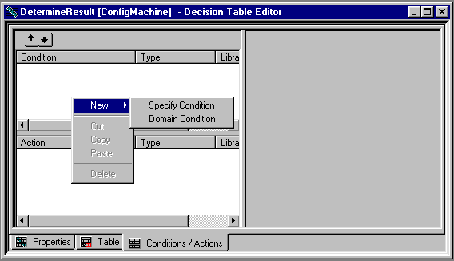
What do these choices represent?
By using Domain Interface Members to support dynamic rules, Aion has introduced a new way to construct decision tables: with Domain Interface members. The Specify Condition style represents the 8.1/8.1.1 style of defining conditions and constructing decision tables, while Domain Condition permits static decision tables to be defined with Domain Interface members. The use of Domain Condition is encouraged.
- Specify Condition: you must create a name for the Condition and specify its implementation to terms of an existing Attribute or Method.
- Domain Condition: you may use a previously defined Domain Interface Condition member as the Condition by selecting its label from the Name drop-down list. In this case the Implementation is automatically provided: it is the method designated by the selected Domain Interface member label.
Note: A decision table may consist of both specified implementations and Domain Interface members.
Rules for entering test value specifications are: