 that is included in the Aion program group.
The Dynamic Rulebase Administrator provides the following functionality:
Note: The rulebase for an application can be created under any relational Database Manager supported by Aion's DataLib, such as Oracle, Sybase, DB2, or any ODBC supported database. Aion provides a default empty rulebase called Rulebase.mdb in the \Rulebase subdirectory of the Aion, for Windows, install directory for Windows. For more information about the default rulebase, see The Default and Empty Rulebases.
Note: When Save Term References as HTML is selected, a popup dialog box appears and you can enter a term pattern or a term name. This option is also available for Save Rule References as HTML. The following Wild card search is supported:
Represents any string of zero or more characters
Example: Get* — Finds all terms started with "get"
Lists any single character
Example: G?t — Find all terms started with "g", ended with "t", and have one and only one character between g and t.
Lists escape character
Example: *\? — Find all terms ended with a '?'
The search is case-insensitive.
Note: The Dynamic Rulebase Administrator is itself an Aion application developed with COBSLib.
During installation, Aion installs two rulebases in the \Rulebase subdirectory. Both rulebases are in MS Access format:
The default rulebase is Rulebase.mdb. The characteristics of the default rulebase are:
You can use the default rulebase to begin your own rulebase development. If you use this rulebase for your own development project, you may want to consider whether you should move the rulebase to a development directory and create your own ODBC Source pointing to it.
To connect to an ODBC Source for the default rulebase (rulebase.mdb):
The other rulebase is the empty rulebase-EmptyRulebase.mdb. It also contains no rules. However, the empty rulebase allows read only access. It is a permanent backup of the default rulebase. To use this rulebase (that is, to restore the default rulebase), copy it to the install \rulebase directory, rename it, and change its properties to allow read/write access.
The \rulebase directory is located on the first level below the root which is created by installing Dynamic Rule Manager(DRM).
Aion also provides SQL scripts for creating rulebases, SQLScript.sql, in the \Rulebase subdirectory. This text file contains SQL for creating a rulebase under MS Access, Sybase, Oracle, and DB2.
To open the Dynamic Rulebase Administrator, click on the Dynamic Rulebase Administrator icon that is included in the Aion program group.
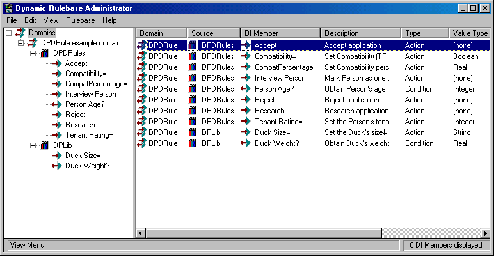
The left panel is called the Rulebase Workspace. It consists of a tree list presenting (in hierarchical order):
The right panel is called the DI Member Detail View. It consists of a listing of the domain interface members for the current highlighted item in the Rulebase Workspace and shows:
Note: This date does not necessarily represent the date that this domain interface member was changed in the application. For example, the domain interface member may be changed on January 1 but the application might not be synchronized with the rulebase until January 8. Between January 1 and January 8 the application would have probably been saved several times with other changes unrelated to this domain interface member. The Last Update would be the date on which the application was last saved (perhaps January 7) before its synchronization on January 8.
The View menu provides controls for displaying the contents of this panel.
Importing the members of a domain interface involves the following steps:
Select a rulebase from the File, Settings menu option to open the Dynamic Rule Settings dialog. In the Dynamic Rule Settings dialog:
Specify the database access information of the rulebase with which you wish to connect:
The connection can be tested before attempting to actually open a domain in the rulebase by clicking the Test button.
The other principal driver of the Dynamic Rulebase Administrator is an Aion knowledge base. An Aion knowledge base must be opened in the Administrator in order for the Administrator to access the domain interface that has been defined in that application. To open an Aion application in the Administrator:
The name of the Dynamic Rulebase Administrator window will change to reflect the name of the opened source (application).
Editing (deleting and renaming) is performed by highlighting an item in the Rulebase Workspace. You may delete or rename domains and sources, but domain interface members can only be deleted.
Important! Renaming sources should be performed only if the original Aion application (library) has been renamed. Mistakenly renaming a source to a non-existent application could prevent all elements of the domains using that source from being accessible by Aion.
Highlighting and right clicking on a domain interface member in the DI Member Detail View is equivalent to highlighting and right clicking the name of domain interface member in the Rulebase Workspace. You may use either the Edit menu from the main menu bar or right click on the highlighted item and select the Edit option from the pop-up menu. Options on the Edit menu may be grayed out if they are not available at the level of the highlighted item. Editing may be performed without an Aion application being opened.
Administering the rulebase (creating new domains and importing and synchronizing domain interface members) is performed by highlighting an item in the Rulebase Workspace or in the Detail View and selecting the desired option from the Rulebase menu. Alternatively, the Rulebase options may be selected from the pop-up menu by right-clicking a highlighted item.
Whenever the rulebase level (the root node of the tree) is the selected item in the Rulebase Workspace, the Administrator automatically selects the last domain to which domain interface members have been imported as a default target domain.
Note: The rulebase level is selected by default when the rulebase is opened.
To establish a domain other than the default, highlight the name of the domain or any element below the domain (a Source or domain interface member belonging to that domain) in the Rulebase Workspace. You may also select an item in the Detail View to establish a domain and source.
To establish a new domain, choose New Domain from the Rulebase menu. The New Rulebase Domain dialog will appear. Enter the name of the new domain and click OK. The name of the domain will be added to the Rulebase Workspace.
An application may export its domain interface members to several different domains. Indeed, it is possible to export the same domain interface member to multiple rulebase domains. Thus, rules in different domains can share the same domain interface members (share the same business vocabulary).
Similarly, a domain may contain domain interface members imported from different Aion applications.
Once an Aion application is opened in the Administrator and a domain established, domain interface members must be imported from the application and the domain must be synchronized with changes made to the application since the last import or synchronization.
To access the Import/Synchronize dialog, choose the Import/Synchronize option from the Rulebase menu.
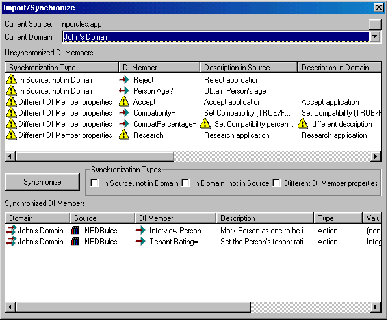
The Import/Synchronize dialog provides two lists:
The list of unsynchronized domain interface members specifies the reason that a match cannot be found between the Source and Domain (Synchronization Type column). To synchronize an item from the upper list, highlight the item and click the Synchronize button. Unless the item is being deleted from the domain, the item will move to the lower list. It is possible to highlight all items in a particular category by selecting one or more of the Synchronization Type checkboxes. For an explanation of these types, see Comparing Domain Interface Members in the Application and Rulebase. Clicking the Synchronize button synchronizes all items that are highlighted.
To import domain interface members:
OR
OR
Right click on the highlighted domain and select Rulebase, Import/Synchronize from the pop-up menu.
The Import/Synchronize dialog displays.
OR
Highlight the specific items in the Unsynchronized DI Member list that are In Source, not in Domain that you wish to import.
The checkboxes in the Synchronize Types group determine what groups of application (Source) or rulebase domain interface members are selected for synchronization in the Unsynchronized DI Members list.
Properties of a domain interface member include:
Note: A caution icon in the Import/Synchronize dialog indicate properties that do not agree for a domain interface member.
For more information about synchronizing the application domain interface and the rulebase, see Dynamic Rulebase Scenarios.
As an Aion application is developed, features of the domain interface will undoubtedly change. Domain interface members may be added or deleted; properties and even the names of the existing domain interface members may be altered. The Dynamic Rulebase Administrator, designed to keep the rulebase synchronized with later modifications made to Aion applications, facilitates making corresponding changes in the rulebase.
For step-by-step procedures used in these scenarios, see Importing Domain Interface Members.
Open the rulebase and application in the Dynamic Rulebase Administrator and, in the Rulebase Workspace, select the domain to which the new member is to be imported. If the member is to be imported to a newly constructed domain, it does not matter what domain is current. Select Rulebase, New Domain; then Rulebase, Import/Synchronize.
Highlight the name of the new domain interface member in the Unsynchronized DI Members list or select the "In Source, not in Domain" Synchronization Type to select all new domain interface members. Click the Synchronize button to import the domain interface member into the rulebase. You have a choice to add the domain interface members to just the current domain or to all domains in the rulebase by checking the Apply to all Domains checkbox.
Open the rulebase and application in the Dynamic Rulebase Administrator and, in the Rulebase Workspace, select the domain to which the member that has been changed belongs. Select Rulebase, Import/Synchronize.
Highlight the name of the changed domain interface member in the Unsynchronized DI Members list or select the "Different DI member properties" Synchronization Type to select all changed domain interface members. Click the Synchronize button. You have a choice to applying the changes to just domain interface members in the current domain or in all domains in the rulebase by checking the Apply to all Domains checkbox.
After opening the rulebase in the Dynamic Rulebase Administrator (you do not have to open the application), right click on the domain interface for which you want to change its name in the Rulebase Workspace or DI Member Detail View. Select Edit, Rename from the pop-up menu. Enter the new name of the domain interface member in the Rename DI Member dialog. Click Ok. You have a choice to rename just the selected domain interface member or all the domain interface members with that name in the rulebase by checking the Apply to all Domains checkbox on the Rename DI Member dialog.
After opening the rulebase in the Dynamic Rulebase Administrator (you do not have to open the application), right click on the domain interface member that you wish to delete in the Rulebase Workspace or DI Member Detail View. Select Edit, Delete from the pop-up menu. Click Ok in the Delete DI Member dialog. You have a choice to delete just the selected domain interface member or all the domain interface members with that name in the rulebase by checking the Apply to all Domains checkbox on the Delete DI Member dialog.
If the domain interface member has already been deleted in the application, you may also select a domain that contains this member and go to the Import/Synchronize dialog. Select the "In Domain, not in Source" Synchronization Type. Click the Synchronize button. The domain interface member will be deleted from the domain. Again, you have the choice to delete the domain interface member just from the current domain or from all domains in the rule by checking the Apply to All Domains checkbox.
Note: If the domain interface member is already used in rules, it cannot be deleted. A list of the rules using that domain interface member will be displayed. The Dynamic Rule Manager must be used either to delete the rules or to change them to use another domain interface member. The Dynamic Rulebase Administrator can then be used to delete the domain interface member from the domain.
Important! Attempting to inference using a dynamic rule whose domain interface members have been deleted from the application will cause a runtime error.
Open the rulebase and application in the Dynamic Rulebase Administrator. In this scenario synchronizing the rulebase with the application requires two steps. The first step is the delete the domain interface from the domain in which it resided. See Scenario 4: Delete an imported domain interface member from the application.
The second step is to select the Source in which this member now belongs. This may be done by clicking the browse (ellipsis) button on the Import/Synchronize dialog and selecting the desired Source. Highlight the name of the domain interface member in the Unsynchronized DI Members list or select the "In Source, not in Domain" Synchronization Type to select all new domain interface members with respect to that domain. Click the Synchronize button.
| Copyright © 2009 CA. All rights reserved. | Send E-mail to CA about this topic |