

CA Risk Authentication Windows Installation Guide › How to Deploy CA Risk Authentication on a Single System
How to Deploy CA Risk Authentication on a Single System
To install the CA Risk Authentication components, use the CA Risk Authentication 8.0 InstallAnywhere Wizard. This wizard supports Complete and Custom installation types.
Note: To install and configure CA Risk Authentication on a single computer, use the Complete option when you run the installer.
The following illustration shows the tasks to perform for installing CA Risk Authentication 8.0:
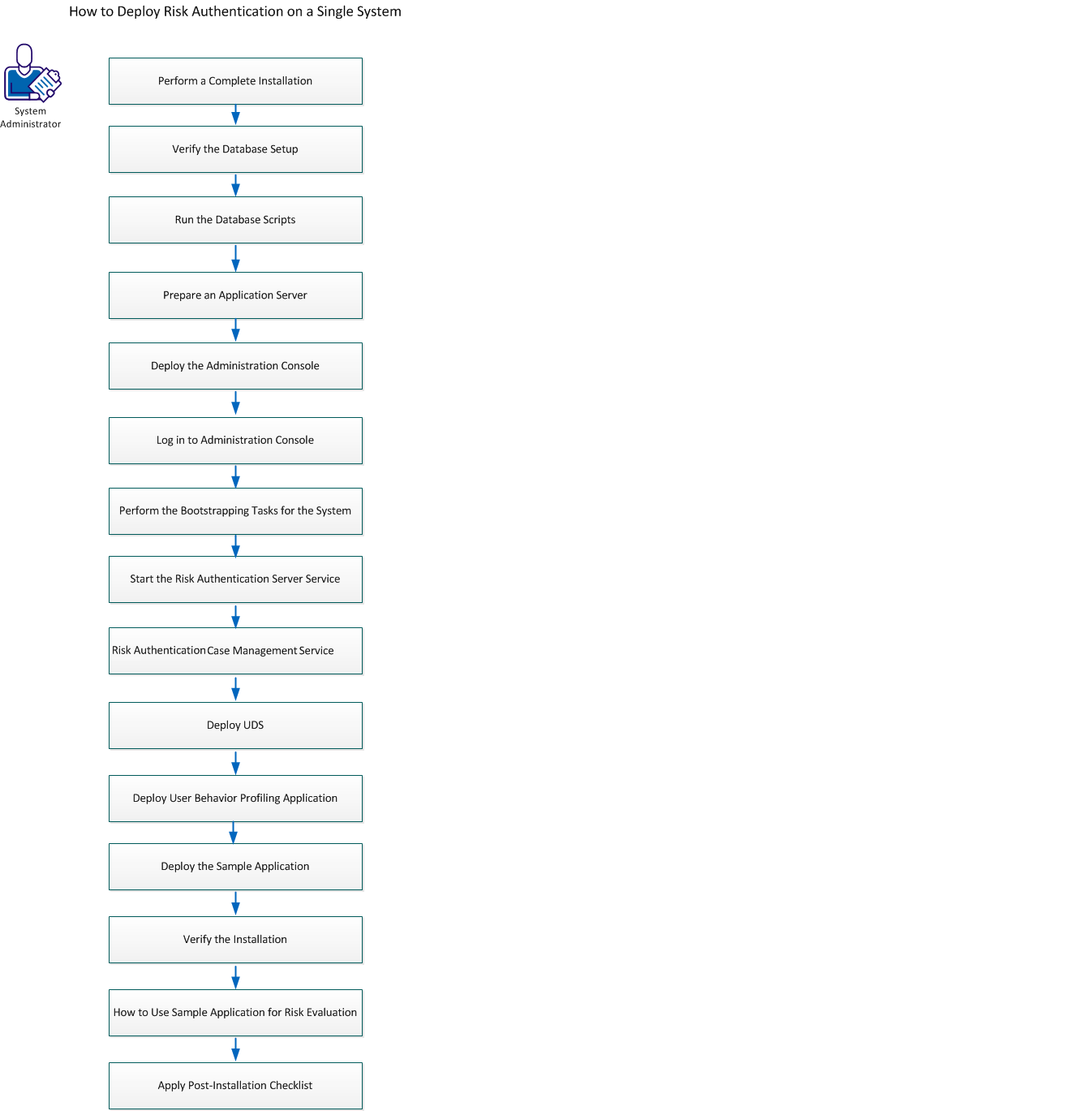
Perform the following tasks:
- Perform a Complete Installation
- Verify the Database Setup
- Run the Database Scripts
- Prepare an Application Server
- Deploy the Administration Console
- Log in to Administration Console
- Perform the Bootstrapping Tasks for the System
- Start the CA Risk Authentication Server Service
- Start CA Risk Authentication Case Management Service
- Deploy UDS
- Deploy User Behavior Profiling Application
- Deploy the Sample Application
- (Optional) Deploy User Behavior Profiling Application
- Verify the Installation
- How to Use Sample Application for Risk Evaluation
- Apply Post-Installation Checklist
Important!
Consider the following points while installing CA Risk Authentication on a single system:
- Verify that the <install_location> does not contain any special characters (such as ~ ! @ # $ % ^ & * ( ) _ + = { }[ ] ’ ").
- The MySQL database name must not contain dot(.) characters.
- Currently, you cannot modify or repair CA Risk Authentication components by using the installer. You must uninstall the component and then re-install it.
- Do not close the installer window, if the installation is in progress. If at any time during the installation (especially during the last stages), you click the Cancel button to abort the installation, then the installer may not remove all the directories that it has created so far. You must manually clean up the installation directory, <install_location>\Arcot Systems\, and its subdirectories.
- If you run the installer on a system that already contains an instance of an existing ARCOT_HOME, then:
- You are not prompted for an installation directory.
- You are not prompted for the database setup. The installer uses the existing database.
- You are not prompted to set up encryption.
- You can install and use CA Strong Authentication along with CA Risk Authentication. Both products use certain common components, which are copied during the installation of either product. If you have already installed CA Strong Authentication and you are now starting the CA Risk Authentication installation procedure, the CA Risk Authentication installer can detect the presence of the common components that were copied during the CA Strong Authentication installation. The CA Risk Authentication installer then displays the screens for performing a custom installation.
This section contains the following topics:
Perform a Complete Installation
How to Prepare an Application Server
Deploy the Administration Console
Perform the Bootstrapping Task for the System
Deploy User Data Service (UDS)
Deploy User Behavior Profiling Application
Deploy the Sample Application
How to Use the Sample Application for Risk Evaluation
Apply the Post-Installation Checklist
Copyright © 2014 CA Technologies.
All rights reserved.
|
|