

|
|
|
CA Access Control for Virtual Environments supports Active Directory and the database you previously specified as user stores.
Follow these steps:
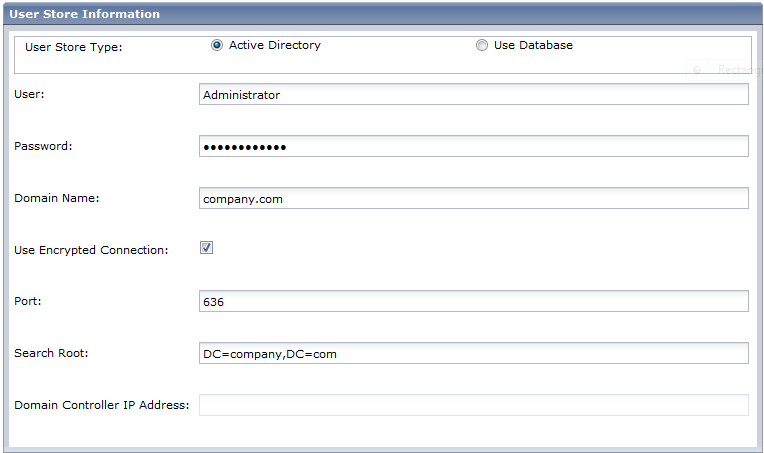
Select one of the following:
Active Directory—you specify the connection information details
Database—stores user information in the RDBMS
User
Defines the Active Directory user account name that is used to manage CA Access Control for Virtual Environments.
Note: You can define a user with read-only privileges for this parameter.
Password
Defines the password of the Active Directory user account that is used to manage CA Access Control for Virtual Environments.
Domain Name
Defines the Active Directory DNS domain name.
Use Encrypted Connection
Specifies the use of an encrypted connection with Active Directory
Port
Defines the port used by default for LDAP queries against Active Directory, for example, 636.
Search Root
Defines the search root, for example, ou=DomainName, DC=com.
Note: Set the Search Root at least one node higher in the directory tree than the container where users are defined. Otherwise, CA Access Control for Virtual Environments can launch without displaying any tabs.
Domain Controller Address
Defines the domain controller IP address.
The installation program verifies the connection to Active Directory before continuing.
The system user screen opens.
(Active Directory only) Defines the DN of the Active Directory user who is assigned the System Manager admin role in CA Access Control for Virtual Environments.
Note: By default, a user with the System Manager admin role can perform, create, and manage all tasks in CA Access Control for Virtual Environments. For more information about the System Manager admin role, see the Enterprise Administration Guide.
(Database only) Defines the password of superadmin, the CA Access Control for Virtual Environments administrator. Make a note of the password so you can log in to CA Access Control for Virtual Environments when the installation is complete.
Note: In this step, you create the superadmin user in the database. The superadmin user is assigned the System Manager admin role in CA Access Control Enterprise Management. You log in as superadmin the first-time you log in to CA Access Control for Virtual Environments. For more information about the System Manager admin role, see the Enterprise Administration Guide.
You have defined the database and user store connections information. Configure the connection to the VMware vCenter.
| Copyright © 2011 CA. All rights reserved. | Tell Technical Publications how we can improve this information |