

|
|
|
The port being used by CA ARCserve D2D On Demand may conflict with the default port being used by Tomcat. This conflict will cause Tomcat to fail when CA ARCserve D2D On Demand is started before it. To remedy this problem, you can change the Tomcat default port as follows:
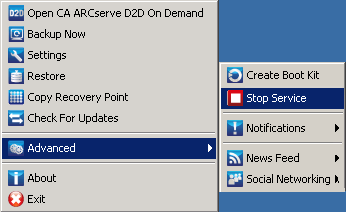
The CA ARCserve D2D On Demand Web Service is stopped.
The Tomcat server.xml file is located in the following folder structure:
C:\Program Files\CA\ARCserve D2D On Demand\TOMCAT\conf
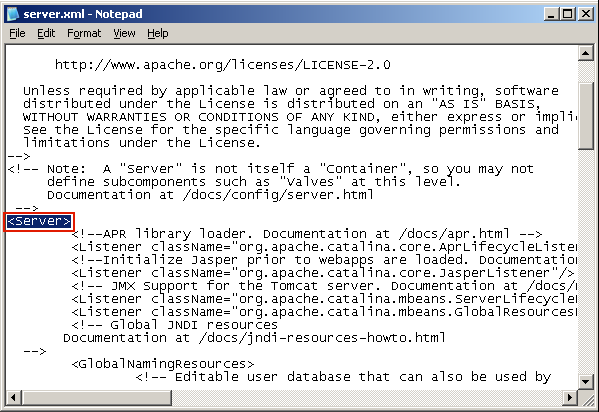
From:
<Server>
To:
<Server port="8015" shutdown="SHUTDOWN">
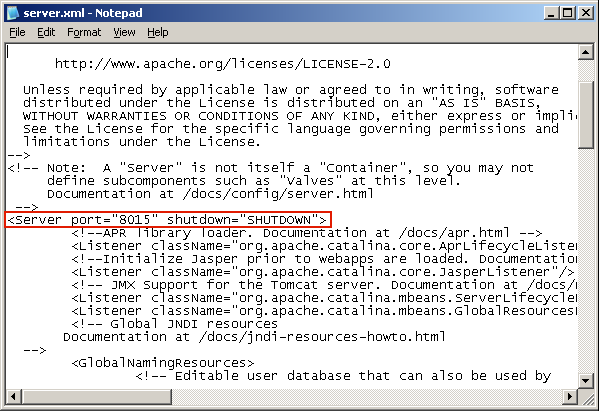
The command to shut down Tomcat has now been configured so that it must be received by the server on the named port (8015).
The CA ARCserve D2D On Demand Web Service is started.
| Copyright © 2012 CA. All rights reserved. | Tell Technical Publications how we can improve this information |