

|
|
|
CA ARCserve D2D On Demand lets you specify the destination settings for your information to be file copied.
Note: To view a video related to these File Copy Settings, see Manage File Copy Settings.
Specify the file copy destination
The File Copy Settings Destination dialog opens.
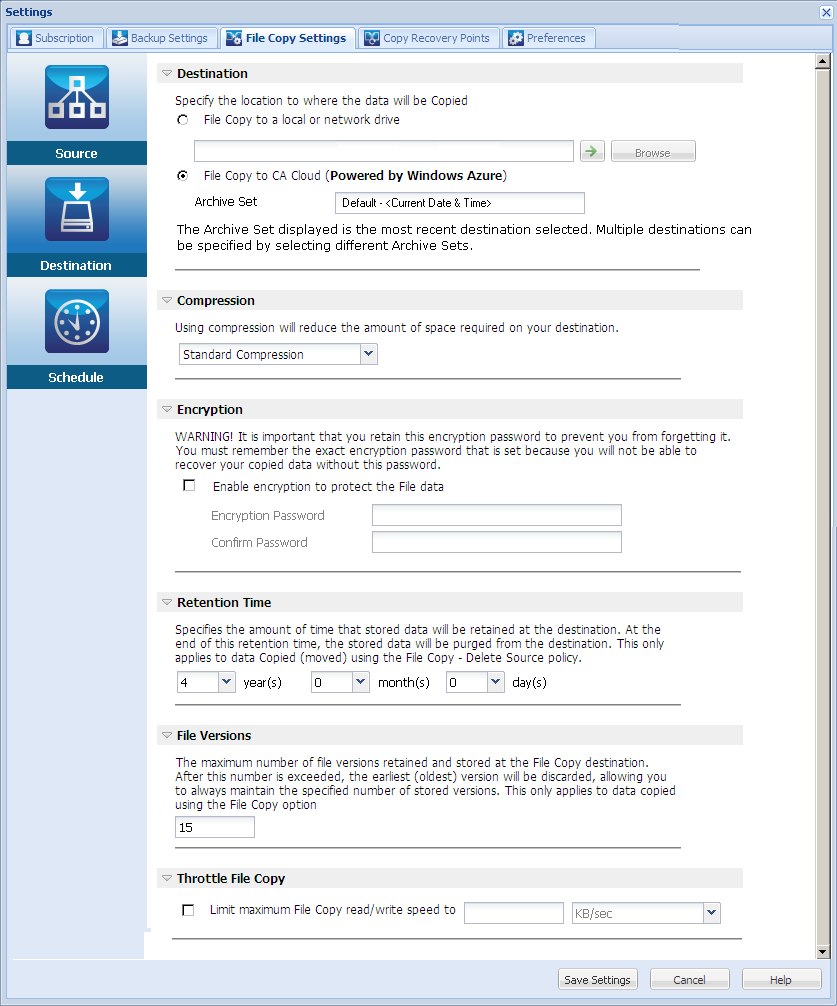
Specifies the destination location for the file copy job. You can only select one destination.
CA ARCserve D2D On Demand lets you specify the settings for file copying your backed-up files to a disk or to the CA Cloud. For file copying, you can specify to perform a copy and retain or a copy and move of your backed-up data. The two processes are similar, with the exception that when you perform a copy and move, the data is moved from the source to the destination (deleted from source location) and provides more available free space at your source. When you perform a copy and retain, the data is copied from the source to the destination (remains on source destination) and provides multiple stored versions.
Note: CA ARCserve D2D On Demand provides the capability to delete specified files or folders from the file copy destination to regain valuable storage space and possibly reduce storage cost. For more information, see Delete a File/Folder from the File Copy Destination.
When selected, lets you specify the full path of the location where you want to move or copy the source files/folders. The destination can be any local volume or folder or a file share accessible by any uniform naming convention (UNC) path. You can browse to this destination location. Clicking the green arrow icon lets you validate the connection to the specified destination.
When selected, lets you specify the CA Cloud location where you want to move or copy the source files/folders. The CA Cloud (powered by Windows Azure), lets you safely and securely store and retrieve your data, at any time, from anywhere on the Web.
Note: To eliminate any potential clock skew error when attempting to connect to the cloud, verify that your machine has the correct time zone set and the clock is in sync with the global time. You should always check the time of your machine against the GMT time. If the time of your machine is not synchronized with the correct global clock time (within 5 to 10 minutes), your cloud connection may not work. If necessary, reset the correct time for your machine and rerun your file copy job.
Archive Set
By default, the most recent saved archive set destination will be automatically displayed in this field. If the archive set has not been previously saved, the default value will be "Default - <DateTime>" with the current date and time displayed in this field.
You can specify an archive set name as the destination to store your file copy data. By specifying an archive set, you can then specify more than one destination with no dependency on any other destination. In addition, each archive set destination can have its own encryption option (enabled or disabled) and its own encryption key.
An archive set is similar to a bucket or container and is used to store both the file copy data and encryption key information in the CA Cloud. Each archive set has a unique name (identifier) and can only be is accessed using the corresponding encryption key (password). Each time you change the encryption key or disable the encryption option, a new archive set is required.
For either destination option, if the connection to the specified destination is lost or broken, CA ARCserve D2D On Demand makes several attempts to continue the file copy job. If these reattempts are not successful, a makeup job is then performed from the point where the failure occurred. In addition, the activity log is updated with a corresponding error message and an email notification is sent (if configured).
Specifies the type of compression to be used for file copy jobs.
Compression is performed to decrease your storage space at the file copy destination, but also has an inverse impact on your file copy speed due to the increased CPU usage.
The available options are:
No compression is performed. This option has the lowest CPU usage (fastest speed), but also has the largest storage space requirement for your file copy.
Some compression is performed. This option provides a good balance between CPU usage and storage space requirement. This is the default setting.
Maximum compression is performed. This option provides the highest CPU usage (lowest speed), but also has the lowest storage space requirement for your file copy.
Specifies to use encryption for file copying.
Data encryption is the translation of data into a form that is unintelligible without a deciphering mechanism. CA ARCserve D2D On Demand data protection uses secure, AES-256 (Advanced Encryption Standard) encryption algorithms to achieve maximum security and privacy of your specified data.
When an encryption is selected, you must provide (and confirm) an encryption password.
This setting only applies to file copied data that is moved (not file copy data that is retained).
Specifies the amount of time (years, months, weeks, days) that the stored data is retained at the destination location. At the end of the specified retention time period, the stored data is purged from the destination.
The retention time calculations are based upon a month being 30 days and a year being 365 days. For example: If you specify a retention time of 2 years, 2 months, and 5 days, then the total retention time for your file copied data is 795 days (365 + 365 + 30 + 30 + 5).
Important! Because this retention time setting only applies to data that has been copied and moved from the source to the destination (and not copied and retained), it is important to understand that at the end of the specified retention time when the data is purged from the destination, all of this moved data is no longer stored or saved.
Note: The Retention Time purge process is only triggered if the File Copy Schedule option is enabled.
This setting only applies to copied data that is retained (not copied data that is moved).
Specifies the number of copies retained and stored at the destination location (cloud or disk). After this number is exceeded, the earliest (oldest) version will be discarded. This cycle of discarding the oldest stored version repeats as newer versions are added to the destination, allowing you to always maintain the specified number of stored versions.
For example, if your specified File Versions retention count is set to 5 and you perform five file copies at times t1, t2, t3, t4, and t5, these file copies become the five file copy versions retained and available to recover. After the sixth file copy is performed (new version is saved), CA ARCserve D2D On Demand will remove the t1 copy and the five available versions to recover are now t2, t3, t4, t5, and t6.
By default, the number of copies retained at the destination location before discarding is 15.
You can limit the maximum read/write speed (in either MB/min or KB/sec) at which all file copy jobs (file copy, file copy restore, file copy catalog resync, etc.) are processed to/from the specified destination. (All throttling is performed to or from the destination depending on the type of job being performed. For a file copy job, this setting controls the maximum speed to the destination. For a file copy restore job, this setting controls the maximum speed from the destination).
You can throttle the file copy speed to reduce network utilization. (If the file copy destination is a cloud location, this setting controls the bandwidth usage to this cloud location). However, by limiting the file copy speed, it will have an adverse effect on the file copy window. As you lower the maximum file copy speed it will increase the amount of time of perform the file copy job. For a file copy job, the Job Monitor on the CA ARCserve D2D On Demand homepage will display the average Read and Write speed of the job in progress and the configured throttle speed limit.
Note: By default, the Throttle File Copy option is not enabled and file copy speed is not being controlled.
Your File Copy settings are saved.
| Copyright © 2012 CA. All rights reserved. | Tell Technical Publications how we can improve this information |