

|
|
|
If you have file copy data stored at a destination and no longer want to retain it at that location, you can select specific files or entire folders to delete. To delete a file or folder from the file copy destination, you must first access the restore methods selection dialog and select the Browse File Copies option.
Delete a File Copy file or folder
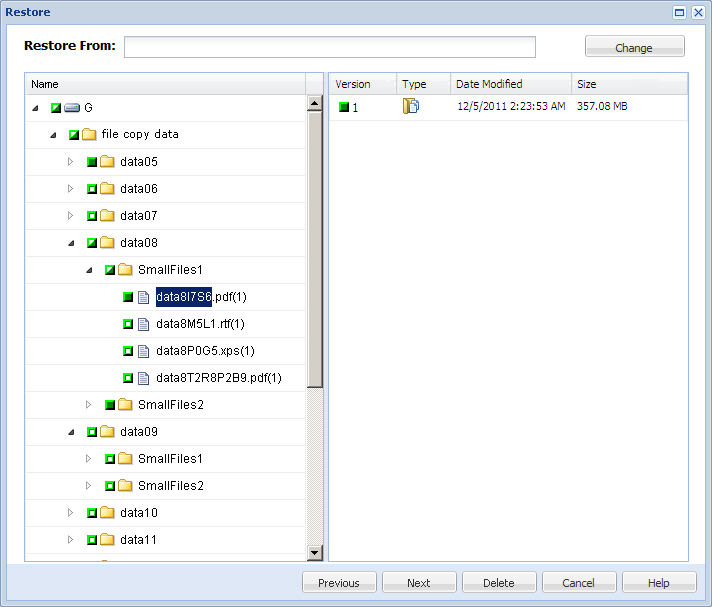
The Restore dialog displayed.
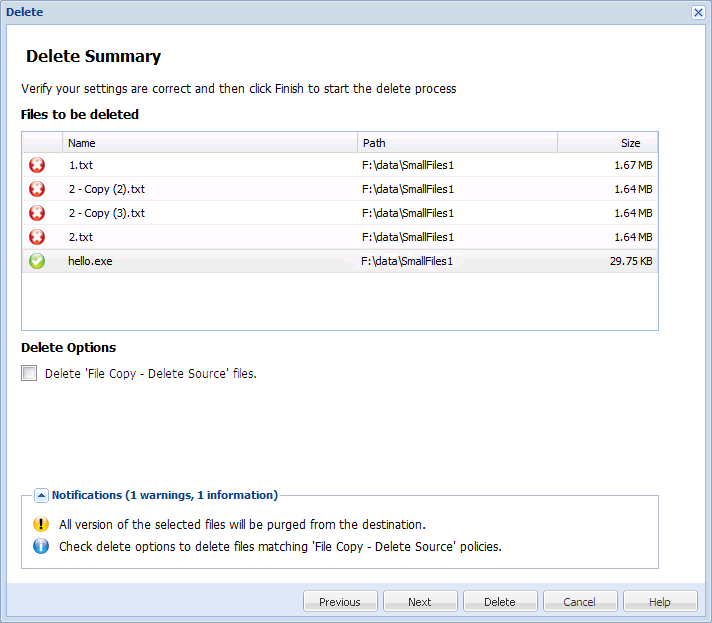
The Delete Summary dialog opens with the selected files/folders displayed in the "Files to be deleted" field.
Note: If you selected a folder to delete, only the folder itself is displayed in the "Files to be deleted" field, and not the individual files within the folder. However, all files within the folder that have a green check icon will be deleted. Any files within the folder that have a red X icon will not be deleted unless you select the Delete Option.
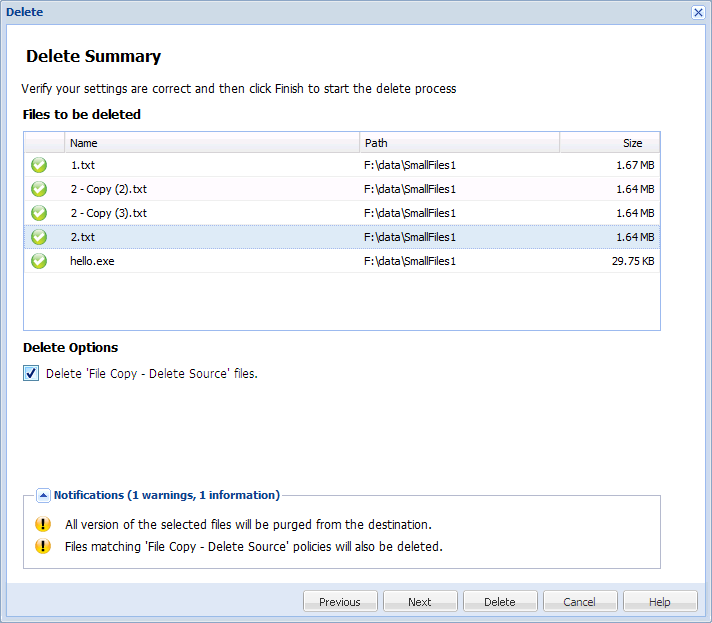
With this option selected, all files/folders displayed in the "Files to be deleted" field are now displayed with a green check icon.
Note: If a selected folder contains files that were copied using both the "File Copy" option and the "File Copy - Delete Source" option, only the files that used the "File Copy" option will be deleted, unless you select the Delete Option.
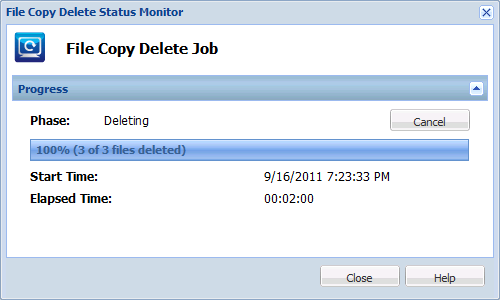
A status notification window appears and the file copy delete process for the selected files/folders is launched immediately. The Job Status monitor displays the progress of the file copy delete job.
Note: Deleting a file/folder does not permanently remove it from the file copy destination if it is still part of the file copy source. The next time a File Copy job is run, the deleted file/folder will be copied again from the source to the destination. To avoid this and permanently remove the specified file/folder from the destination, you must modify your file copy policies and filters to exclude the specified file/folder from being copied to the destination.
| Copyright © 2012 CA. All rights reserved. | Tell Technical Publications how we can improve this information |