

|
|
|
Each time CA ARCserve D2D On Demand performs a successful backup, a point-in-time snapshot image of your backup is also created. This collection of recovery points allows you to locate and specify exactly which backup image you want to restore.
|
|
|
|
CA Support: |
|
|
YouTube: |
|
Restore from a recovery point
The restore methods selection dialog opens.
The Browse Recovery Points dialog opens.
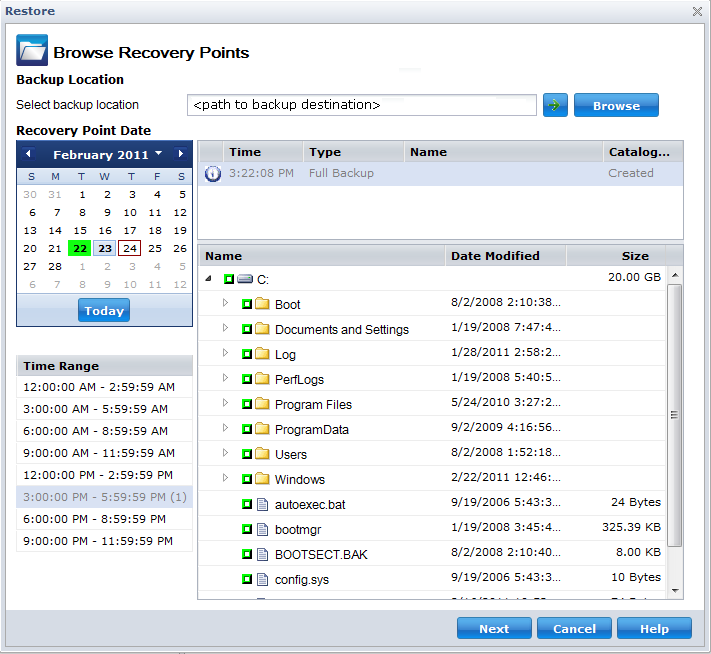
The calendar view highlights (in green) all dates during the displayed time period that contain recovery points for that backup source.
The corresponding recovery points for that date are displayed, with the time of the backup, the type of backup that was performed, and the name of the backup.
The corresponding backup content (including any applications) for that recovery point is displayed.
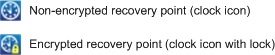
Note: A clock icon with a lock symbol indicates the recovery point contains encrypted information and may require a password for restore.
The Restore Options dialog is displayed.
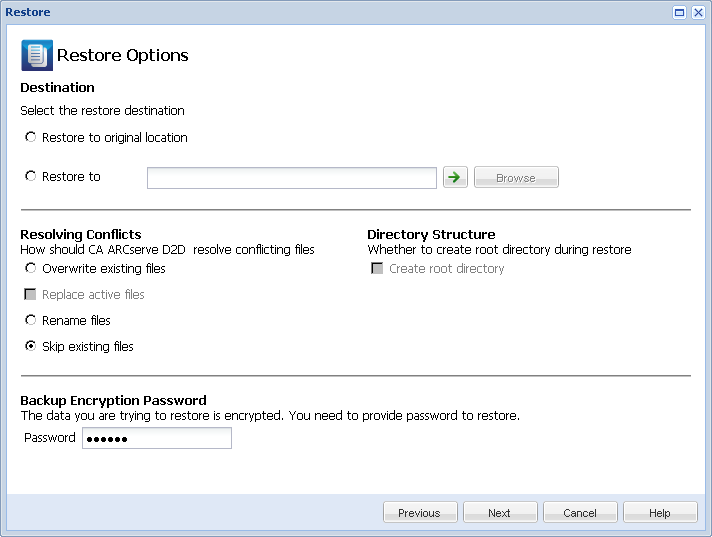
The available options are to restore to the original location of the backup or restore to a different location.
Restores to the original location from where the backup image was captured.
You can either specify a location or browse to the location where your backup images will be restored. You can click the green arrow icon button to verify the connection to the specified location.
If necessary, you may need to enter the User Name and Password credentials to gain access to that location.
The available options are to whether or not to overwrite the existing files and whether or not to replace any active files.
Overwrites (replaces) any existing files that are located at the restore destination. All objects are restored from the backup files regardless of their current presence on your machine.
Replaces any active files upon reboot. If during the restore attempt CA ARCserve D2D On Demand discovers that the existing file is currently in use or being accessed, it will not immediately replace that file, but instead to avoid any problems will delay the replacement of the active files until the next time the machine is rebooted. (The restore occurs immediately, but the replacement of any active files is done during the next reboot).
Note: If this option is not selected any active file is skipped from the restore.
Creates a new file if the file name already exists. Selecting this option copies the source file to the destination with the same filename but a different extension. Data is then restored to the new file.
Skips over and not overwrite (replace) any existing files that are located at the restore destination. Only objects that are not currently existing on your machine are restored from the backup files.
By default, this option is selected.
If selected, specifies that if a root directory structure exists in the captured backup image, CA ARCserve D2D On Demand recreates that same root directory structure on the restore destination path.
When the Create Root Directory option is not selected (unchecked), the file/folder to be restored is restored directly to the destination folder.
For example, if during the backup you captured the files "C:\Folder1\SubFolder2\A.txt" and "C:\Folder1\SubFolder2\B.txt" and during the restore you specified to the restore destination as "D:\Restore".
When the Create Root Directory option is selected (checked), the entire root directory path for the files/folders (including the volume name) is recreated to the destination folder. If the files/folders to be restored are from the same volume name, then the destination root directory path does not include that volume name. However, if the files/folders to be restored are from different volume names, then the destination root directory path does include the volume name.
For example, if during the backup you captured the files "C:\Folder1\SubFolder2\A.txt", "C:\Folder1\SubFolder2\B.txt", and also E:\Folder3\SubFolder4\C.txt" and during the restore you specified to the restore destination as "D:\Restore".
A password is not required if you are attempting to restore from the same CA ARCserve D2D On Demand machine from where the encrypted backup was performed. However, if you are attempting to restore from a different CA ARCserve D2D On Demand machine, a password is required.
Note: A clock icon with a lock symbol indicates the recovery point contains encrypted information and may require a password for restore.
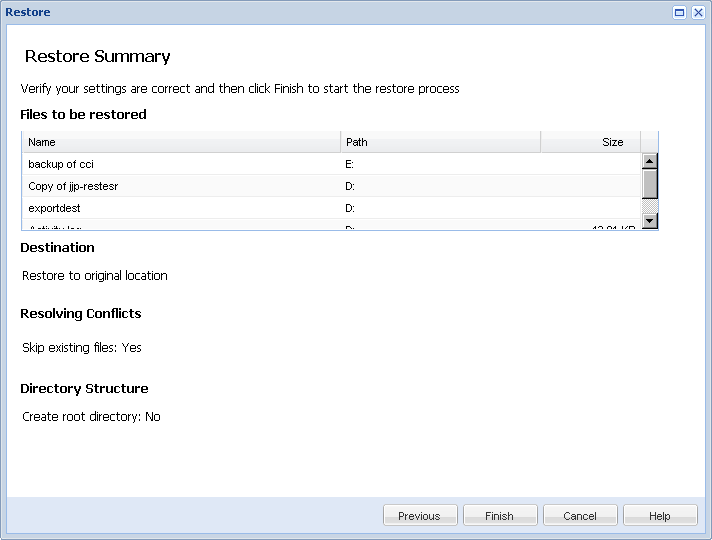
The Restore Summary dialog is displayed.
| Copyright © 2012 CA. All rights reserved. | Tell Technical Publications how we can improve this information |
