

处于种种原因,您可能想重新创建 CA ARCserve Central Protection Manager 数据库。 例如,您当前的数据库消耗 10 GB 以上的数据。 以下过程说明如何重新创建 CA ARCserve Central Protection Manager 数据库。 该过程适用于 Microsoft SQL Server 和 Microsoft SQL Server Express Edition 数据库。
重要说明! 删除 CA ARCserve Central Protection Manager 数据库时,所有当前数据将丢失。
重新创建 CA ARCserve Central Protection Manager 数据库
注意:如果在 CA ARCserve Central Protection Manager 服务器上未安装 Microsoft SQL Server Management Studio Express,您可以从 Microsoft 下载中心下载该实用工具。
“添加对象”对话框打开。
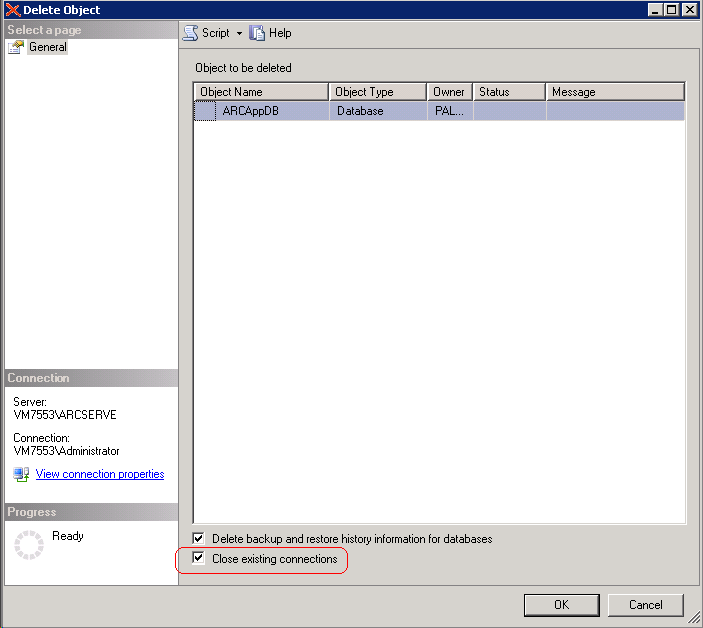
“删除对象”对话框关闭,CA ARCserve Central Protection Manager 数据库即被删除。
配置选项显示。
数据库选项将显示。
注意:选择 SQL Server 和 Windows 身份验证模式将激活“用户名”和“密码”字段。
CA ARCserve Central Protection Manager 重新创建数据库。 数据库实例的名称是 ARCAppDB。
|
版权所有 © 2013 CA。
保留所有权利。
|
|