

Arcserve Backup lets you back up CA ARCserve Unified Data Protection recovery points and store the data on Arcserve Backup media. The CA ARCserve Unified Data Protection Recovery Points are stored on Arcserve Backup media as raw sessions.
Arcserve Backup lets you recover CA ARCserve Unified Data Protection data at file, folder, and application level granularity with respect to Microsoft SQL Server and Microsoft Exchange Server applications. However, if you want to recover individual email messages from the mailbox from Exchange GRT enabled backups, recover the raw sessions to the CA ARCserve Unified Data Protection server, and then use CA ARCserve Unified Data Protection to recover the individual email messages from the Exchange GRT sessions from the CA ARCserve Unified Data Protection server. To recover individual email messages, open the CA ARCserve Unified Data Protection home page and browse the recovered raw session to locate the objects that you want to recover.
The raw sessions can also be used to perform bare metal recovery (BMR) of CA ARCserve Unified Data Protection servers. Using the raw sessions, the BMR process is a two-phased approach:
Note: For information about recovering files and folders and performing BMR on CA ARCserve Unified Data Protection servers, see the CA ARCserve Unified Data Protection documentation.
Be aware of the following:
Example: E:\restore is the alternative location.
E:\restore\VSTORE\<original session number>\
E:\restore\CATALOG\<original session number>\
The steps listed below describe how to perform the following recoveries:
Note: The following steps describe how to submit restore jobs using the Restore by Session method. The process of restoring CA ARCserve Unified Data Protection Agent-based and agentless nodes using the Restore by Tree method is identical to that of all other types of data. For more information about the Restore by Tree method, see "Restoring Data."
Follow these steps:
From the Quick Start menu, click Restore.
The Restore Manager window opens.
The sessions appear in the Session tree.
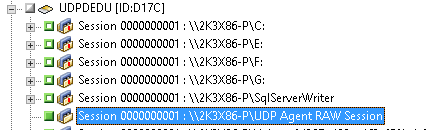
Click the check box next to the raw session.
Click the Destination tab.
The Destination options appear.
Click the Schedule tab.
The Schedule options appear.
Note: For more information, see Global Restore Options.
The Restore Media dialog opens to display a list of the media that is required to perform the operation.
The Session User Name and Password dialog opens.
The Submit Job dialog opens.
The job is submitted.
After the restore job completes, use the sessions that you restored to an alternative location to recover the CA ARCserve Unified Data Protection data. For information about how to recover individual CA ARCserve Unified Data Protection files and folders, and how to perform BMR operations on CA ARCserve Unified Data Protection servers, see the CA ARCserve Unified Data Protection documentation.
Note: For information about recovering files and folders and performing BMR on CA ARCserve Unified Data Protection servers, see the CA ARCserve Unified Data Protection documentation.
|
Copyright © 2014 Arcserve.
All rights reserved.
|
|