

|
|
|
CA ARCserve Backup lets you recover CA ARCserve D2D backup data at file level granularity from CA ARCserve Backup media. Use these steps when you want to recover individual files, folders, directories, and so on from CA ARCserve Backup media to CA ARCserve D2D servers.
The steps listed below describe how to perform the following recoveries:
Note: The following steps describe how to submit restore jobs using the Restore by Session method. The process of restoring CA ARCserve D2D data and CA ARCserve D2D virtual machine data using the Restore by Tree method is identical to that of all other types of data. For more information about the Restore by Tree method, see "Restoring Data."
To recover CA ARCserve D2D backup data at file level granularity
From the Quick Start menu, click Restore.
The Restore Manager window opens.
The backup sessions appear in the Session tree.
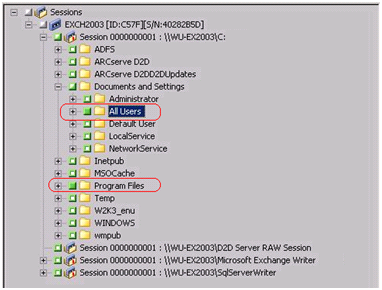
Expand the server that you want to recover and locate the session from which you want to recover data at file level granularity.
Next, click the check boxes next to the files, folders, or directories that you want to recover, as illustrated by the following screen:
The Destination options appear.
The Schedule options appear.
Note: For more information, see Global Restore Options.
The Restore Media dialog opens to display a list of the media that is required to perform the operation.
The Session User Name and Password dialog opens.
The Submit Job dialog opens.
The job is submitted.
| Copyright © 2012 CA. All rights reserved. | Tell Technical Publications how we can improve this information |