The Device Configuration Welcome dialog opens.
The Assign Devices dialog opens.
Note: Delays can occur while Device Configuration scans the SCSI devices in your environment.
If the Tape Engine is running, you are prompted to stop the engine. The engine must be stopped to configure a library device.
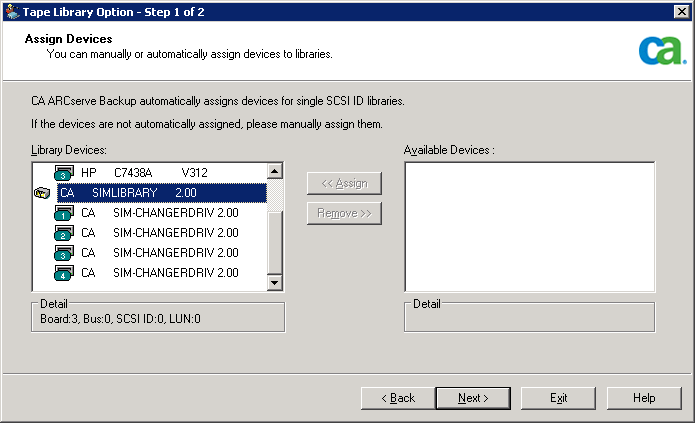
Note: Assigning a drive to a library lets the Tape Engine detect the presence of the drive in the library. If you are assigning drives manually, the drives inside multiple drive libraries must be assigned in the order that the library detects them. Typically, manufacturers configure libraries so that the first library drive has the lowest SCSI ID number, and the last library drive has the highest SCSI ID number. Be aware that this is not always the case. See the documentation supplied with your library for information about how your library's drives are configured.
The Library Options dialog opens.
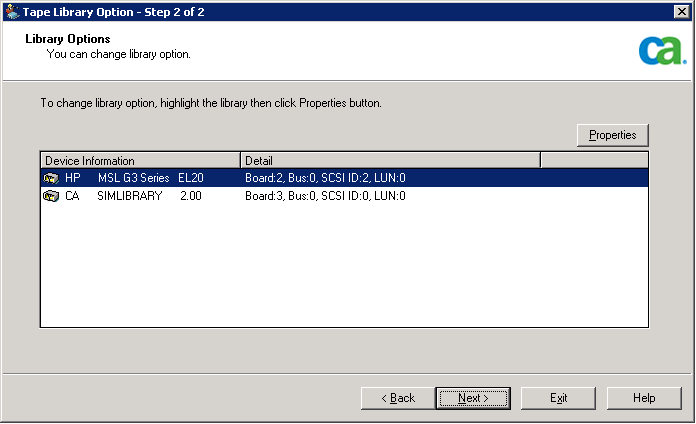
The Properties dialog opens.
- Bar code reader installed
Lets you set unknown bar code media to not inventoried during the initialization process.
Note: This option is for tape libraries only.
The Set unknown bar code media to not inventoried during initialization option helps speed up library initialization. Any media with bar code numbers not found in the database are designated as Not Inventoried and are not automatically inventoried. This is useful in speeding up the initial inventory on large libraries. You must manually inventory these media so they can be used in backup jobs.
- Eject media upon backup job completion
Lets you move tapes back to their slots after a backup job.
Note: You can override this option on a job-by-job basis by enabling the global option for jobs called Do not Eject Media. In addition, if you do not enable the ejection of media after a backup job completes and later decide that you want to eject media after a particular job, you can enable the global option for jobs called Eject Media. For more information about global options, see the Administration Guide.
The Summary dialog opens.
The Device Configuration Completed dialog opens.
The library is configured.