

Press F15 to access the Open Functions panel. You can access this panel from many CA 2E panels; for example, option O on the Edit Functions panel lets you open multiple functions. This panel lets you open, edit, and maintain several functions simultaneously; in other words, you do not need to exit and close one function before you open another function for editing. This capability can save a significant amount of time. You can switch quickly and easily between the action diagrams, device designs, generated source, and parameter definitions for all open functions.
Note that the Edit Horse function is listed on the Open Functions panel since you have not yet exited and closed it. To open another function, type the name of the file and the name of the function in the File and Function fields. If you are uncertain of the names, type ? in these fields instead to display selection lists. You can also type * for the File field if the function you wish to open is attached to the same file as the first open function listed, in this example, the HORSE file.
In this case, you want to open the Display Racing results function on the RACE ENTRY file, type the following names:
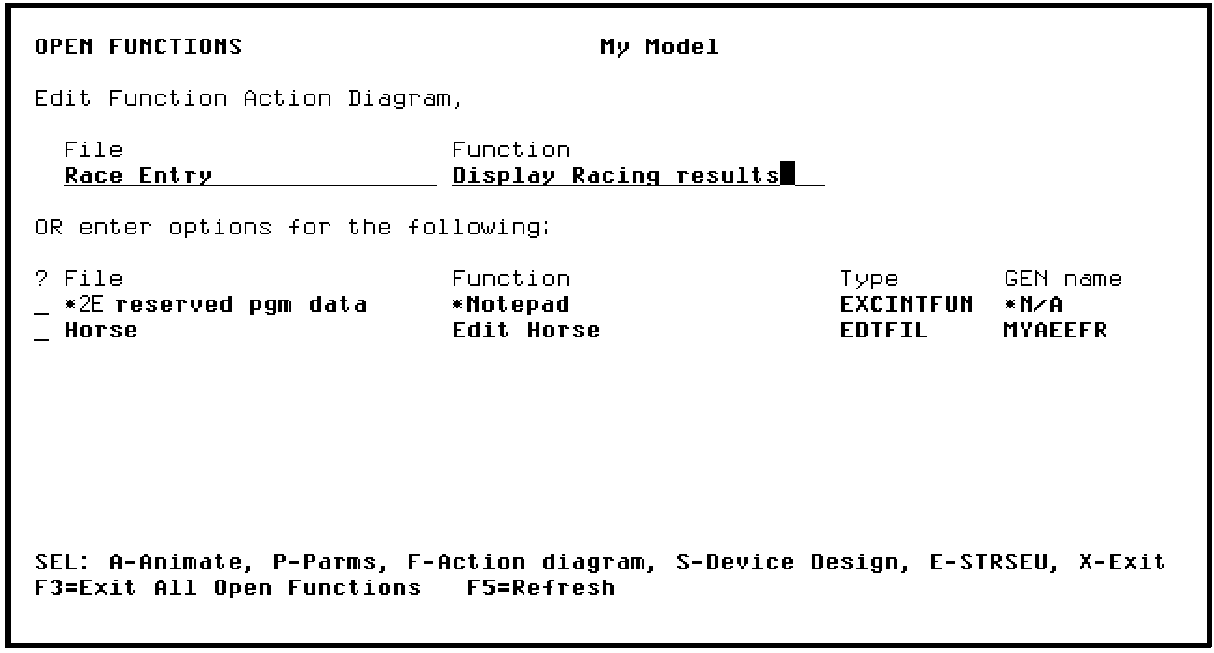
Press Enter to open the Display Racing results function and display its action diagram. Press F15 to return to the Open Functions panel.
Note: Display Racing results now appears on the list. From this panel you can edit a function’s device design, action diagram, or parameters; you can also animate the function.
|
Copyright © 2014 CA Technologies.
All rights reserved.
|
|