

Each access path initially contains all of the relations for the file on which it is based but none of the virtuals. When you add a new relation to a file, the effect on the access path is controlled by the value in the Auto add column of the Edit File Details panel. The default is ATR ONLY, which automatically adds only attributes to the access path. As a result, if you want virtual fields included on an access path, you need to add them explicitly.
In this step you will add the virtual fields you just defined for the HORSE file to the default Retrieval access path.
Note: Adding virtual fields to an access path increases processing overhead. As a result, in a real-world model you would not add virtual fields to the default retrieval access path. Instead, create a new RTV access path and add the virtual fields to it. Assign a name to the new access path that indicates it contains virtual fields; for example, Retrieval with virtuals. You will learn how to add a new access path later in this topic.
Type V in the Subfile selector for the Retrieval index access path.
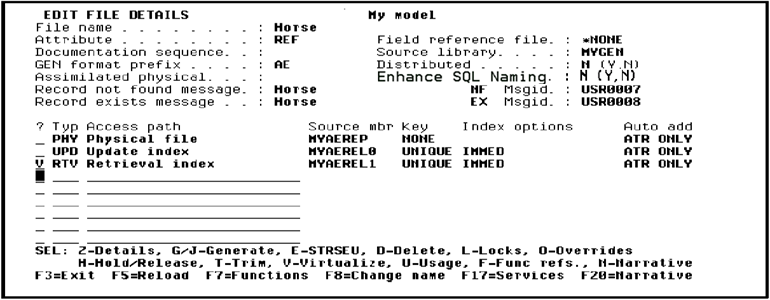
Press Enter to view virtual entries for the HORSE file.
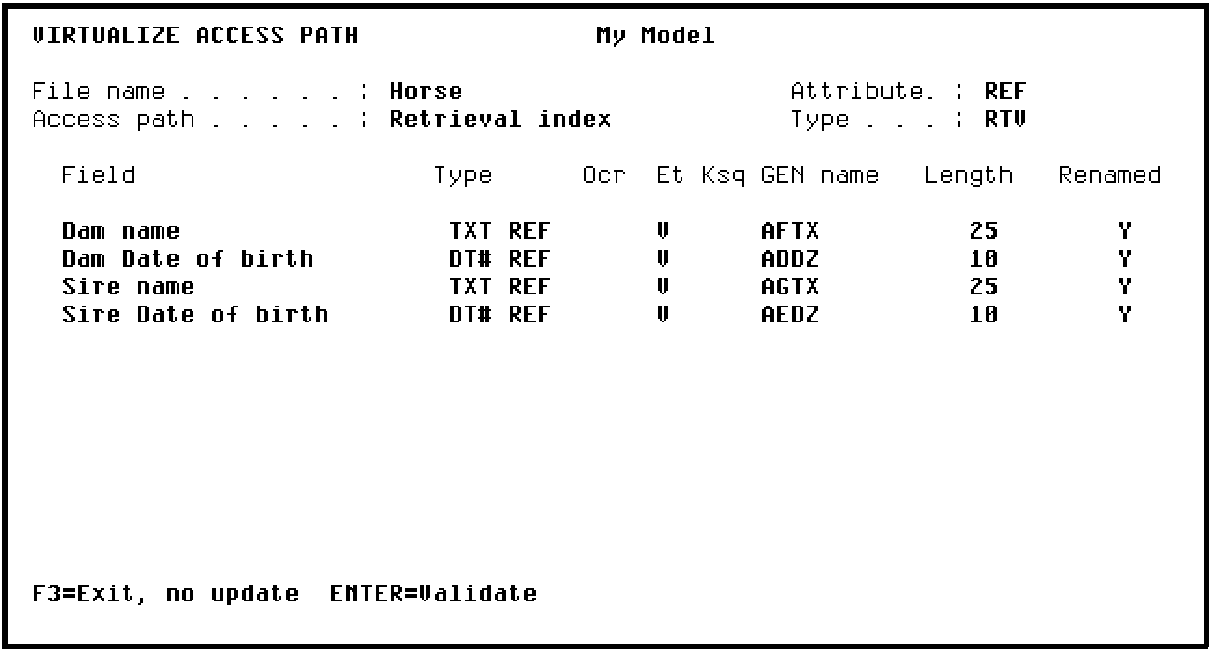
Press Enter to validate the addition of the virtual fields to the Retrieval index access path for the HORSE file.
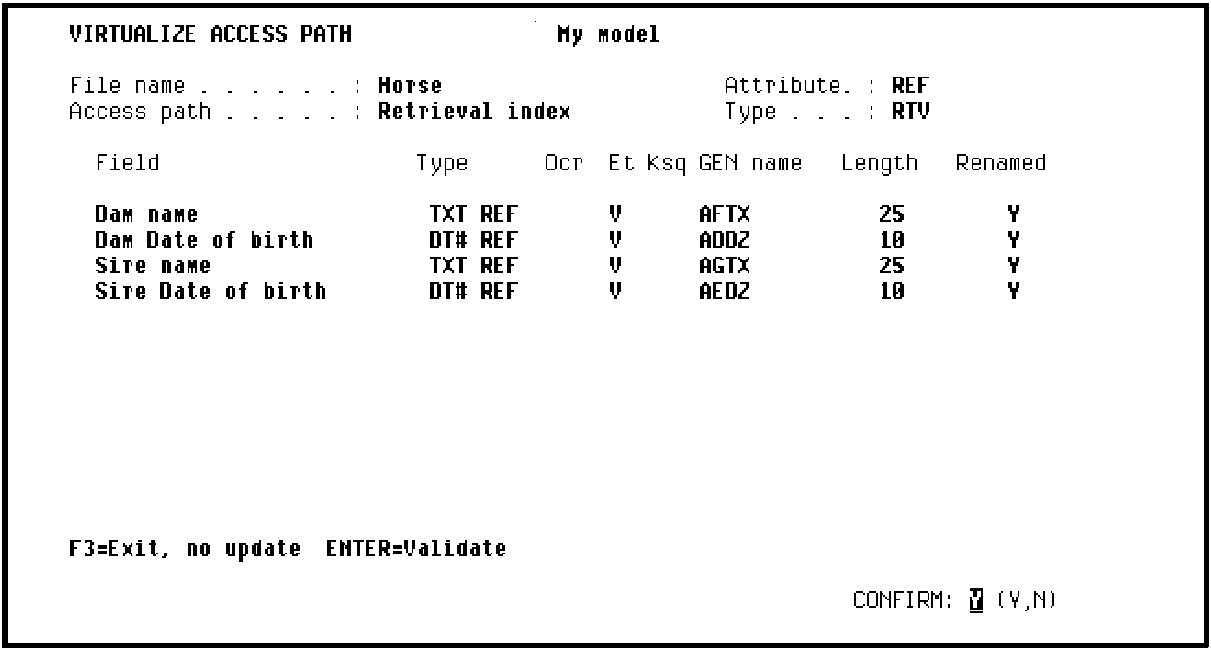
Press Enter again to respond to the Confirm prompt in the lower right-hand corner of your screen and return to the Edit File Details panel.
To view the entries for the default Retrieval access path, type Z in the Subfile selector for the Retrieval index.
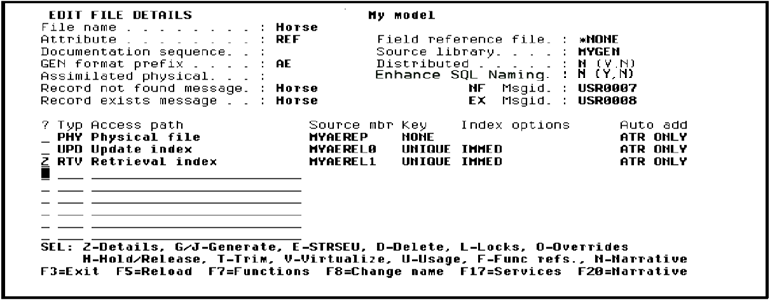
Press Enter to display the Edit Access Path Details panel.
Type Z again as shown to view entries for the Retrieval index access path.
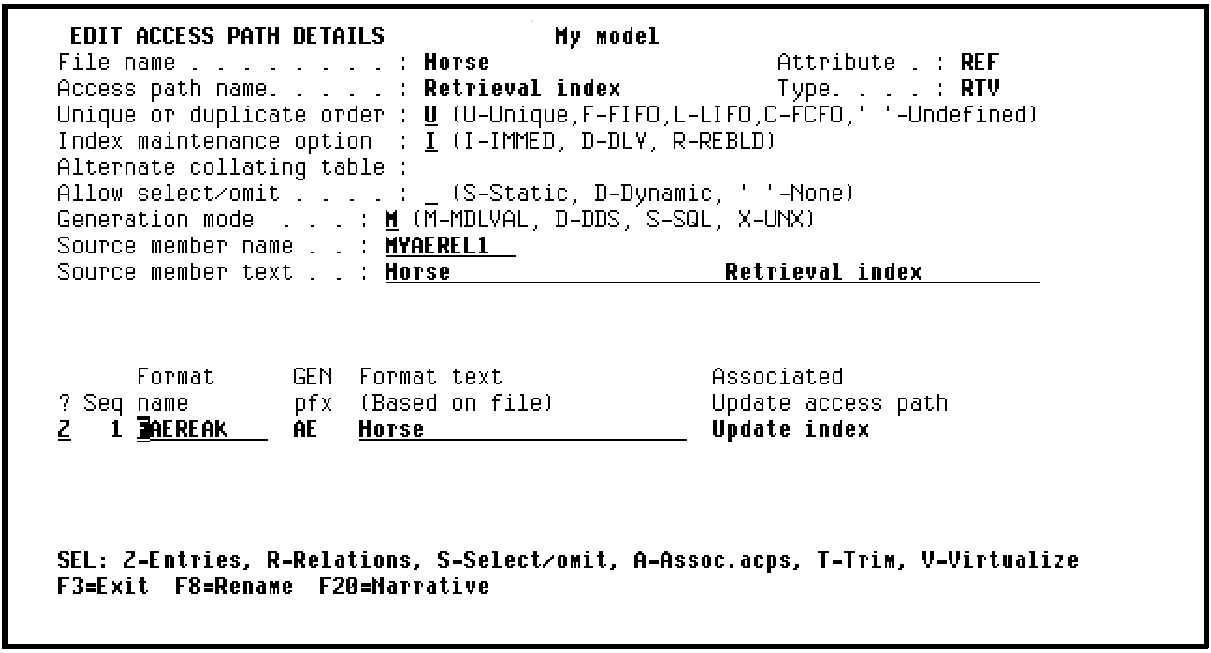
Press Enter to display the Edit Access Path Format Entries panel.
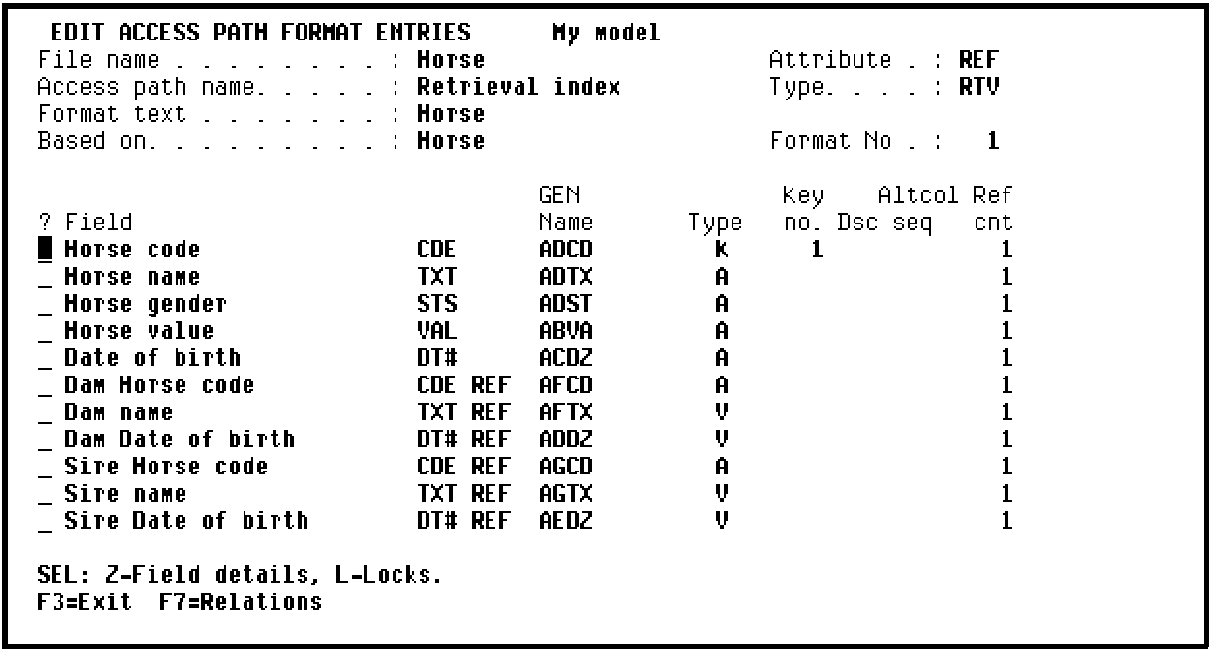
Verify that the virtual fields you specified are listed. Virtual fields are indicated by a V in the Type column. Press F13 to return to the Edit File Details panel.
|
Copyright © 2014 CA Technologies.
All rights reserved.
|
|