

Notice the Check condition field on the Edit Field Details panel. This field indicates the values that are allowed for the Horse gender field. Initially the Check condition is *NONE, indicating that any value is allowed for the field. If you specify the list condition *ALL values, it indicates that the field must satisfy one of the particular value conditions that you have defined; in other words, it provides validation during data entry. If you specify one of the conditions that you have just defined, it imposes specific validation on the field.
You can type ? in the Check condition field, to view a selection list of existing conditions. In this tutorial, all horses must be either mares or stallions. The check condition *ALL Values is appropriate.
Type *ALL values for the Check condition field.
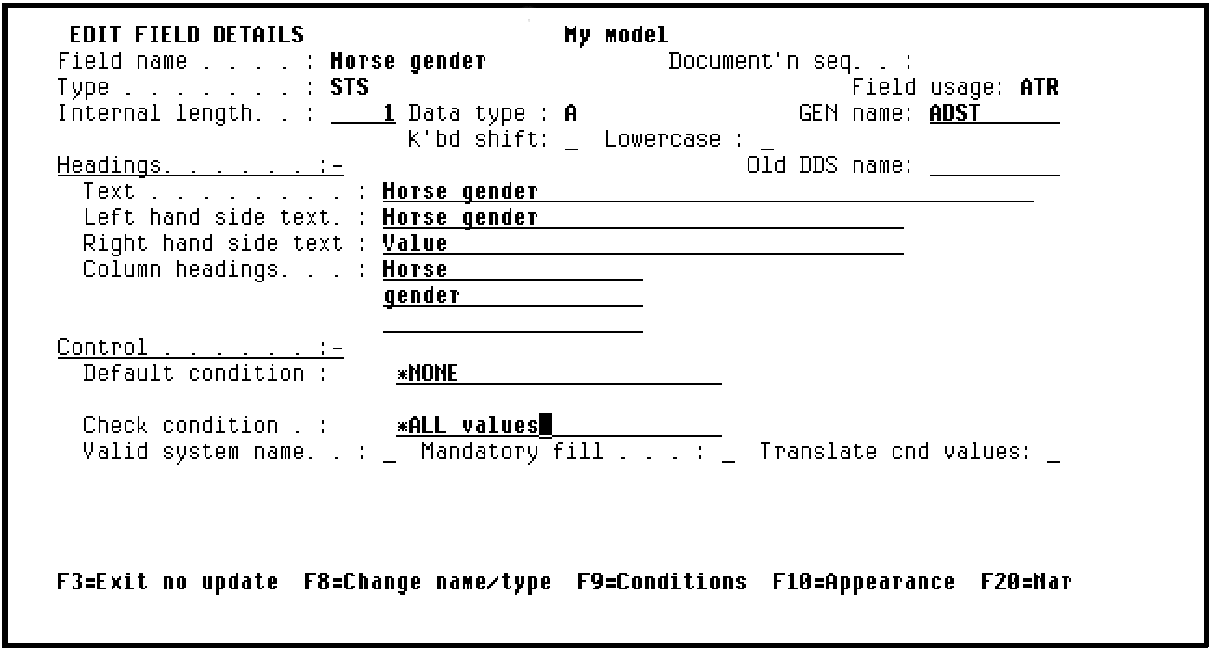
Press Enter.
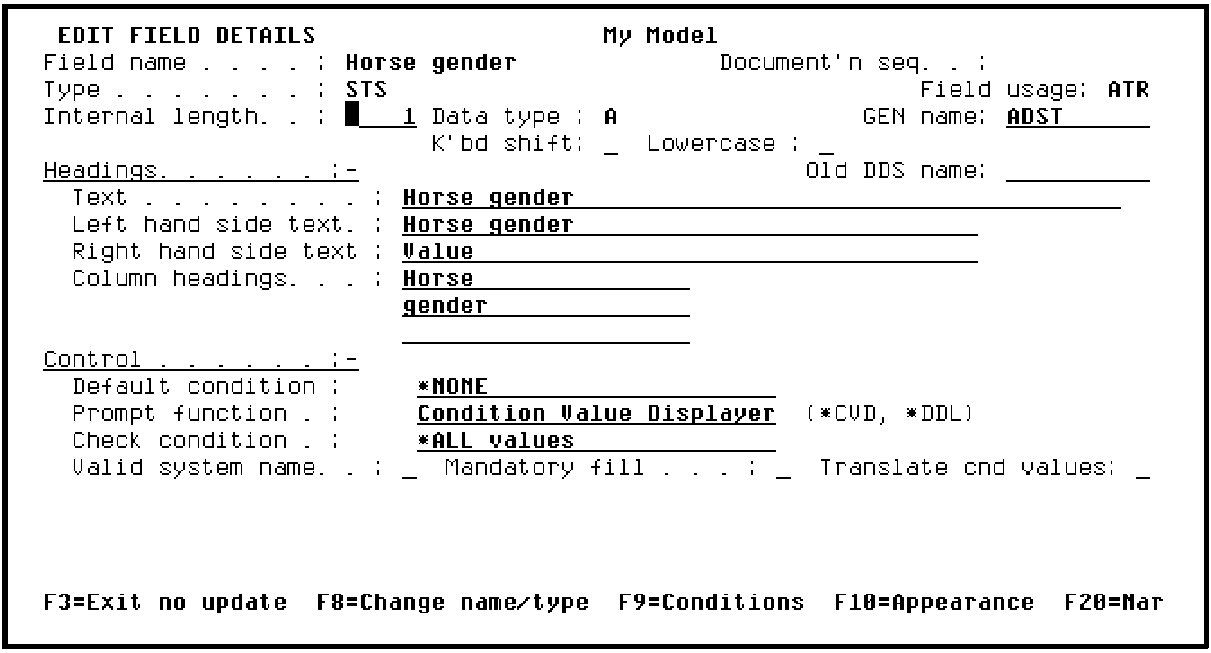
Note that a Prompt function field now displays. As a result, when the end user of the compiled application positions the cursor on the Horse gender field and either enters ? or presses F4, a selection list of the conditions you defined will be displayed.
Press F3 to return to the Edit Database Relations panel.
|
Copyright © 2014 CA Technologies.
All rights reserved.
|
|