

Before starting this tutorial, make sure the following conditions are satisfied:
CA 2E must be installed on your IBM i. This manual assumes that installation has been successfully completed. If not, please refer to the Installation Guide for additional details.
You must be signed on an IBM i with a user profile that is authorized to use CA 2E. You must also be authorized to carry out programming operations such as creating files and RPG or COBOL programs. If you do not have the required profile or authorizations, consult your security officer. Refer to the Installation Guide for more details. To begin, you will require access to either the Command entry (QCMD), the Programmer’s menu (QPGMMENU), or the CA 2E Main menu.
Your library list must include certain libraries before you can create a CA 2E design model; for example, the CA 2E and Toolkit product libraries. Refer to the worksheet that was filled out when CA 2E was installed at your company for a list of the required libraries. The worksheet is in the Installation Guide. You can add any missing libraries using the i OS Add Library List Entry (ADDLIBLE) command. For example,
ADDLIBLE Y2SY
ADDLIBLE Y1SY
You must have a CA 2E design model library in which to store your CA 2E design model. If you do not already have a design model you may create a new one using the CA 2E Create Model Library (YCRTMDLLIB) command as follows:
YCRTMDLLIB MDLLIB(MYMDL) OBJPFX(MY)+
SYSTEXT(‘My Model’) DSNSTD(*CUATEXT)
This command allows you to create your model interactively. You can also do this as a batch process. In this example the design standard, *CUATEXT, has been specified so that all functions that include interactive panel displays will be presented with either Action Bars or Windows. The normal default for the design standard is *CUAENTRY.
Note: If someone else creates your model, be sure they read the above paragraph and set the DSNSTD parameter to *CUATEXT; otherwise, the tutorial will not work properly.
The message "Model library MYMDL created" should appear following successful completion of the command. The use of this command is only necessary when you are creating a new CA 2E design model. The next topic discusses how to access an existing CA 2E design model.
The YCRTMDLLIB command also creates a library to contain the source and application objects that you will generate from your CA 2E design model. The name of this library is given by the GENLIB parameter, which in this case defaults to the name MYGEN. Furthermore it creates a Toolkit Library list with the same name as the CA 2E design model library.
To enter CA 2E, type the Start CA 2E (YSTRY2) command, specifying the name of your CA 2E design model as the LIBLST parameter from any i OS Command Entry line:
YSTRY2 MYMDL
Type the command as shown.
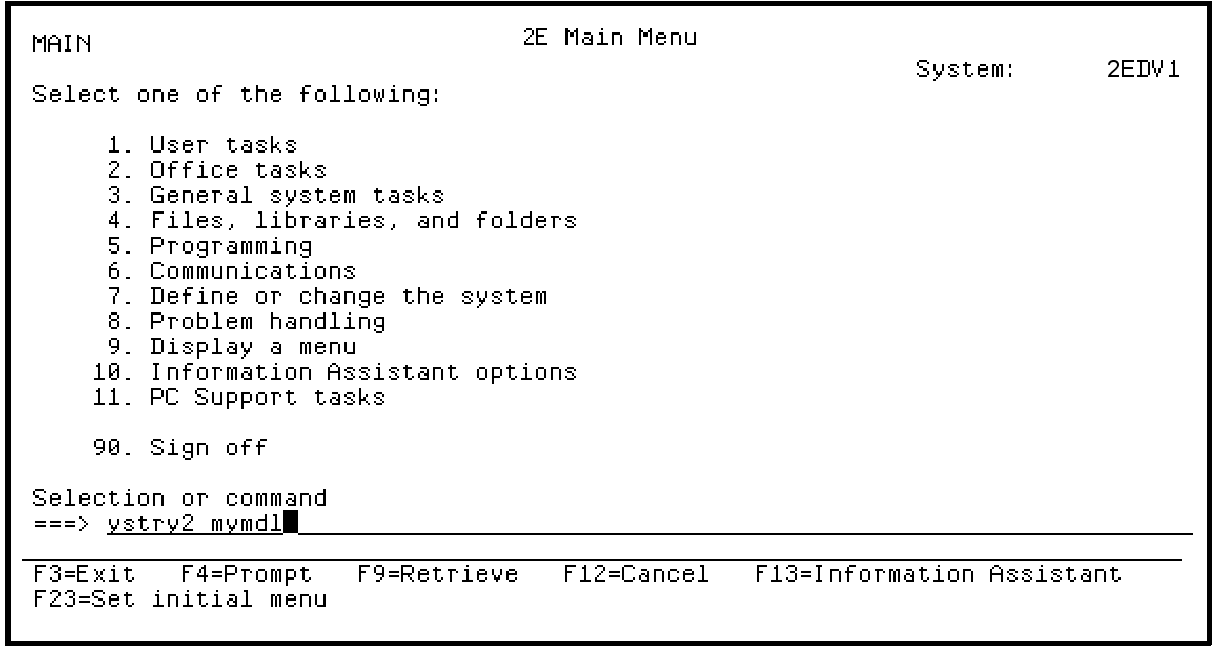
Press Enter.
The CA 2E Main menu appears. The first panel of the CA 2E Main Menu provides a set of Design Model options and access to CA 2E commands grouped according to function.
Type 1 in the command entry line as shown to display the CA 2E Designer (*DSNR) Menu.
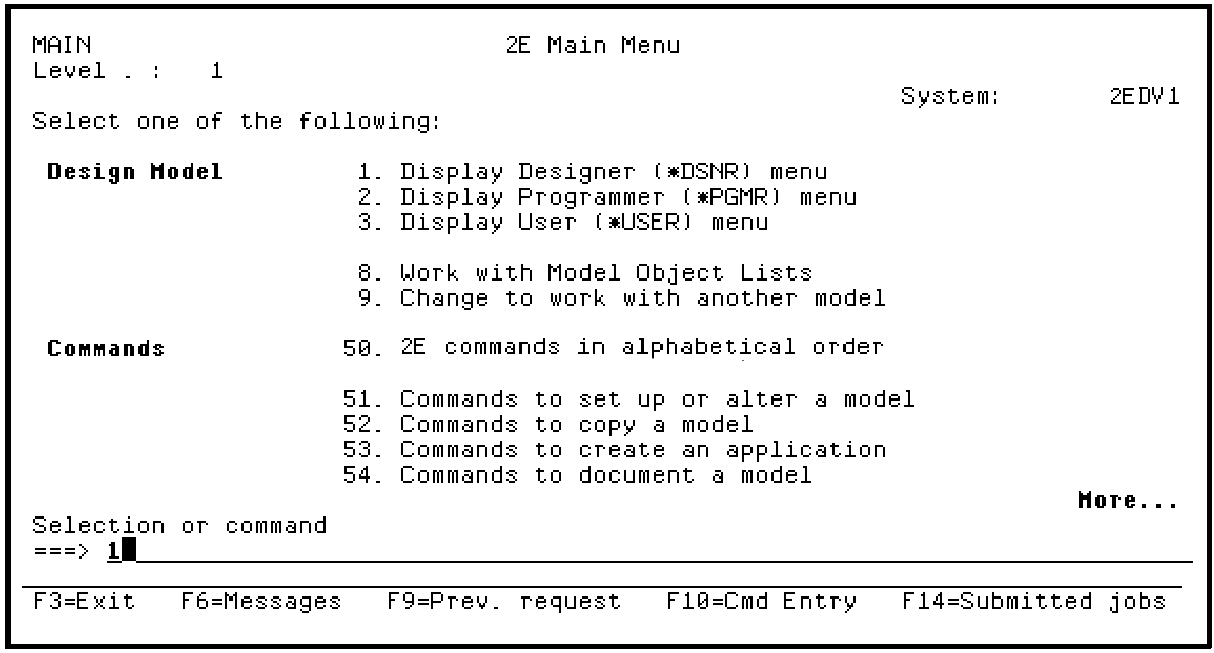
Press Enter.
The first panel of the CA 2E Designer (*DSNR) Menu displays. This menu provides a list of tasks available to users with *DSNR authority. Type 1 in the command entry line as shown to enter your CA 2E design model for editing.
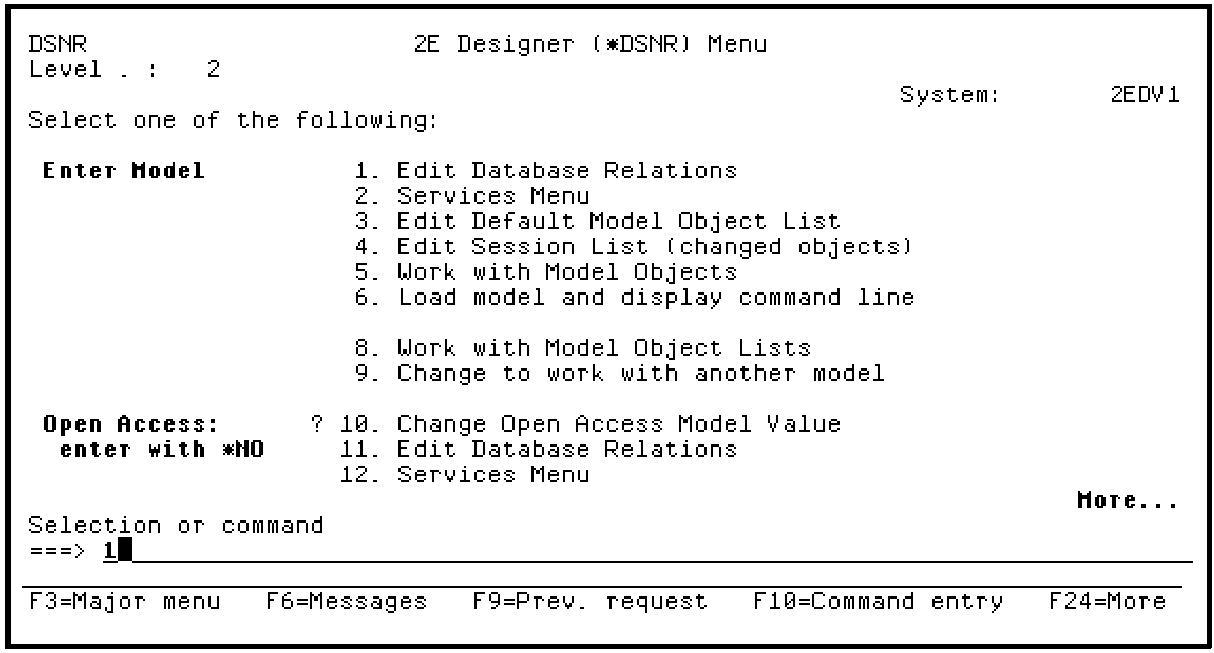
Press Enter.
Your CA 2E design model will now be loaded. A CA 2E window with the message Starting CA 2E Session appears. The load process may take several seconds.
When it is finished the Edit Database Relations panel will appear.
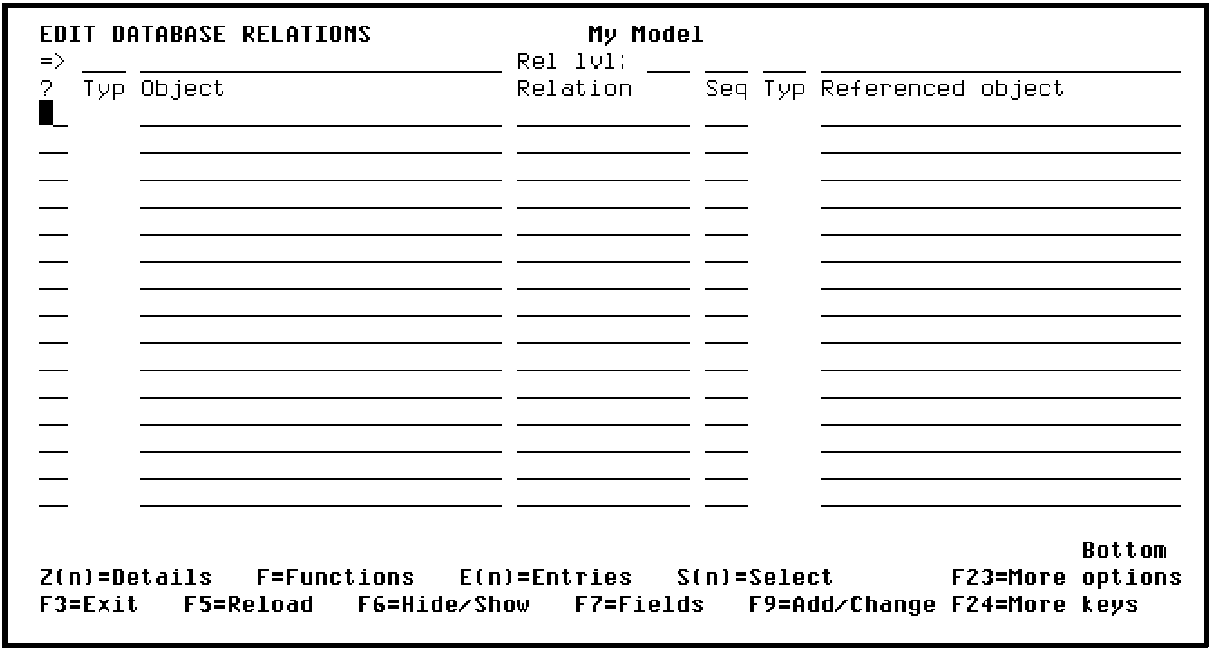
In general, you can begin working with your model at this point. However, if this is the first time you entered your tutorial model, read and complete the following instructions before continuing.
Following are two alternative methods of entering your design model.
YSTRY2 MYMDL MENU(DSNR) Bypass the Designer (*DSNR) Menu and directly enter your model for editing using the Toolkit Change Library List (YCHGLIBL) command and the Edit Model (YEDTMDL) command from any i OS Command Entry line.
YCHGLIBL MYMDL
YEDTMDL
The Y2 command is a short form of the YEDTMDL command.
YCHGLIBL MYMDL
Y2
It is unlikely that you will complete the tutorial in a single session. If at any time you want to leave your CA 2E design model, you can do so by pressing F3 repeatedly until you return to the Edit Database Relations panel
At that point, press F3 again to display the Exit menu. Press F3 now for practice.
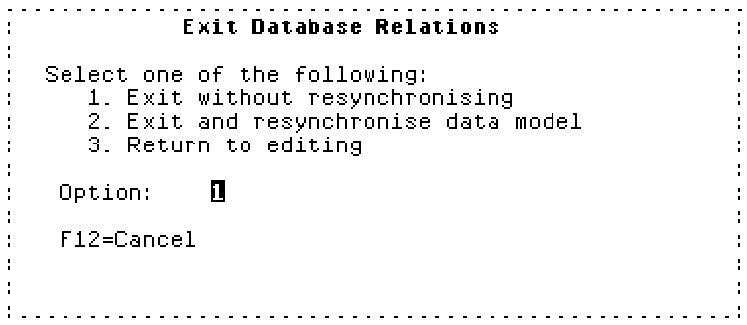
Normally when you exit your design model, you will accept the default option and press Enter. However, if you plan to continue with the tutorial, type 3 instead of accepting the default to continue your editing session and press Enter. This returns you to the Edit Database Relations panel.
Your model profile establishes the basic working environment for your interactive session. CA 2E automatically creates a model profile for each user that is granted access to a model. Before beginning work on your CA 2E model, you need to check, and possibly override, the default settings in your model profile.
Note: You need to do this step before you enter any information for your tutorial design model and you only need to do it once.
This process assumes that the Edit Database Relations panel is displayed on your screen. If not, re-enter your model as explained previously using the Start CA 2E (YSTRY2) command.
One way to access your model profile is by using the Display Services Menu. This menu is an important CA 2E tool that gives you access to many CA 2E support functions while you are working on a model. From the Edit Database Relations panel, press F17 to access the Display Services Menu This function key is available from many CA 2E panels.
From the Display Services Menu, type 11 in the Option field to Edit your model profile.
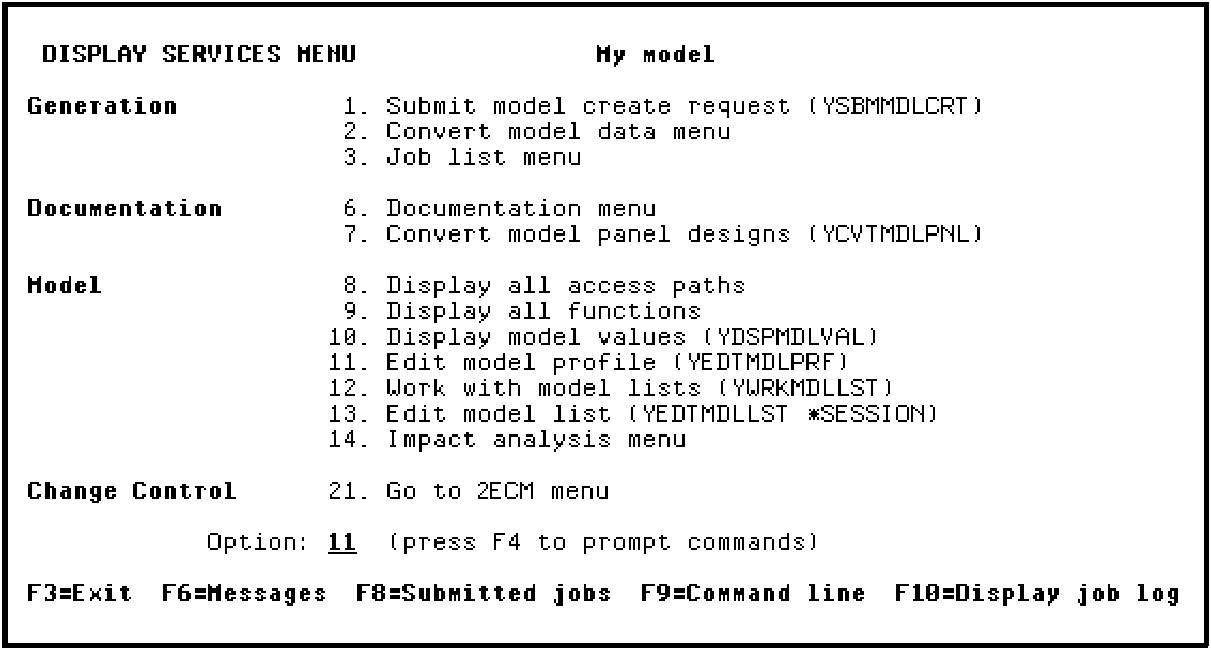
Press Enter to display the first screen of the Edit Model Profile panel.
The model profile lets you define defaults for various processes and file specifications for an interactive session. Notice that the default value for the Session list field is your user profile name. Also, check that the value of the Log changed objects field is Y. If it is not, type Y.
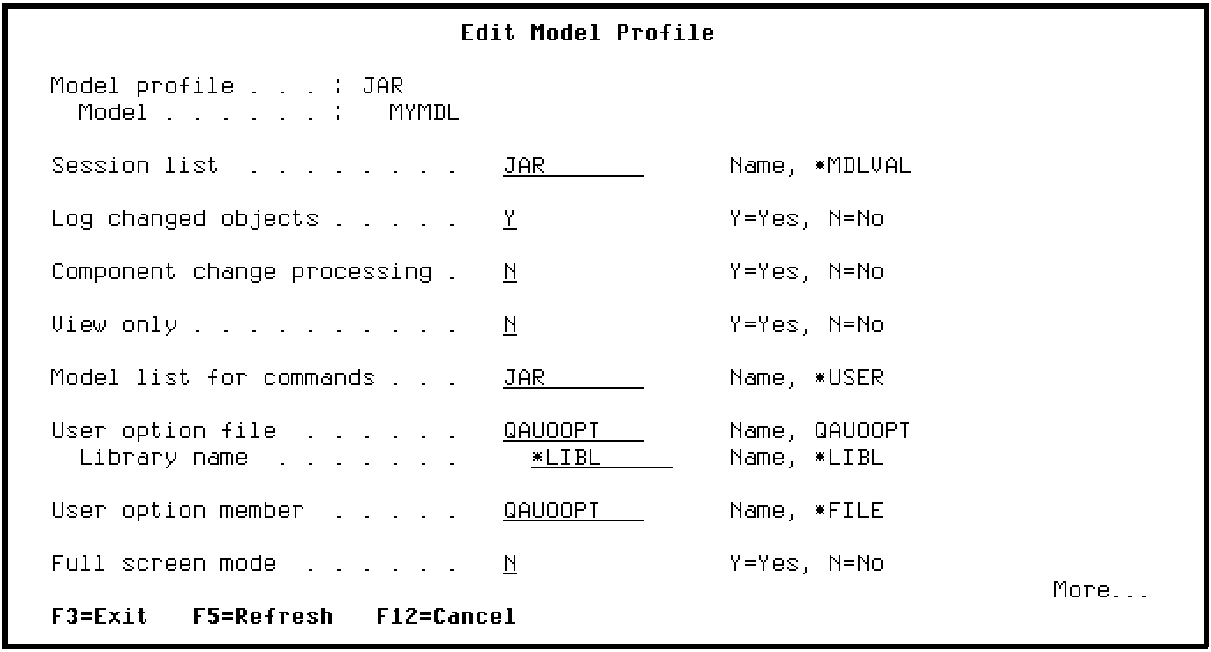
Press Enter.
Press F3 to return to the Display Services Menu.
The basic components of a CA 2E model are called model objects. CA 2E provides a model object list tool that lets you manipulate logical groups of model objects. One example of a model object list is the session list. When the Log changed objects field in your model profile is Y, CA 2E automatically keeps track of each change you make to your CA 2E model and adds the changed model object to your session list. The session list is cumulative and therefore it persists across your interactive sessions.
Notice the Edit model list (YEDTMDLLST *SESSION), option on the Display Services Menu. You can use this option at any time to view and work with the contents of your session list; in other words, you can use this option to view the model objects you changed in your CA 2E model.
You will use the session list again later in the Maintaining Your Application chapter of this tutorial.
When you finish using the tasks on the Display Services Menu, exit by pressing F3 to return to the Edit Database Relations panel.
This step applies only if you wish to delete the data you entered from your CA 2E design model. To do so use the CA 2E Clear Model (YCLRMDL) command as follows:
YCLRMDL MDLLIB(MYMDL) GENLIB(*GENLIB)
If you run this command, your CA 2E design model will still exist, but everything you have added to the design model will be deleted.
|
Copyright © 2014 CA Technologies.
All rights reserved.
|
|