

Simulating a change to a model object lets you see how a proposed change impacts other objects in the model before you actually make the change. Simulation identifies which other model objects need to be edited or generated as a result of the proposed change and is an important tool for planning model changes.
When you change a model object, the only objects that can be affected by the change are those that use the changed object. As a result, a major part of simulating a change consists of expanding usages for the object to be changed.
Note: The process described here is the same as that used during component change processing when you actually change a model object. However, instead of just displaying the results of the change, component change processing updates the All Objects list for the model objects affected by the change to indicate the additional processing needed.
For more information on component change processing, see the Component Change Processing section in this chapter.
To simulate a change to a model object, follow these steps.
The type of change depends on which attributes of a model object are changed and is derived internally by CA 2E.
For more information:
In this case,CA 2E expands usages for the object to be changed up to the first external function in each sequence of usages. Suppose the object to be changed is the Change Order Detail function.
The following panel displays:
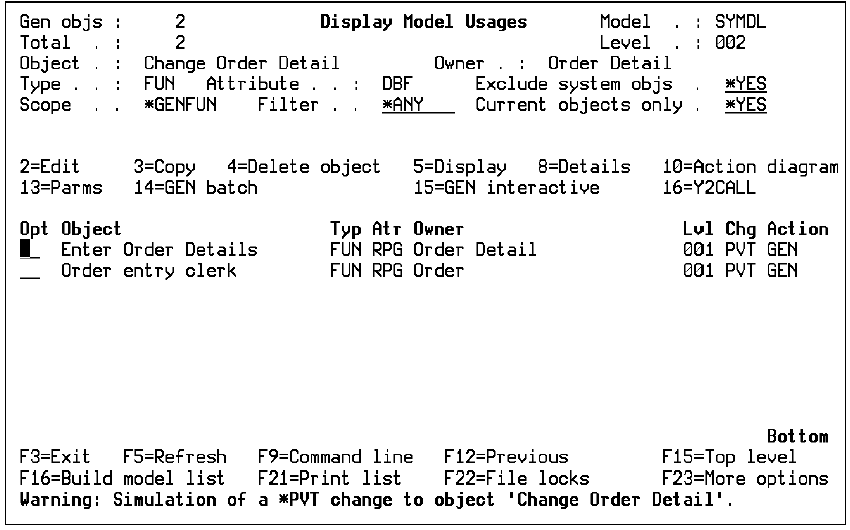
Note that only those objects that need to be generated to implement the proposed change are displayed, not all usages. GEN in the Action column indicates that the model object will need to be regenerated when you make the proposed change.
To simulate a public change, enter option 95 for the object you want to change on either the Display Model Usages panel or the Display Model References panel.
As for a private change,CA 2E expands usages for the object to be changed up to the first external function in each sequence of usages. In addition, it identifies objects that need to be edited as a result of the proposed change. Suppose the object to be changed is the Change Order Detail function.
The following panel displays:
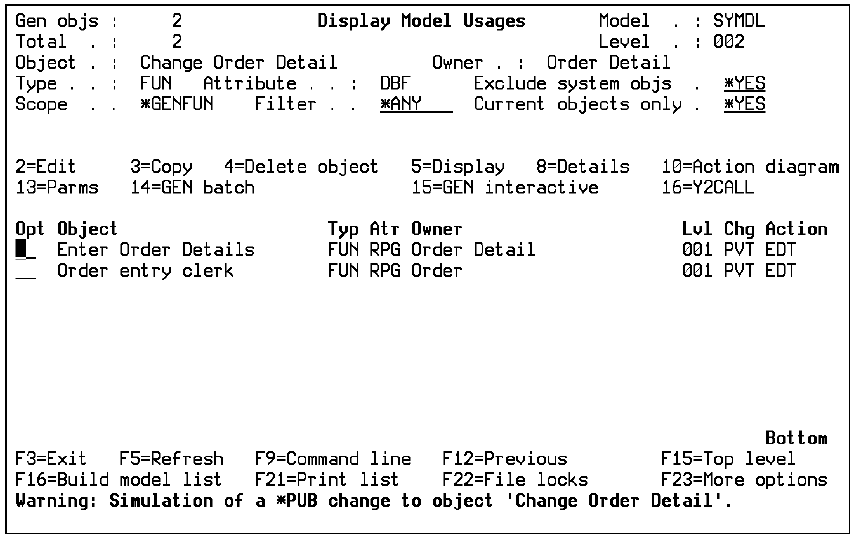
Note that only those objects that need to be edited or generated to implement the proposed change are displayed, not all usages. EDT and GEN in the Action column indicate that the corresponding model object needs to be either edited or regenerated when you make the proposed change.
Note: The entries of a model object list always reflect the current state of model objects at the time the list is created unless you refresh them. As a result, the Action required field for entries of the new list will reflect the results of a previous run of component change processing and not the results of the simulation. To get a permanent record of the simulation, press F21 to print the results.
|
Copyright © 2014 CA.
All rights reserved.
|
|