

Program compilation is the second part of the third phase of development. You will learn how to call your compiled applications (programs) and test them by entering data.
When you submit a request for generation, compilation, or both, the CA 2E generator automatically generates a job list. The same job list controls generation and compilation. You can review this job list during generation to monitor the process and edit the job list.
Source is produced and placed in the appropriate source file in the generation library associated with your CA 2E design model, and then the generated source is compiled.
To begin, select the Submit model create request (YSBMMDLCRT) option as shown in the following example, and press Enter.
DISPLAY SERVICES MENU My model
Generation 1. Submit model create request (YSBMMDLCRT)
2. convert model data menu
3. Job list menu
Documentation 6. Documentation menu
7. Convert model panel designs (YCVTMDLPNL)
Model 8. Display all access paths
9. Display all functions
10. Display model values (YDSPMDLVAL)
11. Edit model profile (YEDTMDLPRF)
12. Work with model lists (YWRKMDLLST)
13. Edit model list (YEDTMDLLST *SESSION)
14. Impact analysis menu
Change Control 21. Go to Change Management Option (CM) menu
Option: 1 (press F4 to prompt commands)
F3=Exit F6=Messages F8=Submitted jobs F9=Command line F10=Display job log
Note: CA 2E supplies default parameter values for the YSBMMDLCRT command based on your model profile and options you specified when you created your model. You can override these defaults by pressing F4 instead of Enter to prompt the command.
CA 2E displays a list of the source members to be generated and compiled. Each member has either GEN or CRT next to it to indicate whether the member has been submitted for generation or compilation. At this point all the functions and access paths should show GEN as shown in the following example:
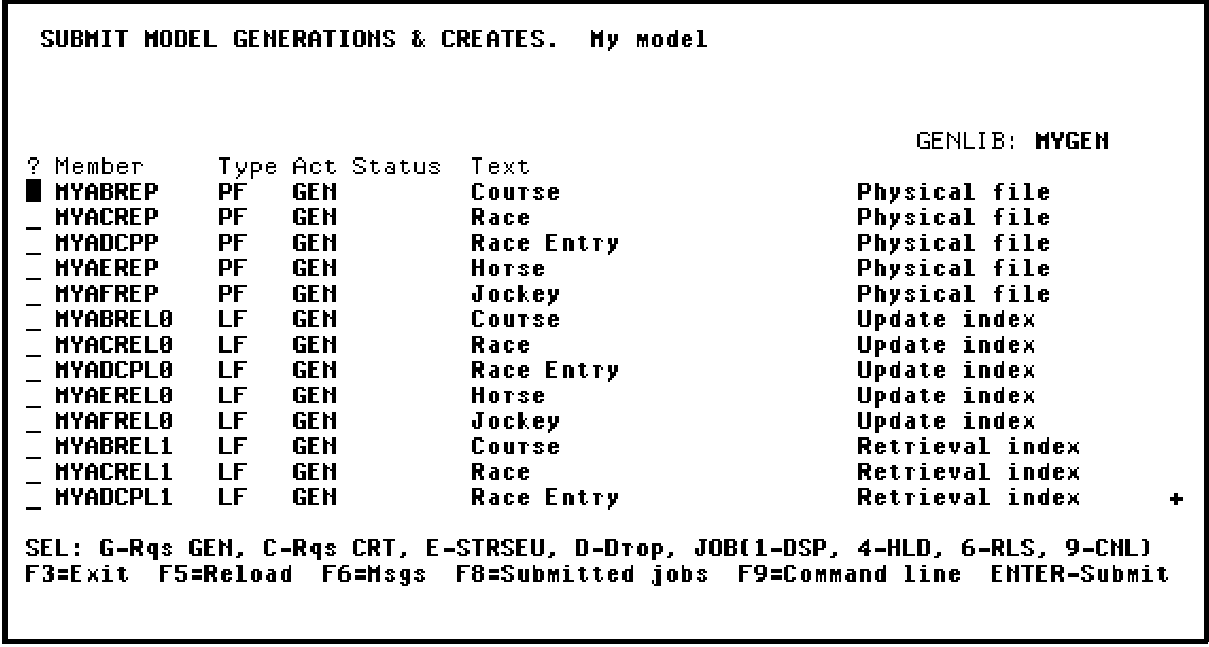
Press Roll Up until you see the bottom of the list, and then Press Enter to submit the job list.
After confirming the list of objects, you will see the following series of messages at the bottom of the panel:
In batch processing, the generations, compilations, or both take place in the background. You may continue to specify new objects (functions, access paths) while the batch is processing.
Before calling your program, you must use the Convert Condition Values (YCVTCNDVAL) command to convert the values that are entered into status fields. The values you defined for status fields are moved from the model library to the condition values list database file in the generation library.
Horse gender is an example of a status field. We specified the valid values for this field in our model library and those values are placed in the generation library database when we run the Convert Condition Values (YCVTCNDVAL) command. In this case, the end user running the application will then be able to select either M or F as valid values for Horse gender.
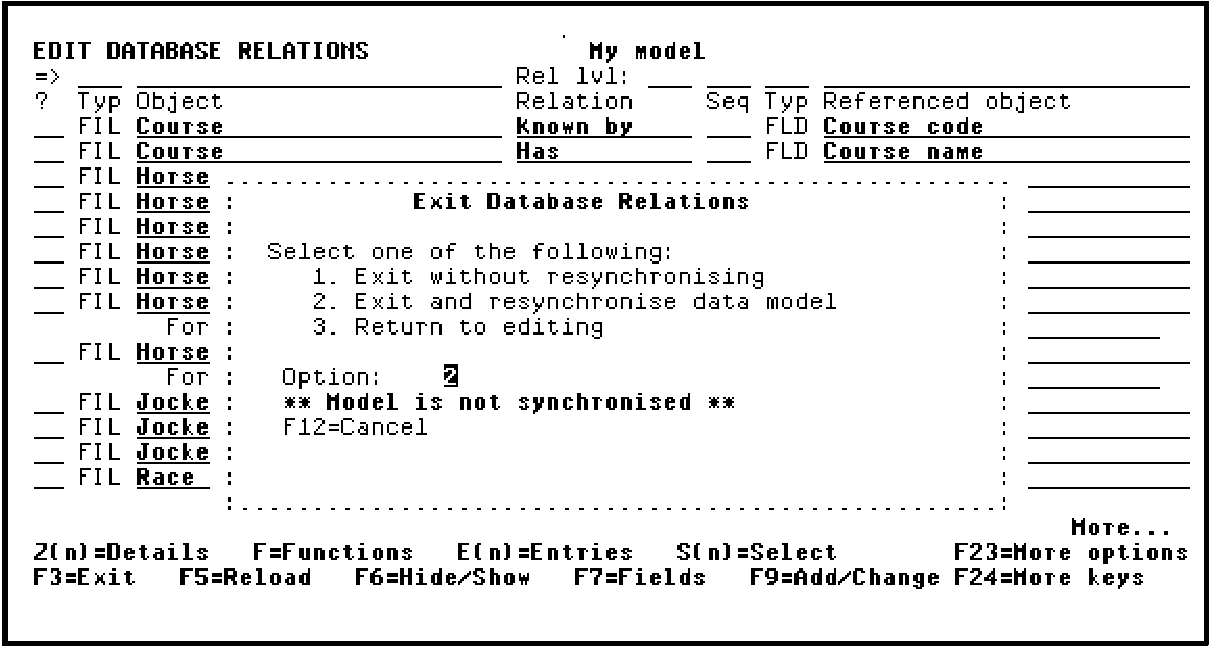
When you exit this session, if you have added or changed any files, fields, or relations in the current session, you may want to resynchronize the model. This causes all the relations to be resolved into entries. Only users of enter *DSNR can resynchronize a model.
Select the desired option, as shown in the following example, and press Enter:
|
Copyright © 2014 CA.
All rights reserved.
|
|