

In our example you can enter Course* on the selection line to display only relations for the COURSE file. This selection is shown in the following example:
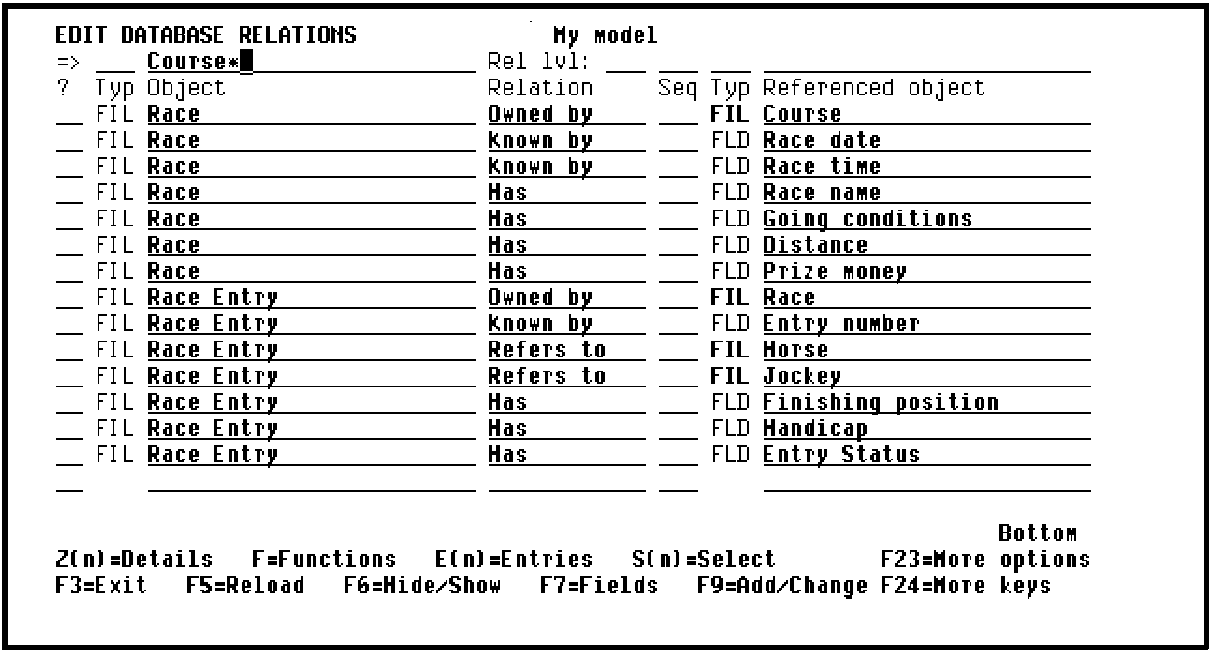
The access paths for a file are recorded on the Edit File Details panel. To obtain this panel for the COURSE file, you will zoom against one of the relations for the file on the Edit Database Relations panel. Enter Z against one of the relations for the COURSE file as shown in the following illustration:
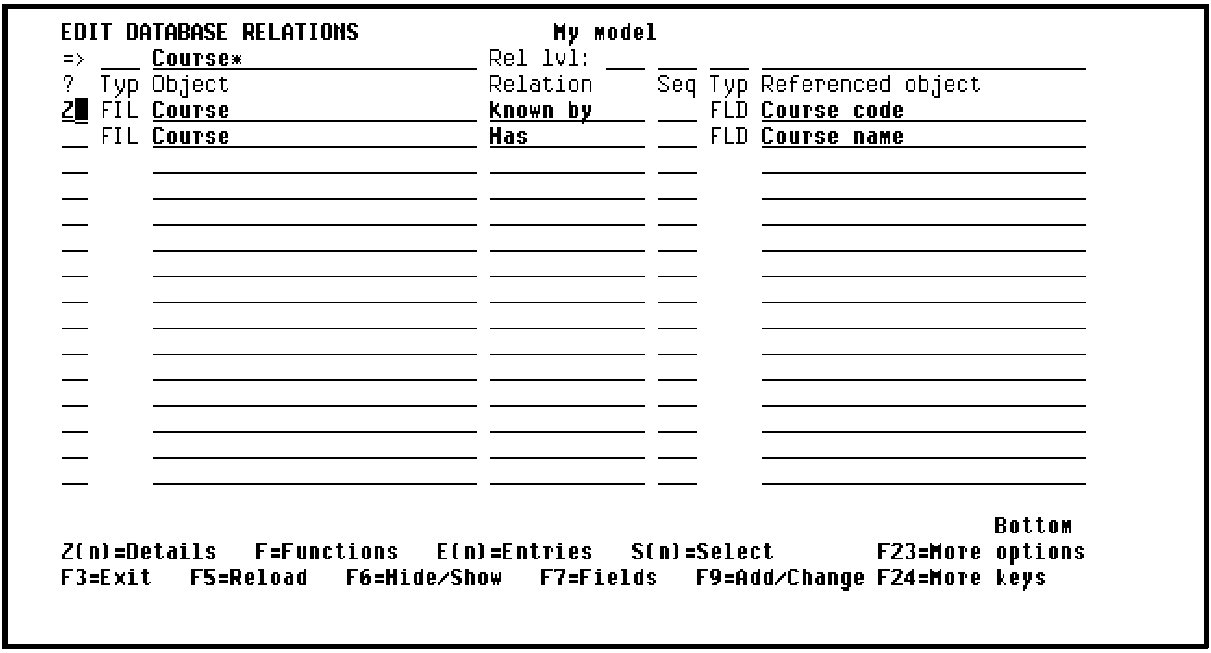
Press Enter to display the Edit File Details panel as shown in the following example:
EDIT FILE DETAILS My model
File name . . . . . . . . : Course
Attribute . . . . . . . . : REF Field reference file.: *NONE
Documentation sequence. . : Source library. . . .: MYGEN
GEN format prefix . . . . : AB Distributed . . . . .: N (Y,N)
Assimilated physical. . . :
Record not found message. : Course NF Msgid. : USR0001
Record exists message. . .: Course EX Msgid. : USR0002
? Typ Access path Source mbr Key Index options Auto add
PHY Physical file MYABREP NONE ATR ONLY
UPD Update index MYABREL0 UNIQUE IMMED ATR ONLY
RTV Retrieval index MYABREL1 UNIQUE IMMED ATR ONLY
SEL: Z-Details, G/J-Generate, E-STRSEU, D-Delete, L-Locks, O-Overrides
H-Hold/Release, T-Trim, V-Virtualize, U-Usage, F-Func refs., N-Narrative
F3=Exit F7=Funcs F8=Change name F17=Serv. F18=Triggers F20=Narr. F22=Locks
This panel shows the three default access paths that CA 2E automatically created for the COURSE file.
From this point you can establish access paths with various rules, restrictions and limitations to accomplish desirable results such as:
For implementation details, see the Tutorial.
|
Copyright © 2014 CA.
All rights reserved.
|
|