

|
|
|
The display attributes of a field are initially set by default to the model standards. These attributes define how a field is displayed; for example, if it is input, output, or in error. You can change the model standards and the controlling condition using the Edit Default Device Field Attributes (YEDTDFTATR) command.
The display attributes for an individual field on a panel can be changed using the following steps:
The Edit Screen Field Attributes panel or Edit Report Field Attributes panel appears.
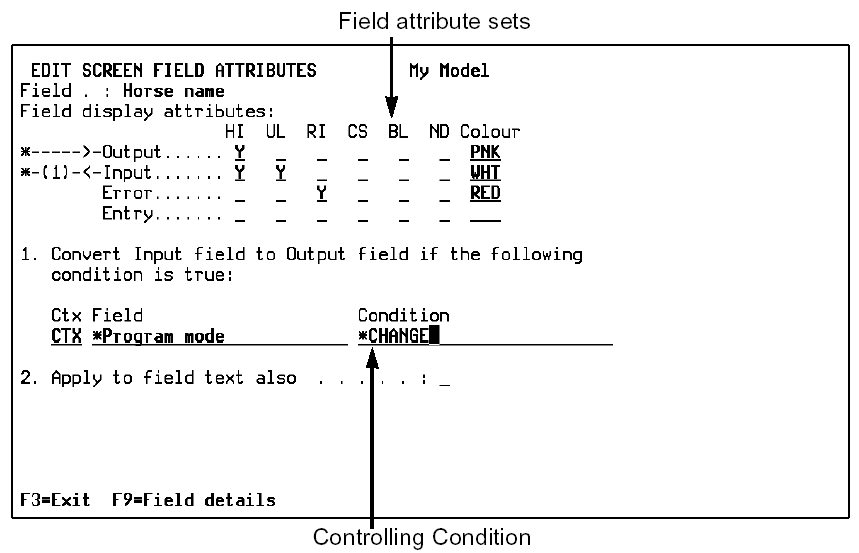
Note: If you enter Y for Apply to field text and if the condition to display the field as output is true, the LHS text, RHS text, or column heading associated with the field assumes the output field attributes you assigned for the field.
Fields can be switched to another set of display attributes depending on the condition. This includes switching to output only or to non-display. If you need to condition the field based on a complex or compound condition, you should consider adding a derived function field that sets a true/false condition field to the panel as a non-display field.
This change should yield a true/false status condition. The associated action diagram can contain a compound condition. Using this technique, any combination of parameters and conditions can be encapsulated as a single status condition and used to condition a panel field.
|
Usages |
Display |
Printer |
|---|---|---|
|
O |
Y |
Y |
|
I |
Y |
- |
|
B |
Y |
- |
|
H |
Y |
Y |
|
Display Attributes |
Display |
Printer |
|---|---|---|
|
HI |
Y |
– |
|
UL |
Y |
Y |
|
RI |
Y |
– |
|
CS |
Y |
– |
|
BL |
Y |
– |
|
ND |
Y |
Y |
| Copyright © 2011 CA. All rights reserved. | Tell Technical Publications how we can improve this information |