

|
|
|
User-defined field types are useful where data requires some conversion before being displayed, or where a standard conversion is required prior to storage.
The conversion process does not have to be two-way. For example, a user-defined type could be used to allow an automobile registration number to be processed to convert all zeros to the letter O and all ones to the letter I to ensure against confusion on inquiry screens. The original data could be stored in another field if necessary.
In the automobile registration number example there is no conversion from internal to external format since they are both the same. The only parameter to the external to internal conversion function is the field to be converted.
The following example is somewhat more complicated to illustrate the power of user-defined field types. In it we will define a currency field type. A company dealing with international customers who are charged and who pay in their own currency would want to define a value field only once for a particular data item, rather than various fields or even separate files to store the data.
The solution is to store the data in a neutral format and then convert it before display with the correct number of decimal places and any other desired editing. Rather than require the developers to remember to call these conversion routines, a user-defined data type allows the definition to be made once and is then automatically generated by CA 2E when required.
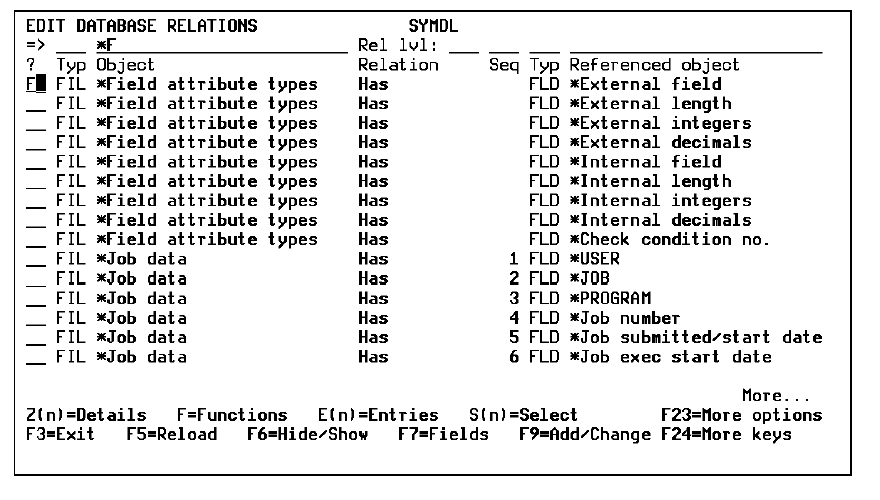
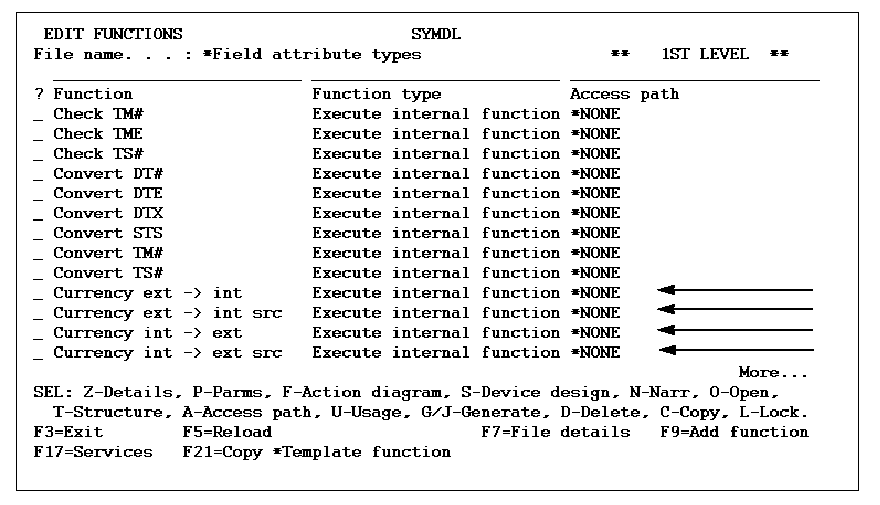
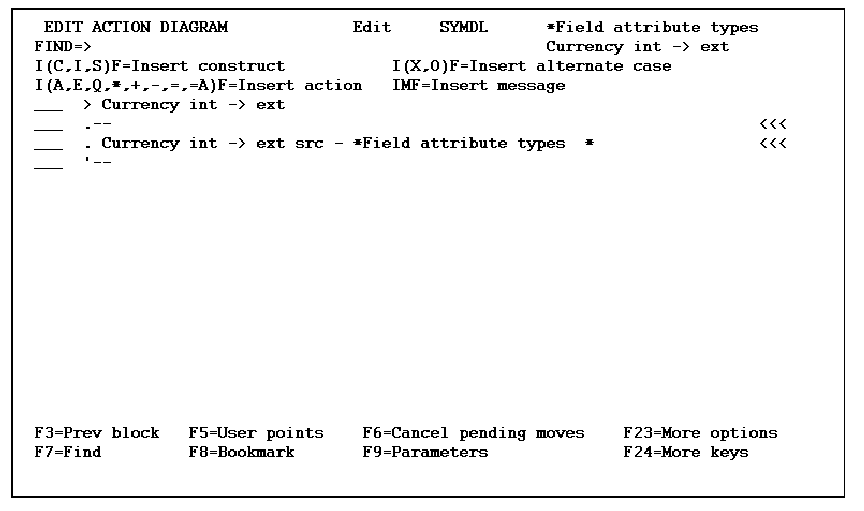
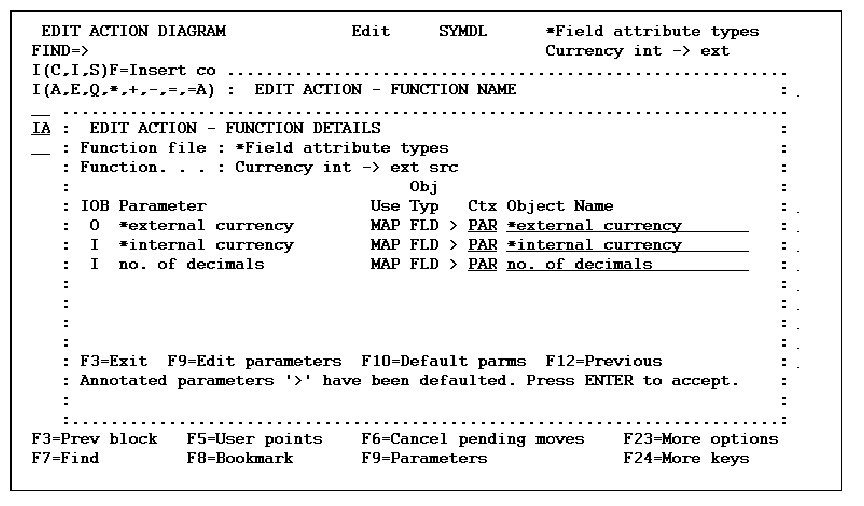
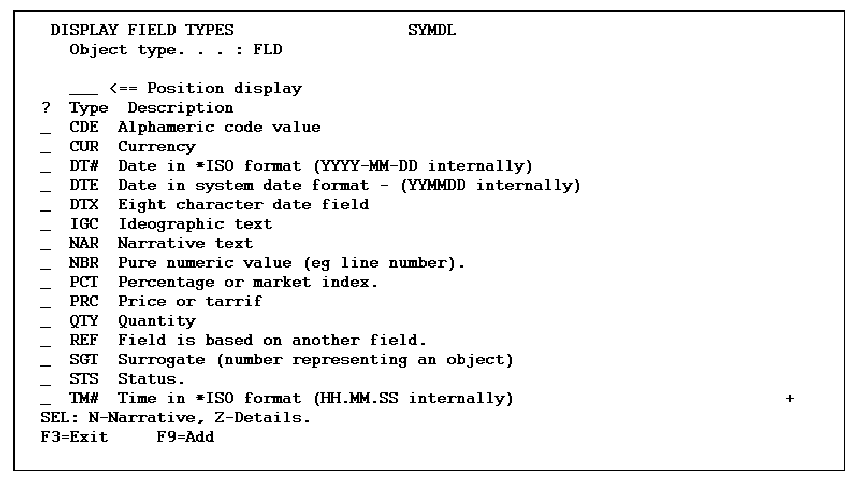
The following panels describe the definition process step by step.
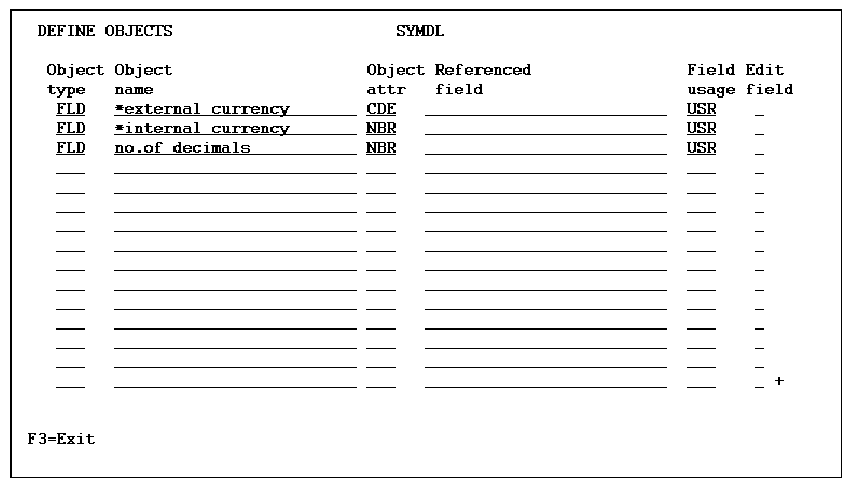
Enter details for the *external currency field as follows.
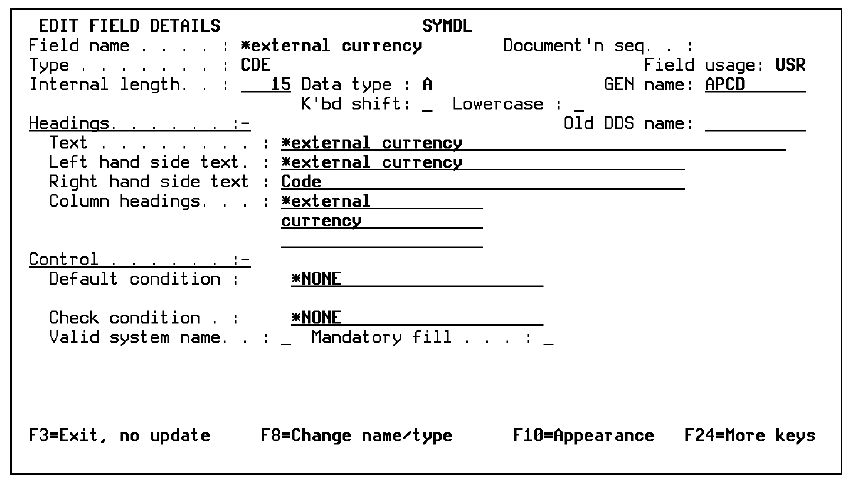
Enter details for the *internal currency field as follows.
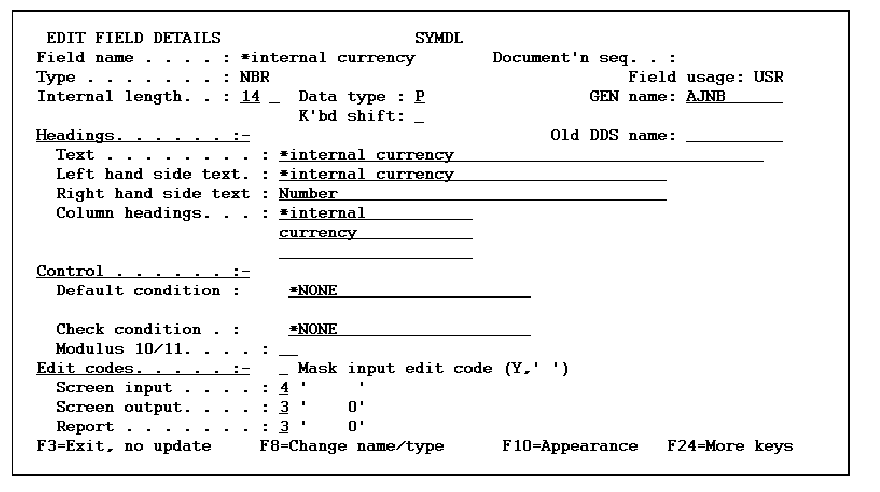
Enter details for the no. of decimals field as follows.
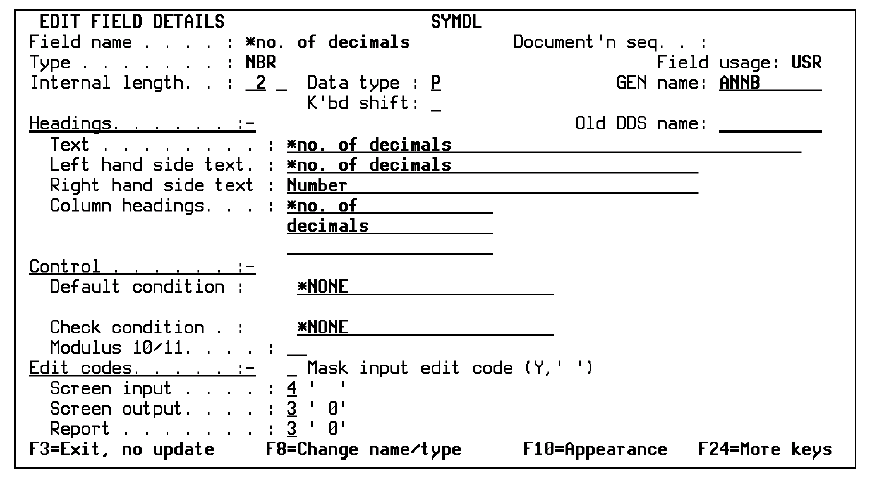
Note the assigned DDS field names for the fields you just defined. In this case, XBCD, ZZNB, and QHNB. You will need these when you define the user source for the ext –> int src and the int –> ext src functions.
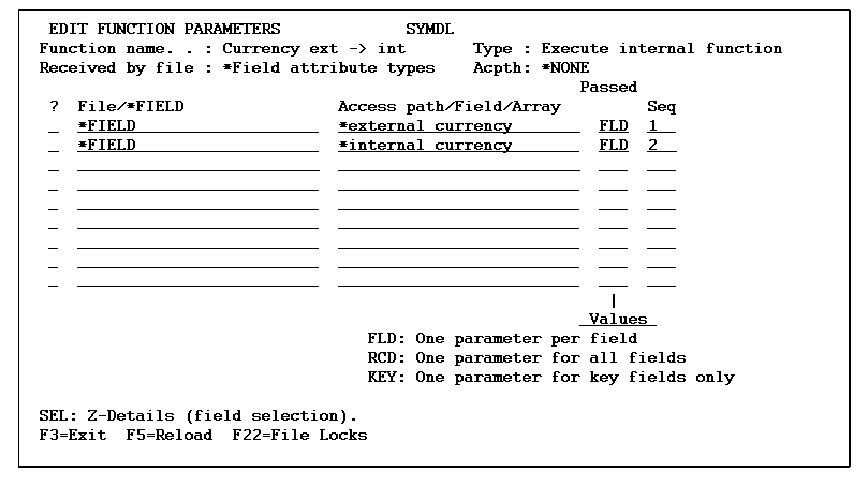
Zoom into each parameter to display the Edit Function Parameter Details panel. Assign the usage and role for the Currency ext –> int function parameters as follows.
|
Parameter |
Usage |
Role |
|
*external currency |
I |
MAP |
|
*internal currency |
O |
MAP |
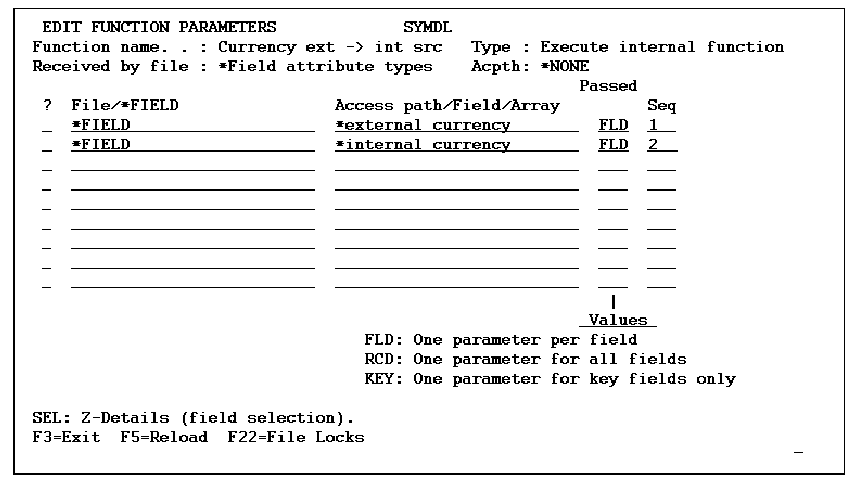
Zoom into each parameter to display the Edit Function Parameter Details panel. Assign the usage and role for the Currency ext –> int src function parameters as follows.
|
Parameter |
Usage |
Role |
|
*external currency |
I |
MAP |
|
*internal currency |
O |
MAP |
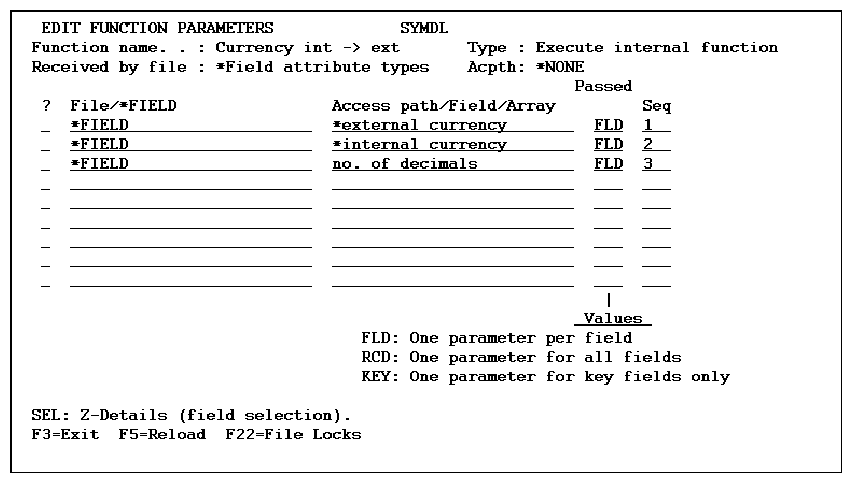
Zoom into each parameter to display the Edit Function Parameter Details panel. Assign the usage and role for the Currency int –> ext function parameters as follows.
|
Parameter |
Usage |
Role |
|
*external currency |
O |
MAP |
|
*internal currency |
I |
MAP |
|
no. of decimals |
I |
MAP |
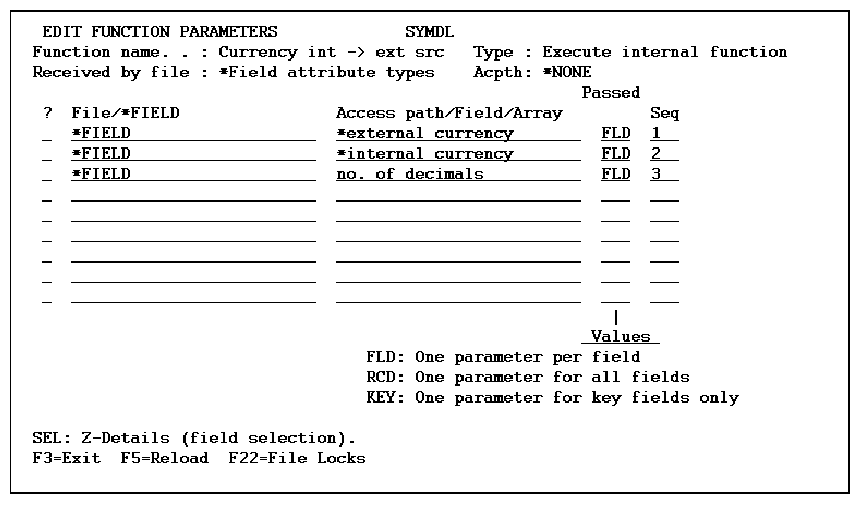
Zoom into each parameter to display the Edit Function Parameter Details panel. Assign the usage and role for the Currency int –> ext src function parameters as follows.
|
Parameter |
Usage |
Role |
|
*external currency |
O |
MAP |
|
*internal currency |
I |
MAP |
|
no. of decimals |
I |
MAP |
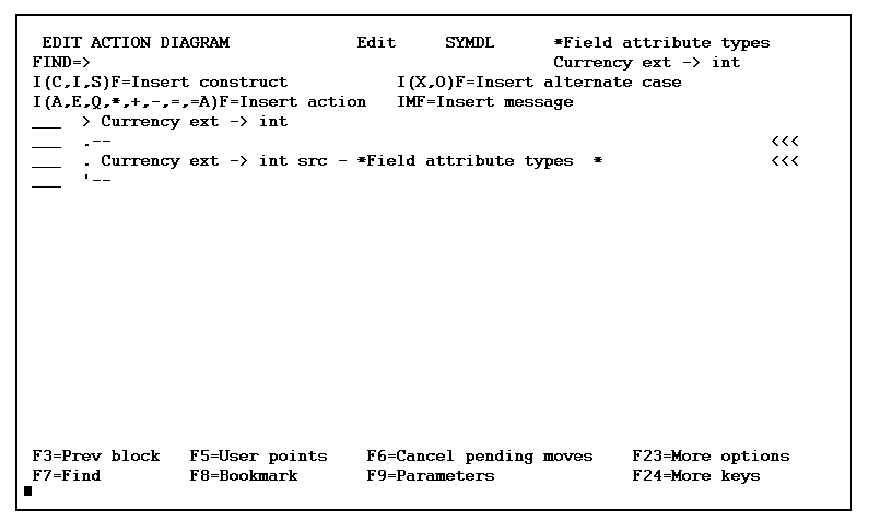
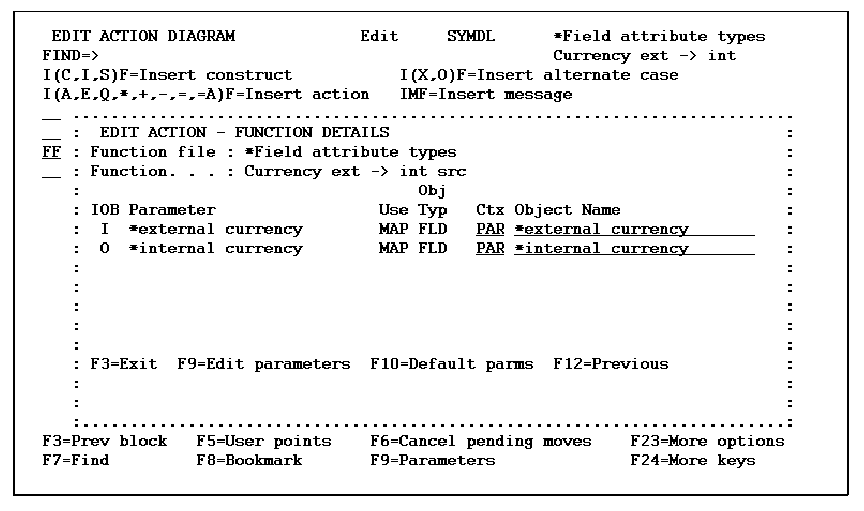
|
*CURRENCY EXT –> INT SRC *CONVERT TO INTERNAL FORMAT |
||||||
|
|
C C C |
* * |
Z-ADD15 Z-ADD14 MOVEA |
#IXBCD |
X Y OUT |
20 20 |
|
|
|
*STRIP OUT DECIMAL POINT |
|
|
|
|
|
|
C C C C C C C C C |
X OUT,X * |
DOUEQ1 IFNE MOVE SUB END SUB END MOVEA MOV |
’.’ OUT,X 1 1 INP WRK14 |
INP,Y Y X WRK14 #OZZNB |
14 |
|
*CURRENCY INT –> EXT SRC |
||||||
|
|
E E C C C C C C C C C C C C C C |
* * #IQHNB * #IQHNB |
INP OUT MOVE MOVE Z-ADD MOVEA MOVEA IFEQ MOVE MOVEA ELSE IFEQ MOVE MOVEA MOVEA ELSE |
14 15 ’ ’ #IZZNB #IQHNB WRK14 INP 1 ’.’ INP,14 2 ’.’ INP,13 INP,14 |
1 1 OUT WRK14 WRK2N INP OUT OUT,14 OUT,15 OUT,13 OUT,14 OUT,15 |
14 20 |
|
|
C C C C C C C C C C C C C C C C |
#IQHNB #IQHNB |
IFEQ MOVE MOVEA MOVEA MOVEA ELSE IFEQ MOVE MOVEA MOVEA MOVEA MOVEA END END END END |
3 ’.’ INP,12 INP,13 INP,14 4 ’.’ INP,11 INP,12 INP,13 INP,14 |
OUT,12 OUT,13 OUT,14 OUT,15 OUT,11 OUT,12 OUT,13 OUT,14 OUT,15 |
|
|
|
|
*CHANGE LEADING ZEROES TO BLANKS |
|
|
|
|
|
|
C C C C C C |
OUT,X * * |
Z-ADD1 DOUNE MOVE ADD END MOVEA |
’0’ ’ ’ 1 OUT |
X OUT,X X #OXBCD |
20 |
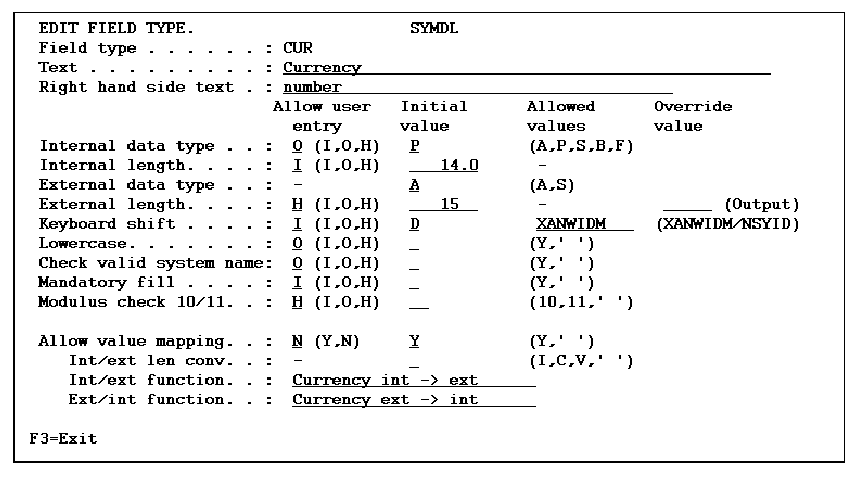
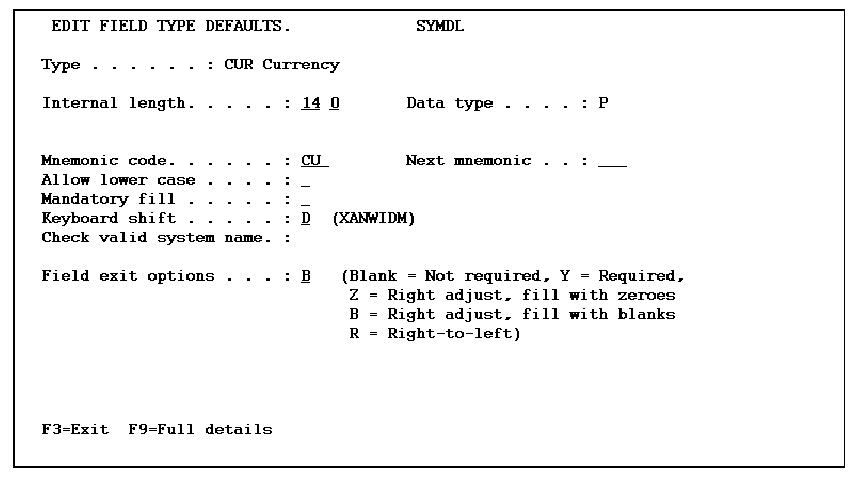
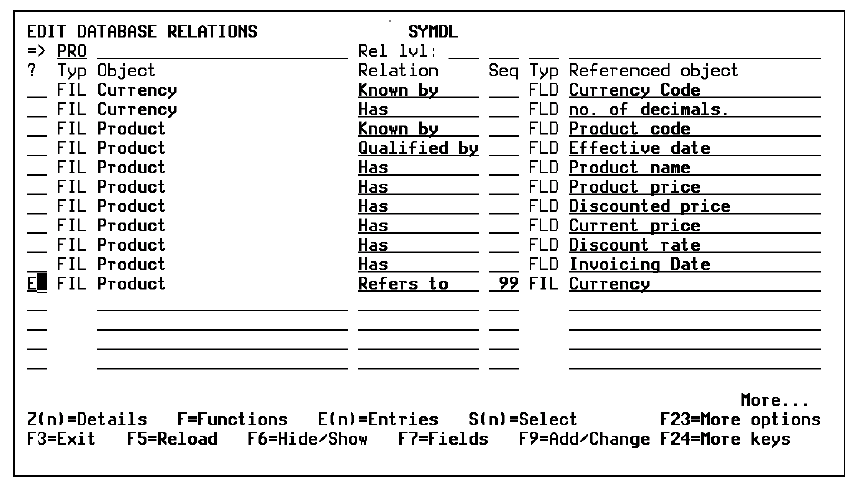
Any files that actually use the CUR field type must reference the Currency file. The no. of decimals field must be virtualized across the Refers to relation.
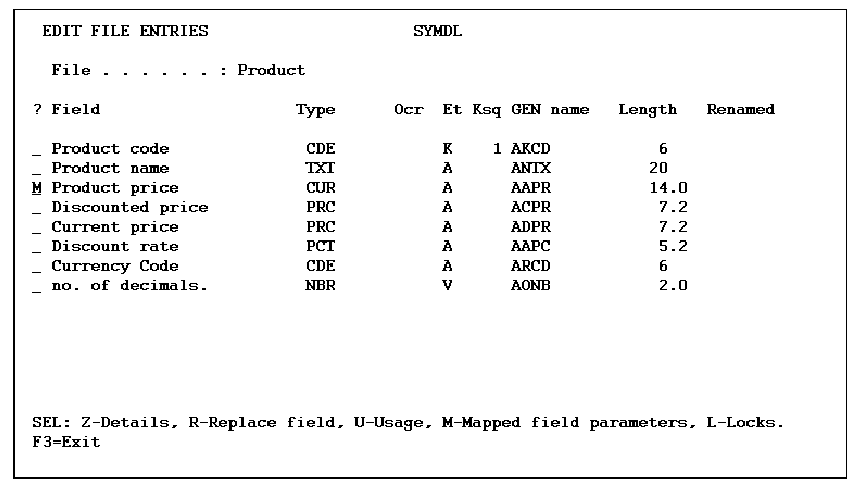
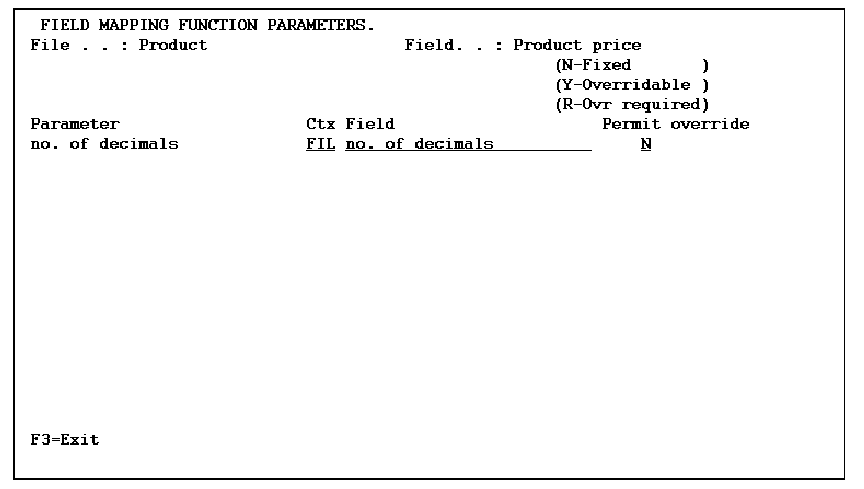
For more information on this process, refer to this topic, the Supplying Parameters to Mapping Functions subtopic, the Mapping Function Parameters: Panel/Report Entry Level subtopic, and the online help.
| Copyright © 2011 CA. All rights reserved. | Tell Technical Publications how we can improve this information |