Deploying the CA Threat Management Agent › Install the Remote Installation Utility (Windows Only)
Install the Remote Installation Utility (Windows Only)
The Remote Installation Utility provides a graphical user interface for installing the CA TM Agent to multiple client machines simultaneously. Use this procedure to copy the Remote Installation Utility and the installation source files (CA TM Agent files) from the CA TM CD to your local machine.
Note: If you have AV 7.1 Remote Install installed on your machine, you must remove it before installing the r8.x version.
- Insert the eTrust ITM CD into the CD drive.
- Select the installation language when prompted, and then click OK.
- On the Main Menu, click Install.
- Click the I agree button to accept the Install Notice.
Note: You must scroll to the end of each notice to enable the I Agree button.
- Click the I Agree button to accept the CA License Agreement.
- Click the I Agree button to accept the Third Party License Agreements.
- In the Option Selection window, click Install Remote Install Utility.
- Review the component to be installed and then click Finish.
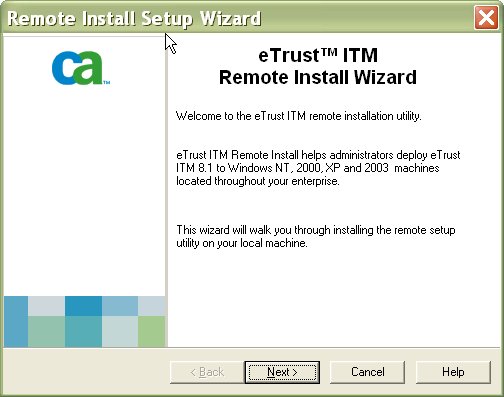
- Click Next when the eTrust ITM Remote Install Setup Wizard appears.
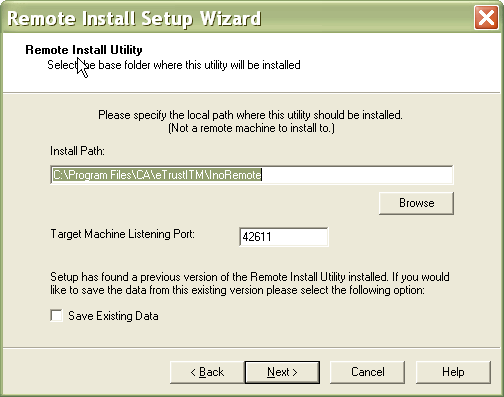
- Click Next to accept the default Install Path or browse to a different installation path, and then click Next.
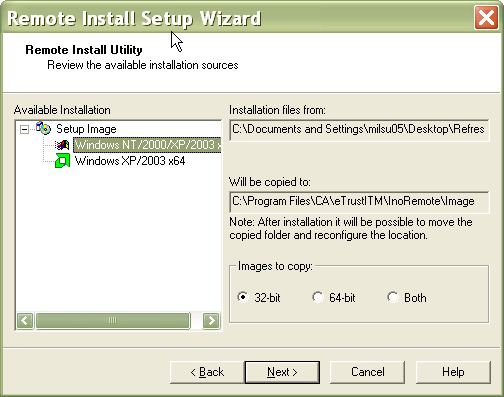
- Click Next to copy the installation source files from the CA TM CD to the default location on your local machine.
- Click Install to begin the installation of the Remote Install Utility.
- Click Next when the installation is complete, and then Finish when the Installation Successful message appears.
Copyright © 2008 CA.
All rights reserved.