Install the CA TM Server

Use this procedure to install the CA TM Server on any of the supported operating systems for this release.

Note: You do not need to uninstall eTrust Antivirus 7.1 or eTrust PestPatrol 5.0.2.x if it is already installed in your environment.

To install the CA TM Server

  1. Insert the CA TM CD into the CD drive.
  2. Select the installation language when prompted, and then click OK.
  3. Click the I Agree button to accept the Install Notice.

    Note: You must scroll to the end of each notice to enable the I Agree button.
  4. Click the I Agree button to accept the CA License Agreement.
  5. Click the I Agree button to accept the Third Party License Agreements.
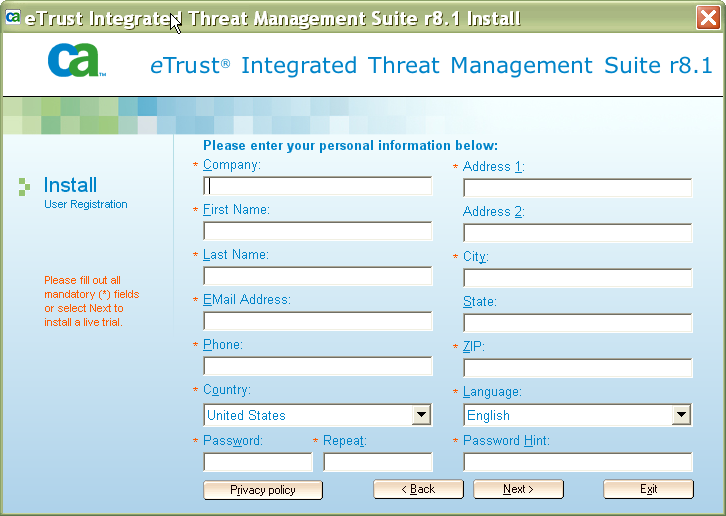
  6. Enter your User Registration information, and then click Next.

    User Registration Install Window

    Note: This password provides access to the user registration information only. This password can be anything you choose.

  7. Enter your license key for CA Anti-Virus and/or CA Anti-Spyware.

    If you are installing the full suite, enter a 25-character license key for both Anti-Virus and Anti-Spyware. If you do not enter a license during installation, a 30-day evaluation copy of the software is installed. When the evaluation period expires, you will be unable to download updated signature files.
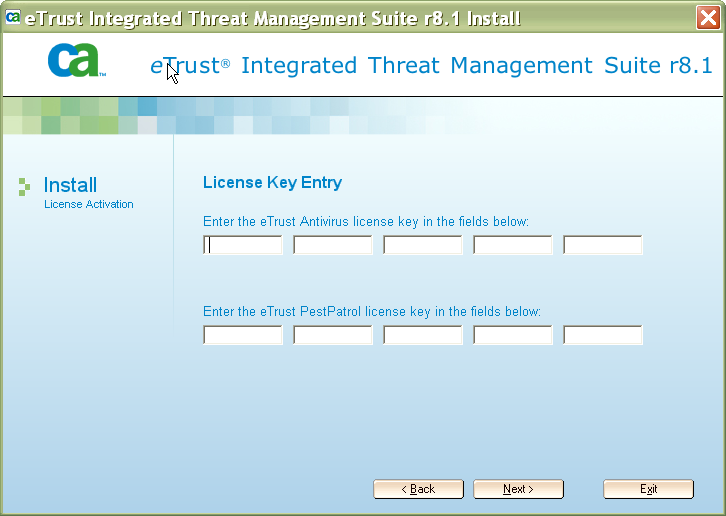
    Install License Activation

    Note: Make sure you have an active Internet connection during this step of the installation as the information is uploaded to CA to complete licensing and registration of the software.

    To install the trial version, click Yes.
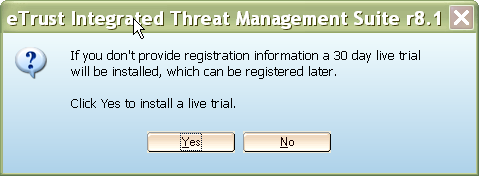
    Install Live Trial

  8. In the Option Selection window, click Install eTrust Integrated Threat Management Suite, r8.1.
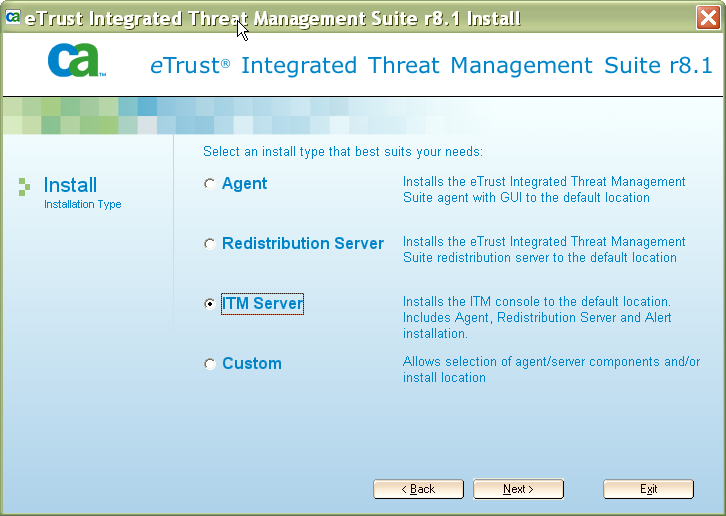
  9. On the Installation Type window, click ITM Server, and then click Next.

    Installation Type Window

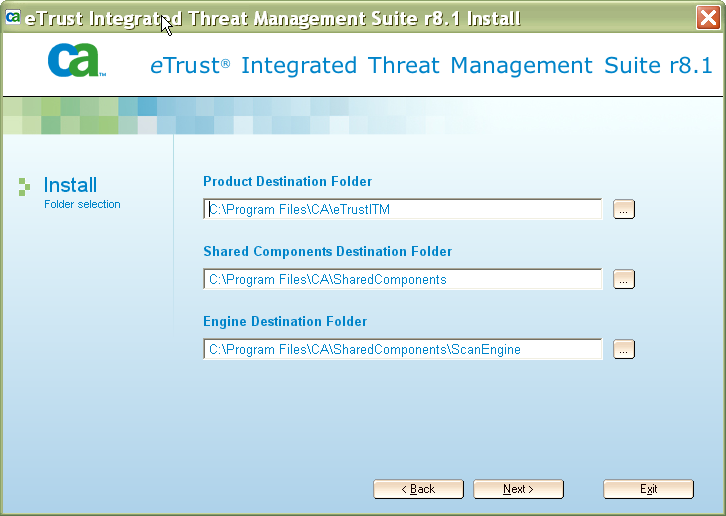
  10. Review or change the Folder Destinations, then click Next.

    Install Folder Destinations

  11. Click Finish to begin the installation

    The installation progress is displayed.

  12. Reboot the machine when prompted.

    Note: You must reboot the server when the installation is complete. If the product registration fails, you can log into the TM Console and enter registration and license keys later.


Copyright © 2008 CA. All rights reserved.