Installing the CA Threat Management Server › Create Organization Tree Branches
Create Organization Tree Branches
Use this procedure to create branches in your Organization Tree. Later you will assign machines to these branches. The Organization Tree branches allows you to manage groups of machines simultaneously.
To create Organization branches
- Go to Start, Programs, CA, eTrust, eTrustITM, Console.
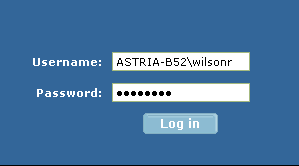
- Log in using domain\user_name format:
- Click on the Organization tab.
- Select the Organization folder, and then click Add.
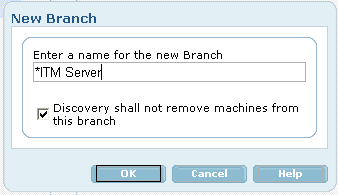
- In the New Branch dialog, enter a name for this branch and click OK.
Use a descriptive name that you can identify later. For example, you might create branches for specific subnets in your office, different office locations by city, functional departments such as Development and Marketing, server machines verses client machines, and so on. Note that you can force a branch to the top of the Organization Tree by placing an * at the beginning of the name.
- Repeat this procedure to add more branches.
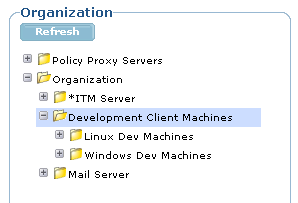
The following screen-shot shows an Organization Tree with multiple branches. Note that you can also create sub-branches within a branch:
Copyright © 2008 CA.
All rights reserved.