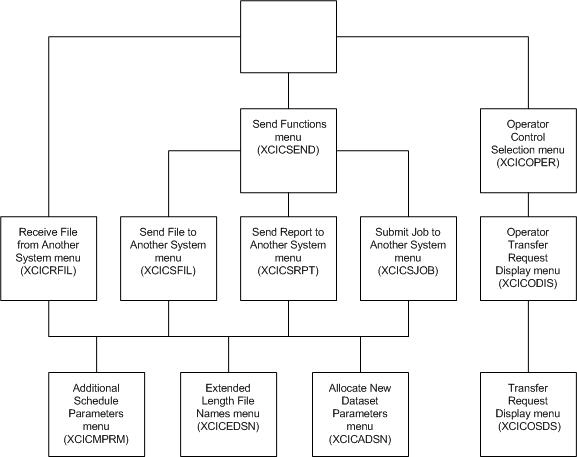
The following diagram shows the tree structure of the CA XCOM Data Transport CICS menus available to you. Note that each menu has a name that describes its function (such as Send Functions menu), plus an abbreviated name (such as XCICSEND) whose first four characters are XCIC.
Use of CA XCOM Data Transport menus begins with display of the Primary Option Menu. At this menu, you can enter data which causes CA XCOM Data Transport to display one of the following three menus:
At the Send Functions menu, you can enter data that causes CA XCOM Data Transport to display one of three other menus. The figure, CA XCOM Data Transport CICS Menu Tree Structure, indicates how data you enter at any of those three menus (the Send File to Another System menu, the Send Report to Another System menu, or the Submit Job to Another System menu), or the Receive File from Another System menu, causes CA XCOM Data Transport to display one of another three menus (the Additional Schedule Parameters menu, the Extended Length File Names menu, or the Allocate New Dataset Parameters menu). Finally, at the Operator Control Selection Menu you can enter data that causes CA XCOM Data Transport to display the Operator Transfer Request Display menu. At the Operator Transfer Request Display menu, you can enter data that causes CA XCOM Data Transport to display the Transfer Request Display menu.
| Copyright © 2010 CA. All rights reserved. | Email CA about this topic |