

|
|
|
You can upload files through CA XCOM Gateway by using a specified set of rules. These rules are set in policies. Policies are created by your CA XCOM Gateway administrator and can be selected by users.
To upload a file
Note: A policy must be upload enabled before you can use it to upload a file. If the Upload Enabled field is set to No, contact your CA XCOM Gateway administrator.
Note: You can click Cancel at any time to cancel this procedure.
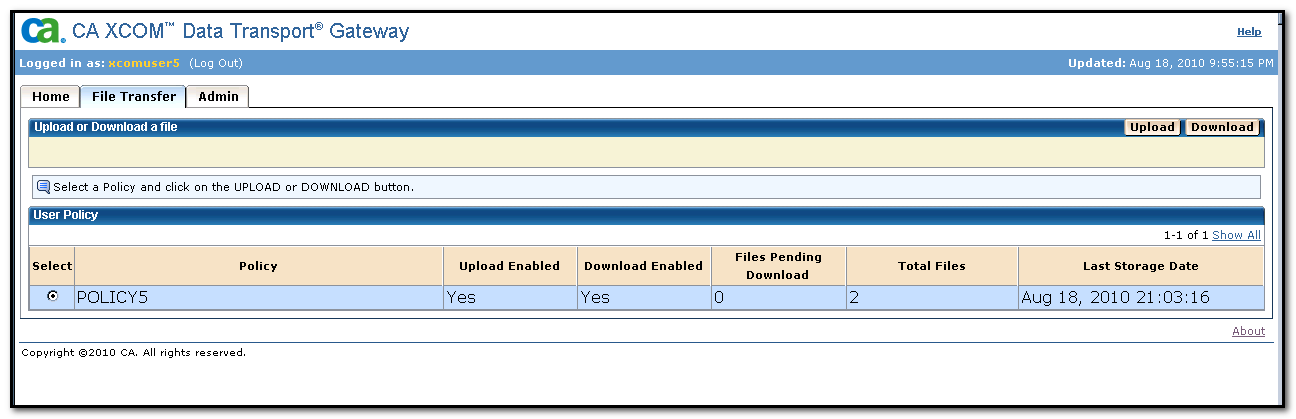
Selects the policy.
The policy name
Upload is enabled.
Upload is disabled.
Download is enabled.
Download is disabled.
This field counts the number of files pending for downloading.
This is the total number of files available for download for this policy.
The date when the file was last stored in the staging area.
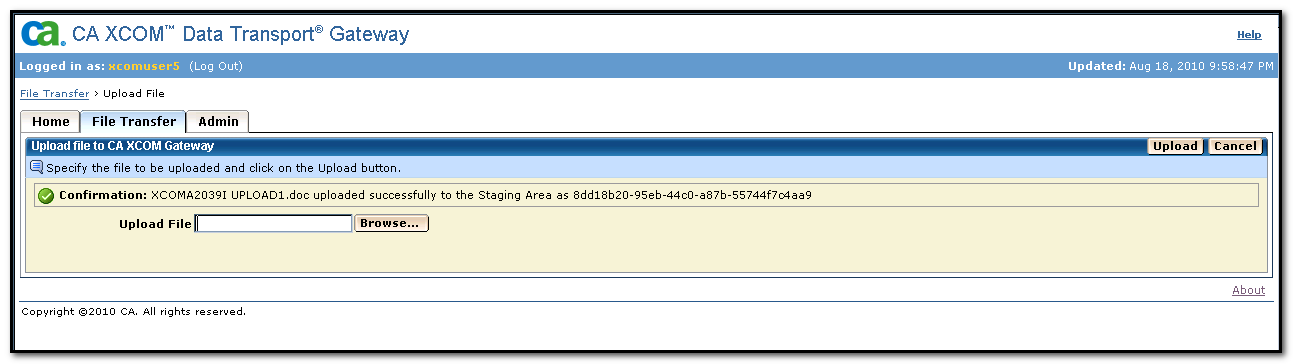
The Upload file to CA XCOM Gateway window appears.
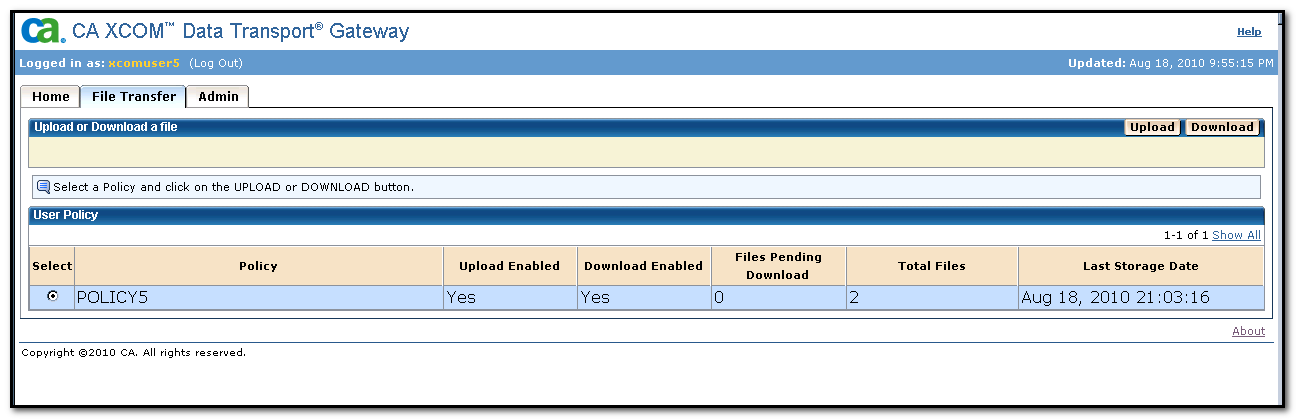
An information message displays the status of the upload, as follows:
| Copyright © 2011 CA. All rights reserved. | Tell Technical Publications how we can improve this information |