

|
|
|
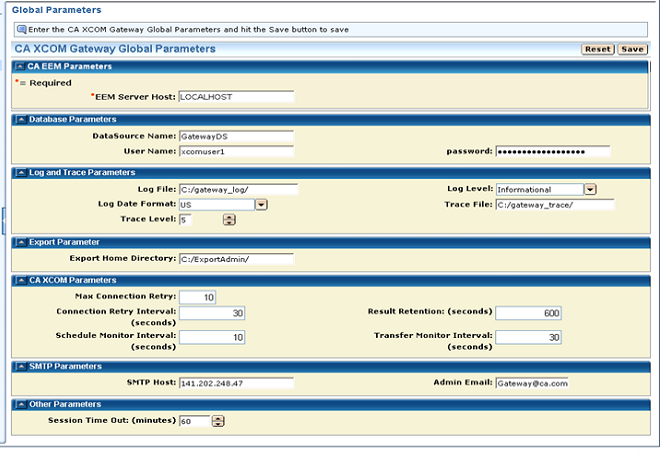
CA XCOM Gateway administrators with Super Admin authority can use the Global Parameters page to display or change the values of global parameters. However, the changes made to the global parameters take effect only when CA XCOM Gateway is restarted.
Note: Following the installation of CA XCOM Gateway, the following global parameters may need to be changed, if the installer sets them to fixed values that may not be appropriate:
These parameters need to be changed if you intend to configure CA XCOM Gateway to provide email notifications to users. The parameters identify your SMTP sever and the “from” address to be used for all notification emails.
These parameters may need to be changed. They control the destination, format, and reporting level for log messages and trace information generated by CA XCOM Gateway.
This parameter may need to be changed. It specifies the default destination for exported configuration items.
These parameters may need to be changed. They specify retry and monitoring intervals relating to CA XCOM Gateway’s interface with CA XCOM Data Transport.
Global parameters are stored in an xml file called xcom-globals.xml within the JBoss conf folder. This file is updated whenever parameters are changed using the Global Parameters page of CA XCOM Gateway. For more information about the format of the xcom-globals.xml file, see the appendix “Configuration XML Formats.”
Important! Because incorrect global parameter changes can render CA XCOM Gateway inoperable and the CA XCOM Gateway website inaccessible, we strongly recommend that you save a copy of xcom-globals.xml before making online changes to the global parameters. Problematic changes can then be reversed by restarting CA XCOM Gateway after reinstating the saved file.
To update global parameters
The Home page appears.
The Admin page appears.
Note: If there is no Admin tab on the web page, it means that your login ID does not have the Super Admin privilege.
The Global Parameters page appears, displaying the current global parameter values. The parameters are divided into groups and each group can be hidden or revealed by clicking the icon to the left of the group’s heading bar. The following sections describe the parameters in each group.
The changes made to global parameters are saved.
Note: If an optional parameter value is erased, the default value is saved for the parameter in the Global Parameters file.
| Copyright © 2011 CA. All rights reserved. | Tell Technical Publications how we can improve this information |