Implementation Guide › CA User Activity Reporting Module and Virtualization › Creating CA User Activity Reporting Module Servers using Virtual Appliances › Adding Virtual Servers to Your Environment › Install a CA User Activity Reporting Module Server Manually › Set the Paravirtualization and Resource Settings
Set the Paravirtualization and Resource Settings
After you import the OVF template, you must manually set the paravirtualization and resource settings to improve the performance of the provisioned CA User Activity Reporting Module server.
Note: Verify that you set the CD/DVD Drive to Client Device.
To set the paravirtualization and resource settings
- Right-click the new CA User Activity Reporting Module Virtual Appliance in the left pane, and click Edit Settings.
The <CA User Activity Reporting Module Virtual Appliance name> - Virtual Machine Properties window appears.
- Click the Option tab in the window.
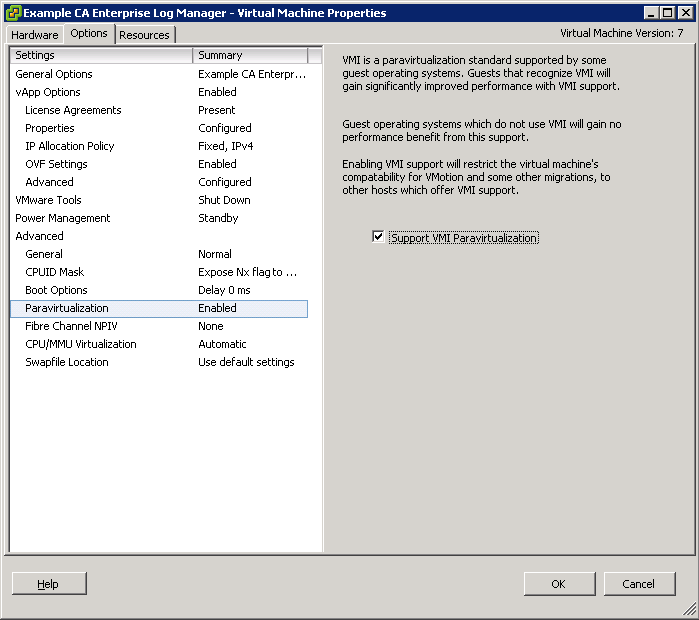
- Select the Paravirtualization setting in the left pane, and select the Support VMI Paravirtualization option in the right pane.
- Click the Resources tab in the window.
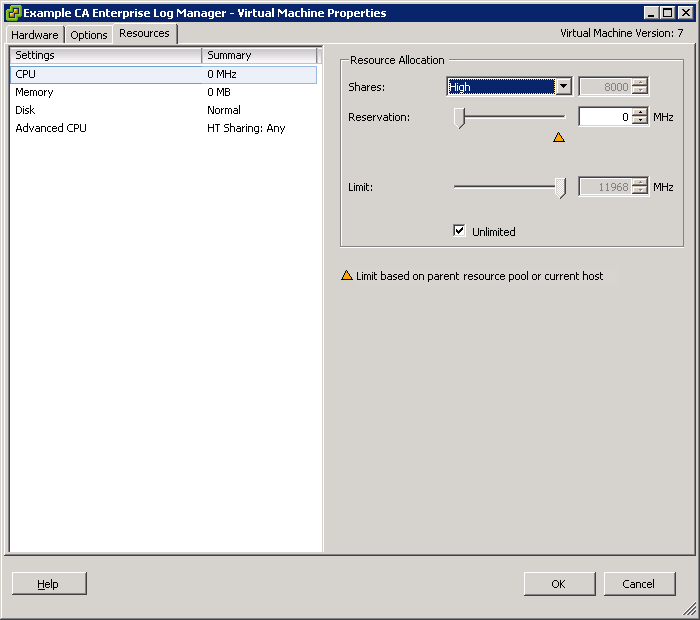
- Select the CPU option under the Settings column, and select High from the Shares drop-down in the Resource Allocation section.
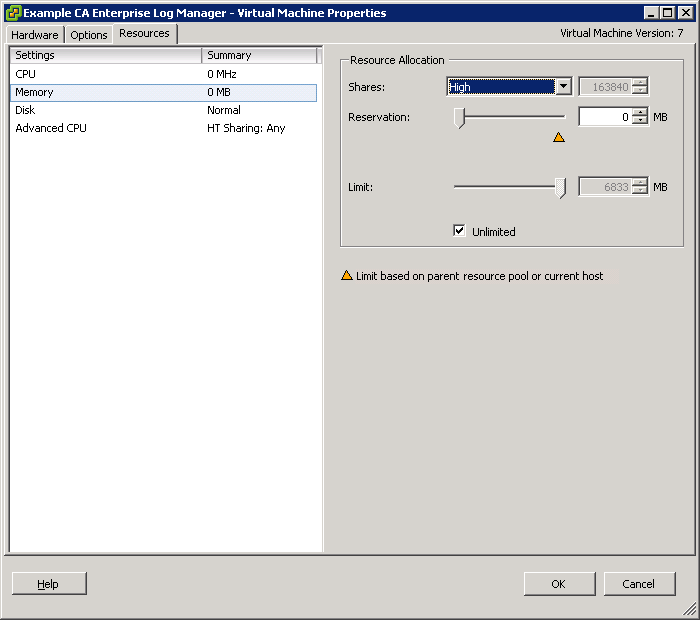
- Select the Memory option under the Settings column, and select High from the Shares drop-down in the Resource Allocation section.
- Click OK.
- Note: For more information about Paravirtualization, go to www.vmware.com.

