

|
|
|
Sometimes, a product is not currently available from CA Support Online. For example, if you are testing a beta version of a product, the version is delivered to you by other means. You can add these types of product packages to CA MSM using the Insert New Product action.
To add a product package to CA MSM
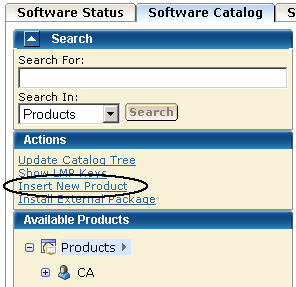
You are prompted to supply information about the product.
The product is added to the software catalog.
The Base Install Packages section appears at the right.
You are prompted to identify the package.
Information about the package is saved in the CA MSM database.
Note: To see the added package, refresh the page.
| Copyright © 2010 CA. All rights reserved. | Tell Technical Publications how we can improve this information |