Installation and Upgrade Guides › Directory Configuration Guide › Oracle Internet Directory Server › Create a SiteMinder 5.5 or 6.0 Policy Store in Oracle Internet Directory (OID) Directory Server
Create a SiteMinder 5.5 or 6.0 Policy Store in Oracle Internet Directory (OID) Directory Server
Important! Before running a SiteMinder utility or executable on Windows Server 2008, open the command line window with Administrator permissions. Open the command line window this way, even if your account has Administrator privileges. For more information, see the release notes for your SiteMinder component.
To create the required SiteMinder 5.5 or 6.0 policy store schema in OID Directory Server
- Create a domain in OID using the ODM by right-clicking Entry Management and selecting Create.
- In the Distinguished Name dialog:
- Click Add.
- Select the domain.
- Enter:
- dc=dcbok for the Distinguished Name value.
- dc for the dc value.
- Do the following:
- Create an organizational unit.
- Select the organizational unit.
- Enter ou=bok,dc=dcbok for Distinguished Name value and bok for the ou value.
- Point the Policy Server at the OID Directory Server that you plan to use as a policy store by following the instructions in the Policy Server Installation Guide.
The following are sample values you can enter on the Data tab of the 6.0 Policy Server Management Console. You can use similar values for 5.5:
- Database
-
Policy Store
- Storage
-
LDAP
- LDAP IP Address
-
192.168.122.18:389
- Admin Username
-
oracleadmin
- Root DN
-
ou=ps6,dc=CA
- Create the schema file, using the Policy Server’s smldapsetup utility. On the system where the Policy Server is installed, use the command prompt to go to <nete_ps_root>\bin. Run the following command:
smldapsetup ldgen -fpstoreschema.ldif
- Import the schema you created in to the policy store server by running the following command:
smldapsetup ldmod -fpstoreschema.ldif
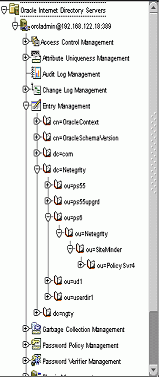
- In OID, to confirm that you have performed the steps correctly, the base tree structure that holds the policy store data looks like the following:
- Confirm that the Policy Server is pointing to the OID policy store by using the Data tab of the Policy Server Management Console. For detailed instructions, see the Policy Server Management Guide.
- Import the base policy store data from the file smpolicy.smdif:
smobjimport -i<siteminder_installation>\db\smdif\smpolicy.smdif -v
Note: When manually configuring a policy store on Windows, you can import one of the following:
- smpolicy.smdif
- smpolicy–secure.smdif
The file named smpolicy–secure provides additional security through enhanced default Web Agent configuration parameters.

