

|
|
|
You are not required to upgrade to a 6.x key store. 5.x key stores are compatible with 6.x Policy Servers, and you can configure the 6.x Policy Server to use a 5.x key store to maintain single sign-on as you upgrade to 6.x. As a result, you can either:
Note: If the Policy Server is configured to allow Agent key generation, you cannot use a 5.x key store with a 6.x policy store because the Policy Server does not start. The policy store must remain at 5.x. To determine if the Policy Server is configured to allow Agent key generation, open the Keys tab in the Policy Server Management Console. If the Enable Agent Key Generation check box is selected, the Policy Server is configured to allow Agent key generation.
To maintain 5.x key stores for single sign-on during the upgrade
Important! If you are accessing this graphical user interface on Windows Server 2008, open the shortcut with Administrator permissions, even if you are logged into the system as an Administrator. For more information, see the release notes for your SiteMinder component.
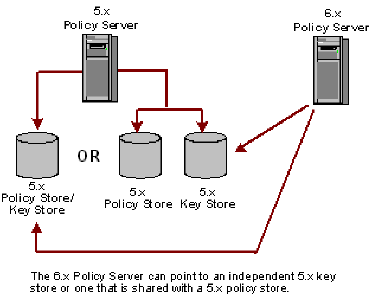
The 5.x key store referenced by the 6.x Policy Server can be located in the 5.x policy store or in a separate key store.
The following figure illustrates how to use 5.x key and policy stores with a 6.x Policy Server to maintain single sign-on.
Note: For more information about static and dynamic keys and configuring Policy Servers to use specific key stores, see the Policy Server Management guide.
To create a new 6.x static key store that contains the 5.x key data
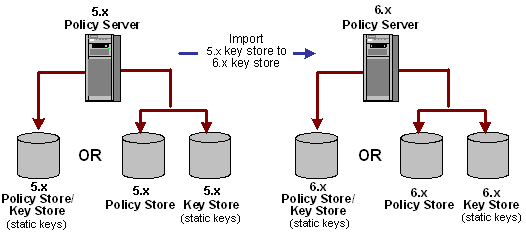
The 5.x key store that you export can be located in the 5.x policy store or in a separate key store.
Enter static keys using the Manage Keys option in the 6.x Policy Server User Interface.
Important! If you are accessing this graphical user interface on Windows Server 2008, open the shortcut with Administrator permissions, even if you are logged into the system as an Administrator. For more information, see the release notes for your SiteMinder component.
The 6.x key store can be an independent store or with the policy store.
The following figure illustrates how to upgrade static keys to maintain single sign-on.
To create a new 6.x dynamic key store that contains the 5.x key data
The 5.x key store that you export can be located in the 5.x policy store or in a separate key store.
Enter dynamic keys using the Manage Keys option in the 6.x Policy Server User Interface.
Important! If you are accessing this graphical user interface on Windows Server 2008, open the shortcut with Administrator permissions, even if you are logged into the system as an Administrator. For more information, see the release notes for your SiteMinder component.
The 6.x key store can be an independent store or with the policy store.
The following figure illustrates how to upgrade dynamic keys to maintain single sign-on.
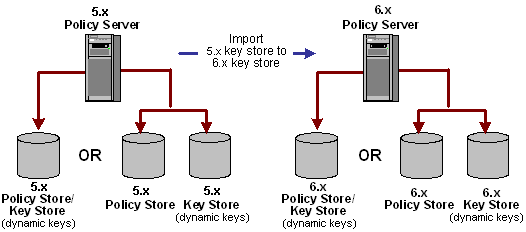
Important! To maintain single sign–on in this type of environment, each time the 5.x keys are generated, manually import the 5.x keys into the 6.x key store or single sign–on fails.
Note: For more information about static and dynamic keys and configuring Policy Servers to use specific key stores, see the Policy Server Management guide.
| Copyright © 2011 CA. All rights reserved. | Email CA Technologies about this topic |