

|
|
|
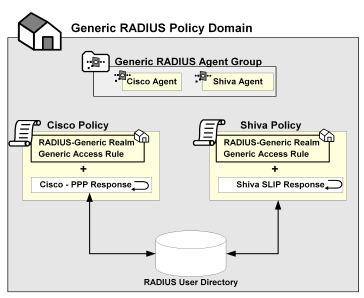
When using RADIUS Agent groups, you typically setup a separate policy for each type of RADIUS Agent. By using separate policies for each type of RADIUS Agent, you can share the common elements of the policy domain, such as the realm and a rule, in each policy. Sharing these common elements saves time.
Unlike the rule and realm, the response in each policy is not shared. Each policy has its own response, which corresponds to the device type of the RADIUS Agent in the policy. The attributes in a response match the attributes provided by the Dictionary file of the NAS device. For example, a response for a Cisco RAS would need to provide attributes that the Cisco RAS could interpret using the Cisco Dictionary file.
Note: All of the NAS devices represented in a RADIUS Agent group must share the same user directory. If they do not share the same user directory, they cannot exist in the same policy domain and therefore, they cannot share the same generic realms or generic rules.
The following example depicts one RADIUS Agent group that contains both an Agent for a Cisco RAS and an Agent for a Shiva RAS. The Agent group is shared by both the Cisco policy and the Shiva policy. Both of these policies share the same generic rule to allow access and the same generic realm, which binds the Agent group to the same authentication scheme. Notice, however, that the responses for each policy are unique.
To setup a RADIUS Agent Group
The SiteMinder Agent Group dialog box appears, as shown in the following graphic.
You may want to use the description to identify the RADIUS Agents contained in the group.
The Agent Group Items dialog box appears, as shown below.
The RADIUS Agent Group is added to the Agent Group List.
| Copyright © 2011 CA. All rights reserved. | Email CA Technologies about this topic |