If you have access to the installation client and authorization for transaction SCPR20, you activate the BC Sets delivered in the CASD Connector installation. Activating the hierarchical BC Set also activates the workbench and customizing BC Sets.
- Log in to Client 100.
- Execute transaction /nscpr20.
The Business Configuration Sets: Activate page appears.
- Enter /CASD/Hierarchy as the name of the BC Set and press Enter.
Note: You can enter *CASD* in the BC Set name field to help you find the BC Sets.
- From the File menu, click BC Set, Activate.
The Prompt for Workbench request window appears.
- Click the Create icon to create the workbench request, as outlined in the following example:
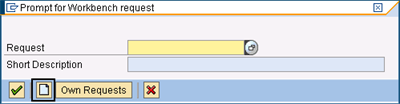
Important! Do not use an existing request, even if the system proposes one.
The Create Request window appears.
- Enter BC Set Activation Workbench Request as the short description, click Save.
The Prompt for Workbench request window reappears.
- Make a note of the transport number Q00K900006 that appears on the Prompt for Workbench request page, click the green checkmark to continue.
The Prompt for Customizing request window appears.
- Click the Create icon (as shown in the previous graphic) to create the customizing request.
Important! Do not use an existing request, even if the system proposes one.
The Create Request window appears.
- Enter BC Set Activation Customizing Request as the short description, and click Save.
The Prompt for Customizing request window reappears.
- Make a note of the transport number Q00K900008 that appears on the Prompt for Customizing request page and click the Green Checkmark icon to continue.
The Activation Options window appears and you select the appropriate option, such as illustrated in the following example:
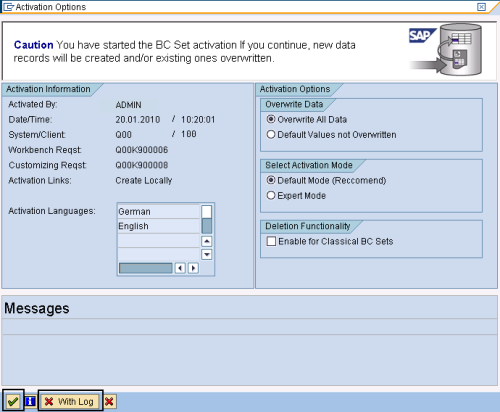
- Click the Green Checkmark icon to perform the actual activation and produce a log file.
- Click the red Cancel With Log icon to perform a test activation and produce a log file.
A message appears indicating that the activation completed and you can click the Activation Logs icon  to view the log that displays results for the hierarchical BC Set.
- Log off Client 100.