Dashviews are important components in CA Oblicore Guarantee for publicizing performance measurements from contracts, especially metric-related data. As an administrator, you can create dashviews in CA Oblicore Guarantee and publish them in CA Service Catalog to help CA Service Catalog users better understand the quality and performance of services over time.
CA Oblicore Guarantee administrators create dashviews as graphical representations of performance data for CA Service Catalog services. The performance data shows the quality of the services over time. Dashviews are containers that typically hold either a widget (speedometer) or a report that helps to organize information and support the integration.
You can embed dashviews in portals and resize them. You can configure dashviews to display a background image that helps represent the status of multiple entities, such as countries, organizational units, and stages of a process.
Note: For details about creating and managing dashviews in CA Oblicore Guarantee, see your CA Oblicore Guarantee documentation.
To implement dashviews in CA Service Catalog, complete these tasks:
You can optionally do either or both of the following:
If necessary, create a new dashboard for this item.
Note: A dashboard is a personal page containing items (elements) from the dashboard library. Users can create personal dashboards and access shared dashboards to which they have access. Administrators can create shared dashboards and manage the dashboard library. For details about creating and managing dashboards and their items in CA Service Catalog, see the Administration Guide.
http://[ServerName]/NewDashboard/DashboardWebPart.aspx?dashviewId=[ID]&username=[CA Oblicore Guarantee username]&organization=[Organization]
For example:
http://hesed333/NewDashboard/DashboardWebPart.aspx?dashviewId=32&username=sadmin&organization=CA
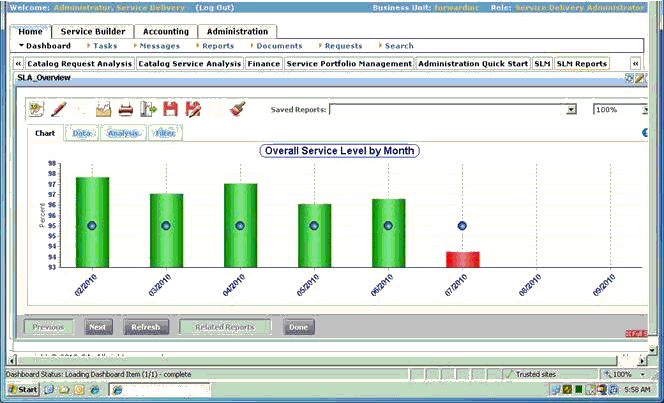
The following is a sample dashview published in a dashboard item:
| Copyright © 2010 CA. All rights reserved. | Email CA Technologies about this topic |