

|
|
|
As a System Administrator, you use CA Server Automation to manage the optimal policy-driven provisioning of software images across your physical and virtual server resources.
You use Rapid Server Imaging (RSI) to provide cross-platform and heterogeneous hardware provisioning, physical and virtual server migration, disaster recovery, and image capture and deployment. Images can be deployed across dissimilar hardware with multiple operating environments provided the hardware belongs to the same processor family.
Rapid Server Imaging (RSI) is deployed to AppLogic which acts as a DynaCenter domain for images.
You want to use CA Server Automation to simplify the deployment of RSI images to the DynaCenter domain inside an AppLogic grid.
Prerequisites:
Note: For more information, see the CA AppLogic Backbone Fabric Controller User Guide.
Note: For more information, see the RSI for AppLogic Installation and User Guide on DVD3 of the installation media.
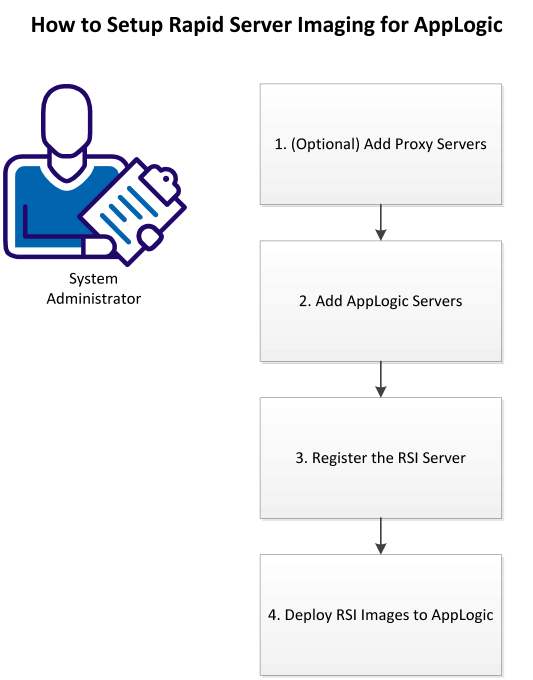
The following process provides a high-level overview of how to setup and use CA Server Automation to simplify RSI image deployment to AppLogic:
Note: To deploy images captured by other RSI servers, the RSI server in the AppLogic grid must share their depots.
| Copyright © 2011 CA. All rights reserved. | Tell Technical Publications how we can improve this information |