

|
|
|
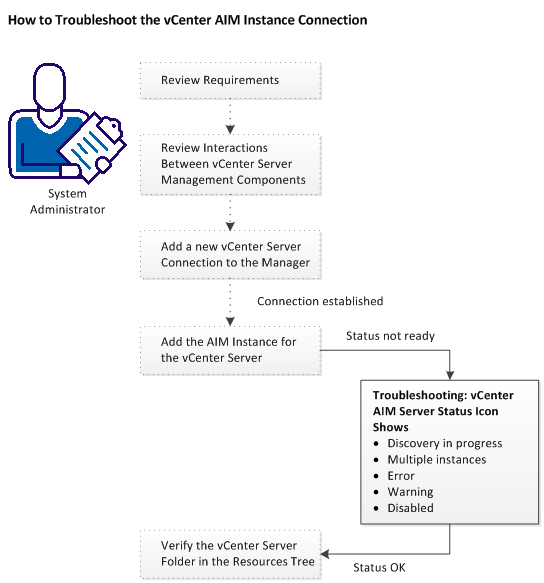
The vCenter AIM Connection is in not-ready status. One of the following status icons appears:
 Discovery in progress - Wait until the platform manager synchronizes all data.
 Multiple instances - This instance is managed by multiple AIMs. Remove the duplicate instance.
 Error - Unable to connect to the AIM. Check the network configuration.
 Warning - Some instances on the AIM are still in error state.
 Disabled - This instance is not managed.
Follow the troubleshooting information indicated in the following diagram:
| Copyright © 2011 CA. All rights reserved. | Tell Technical Publications how we can improve this information |