

|
|
|
If you want to use the Windows Client for your CA GMI session then you must start it.
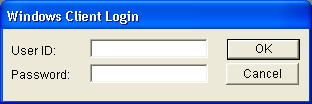
By default, when you start the Windows Client, you automatically log in as the ADMIN user (the default administrator), no Windows Client Login dialog appears, and the Windows Client Main Window appears. However, if this default was changed to require a specific user ID and password, the Windows Client Login dialog appears when you start the Windows Client and you must provide a valid user ID and password.
Note: For more information about creating and maintaining Windows Client logins, see the section User Manager in the CA Vantage SRM Windows Client Guide.
To start and log in to the Windows Client
The Windows Client Login dialog appears as shown in the following sample.
The Windows Client Main Window appears with the Home Form dialog displayed as shown in the following sample.
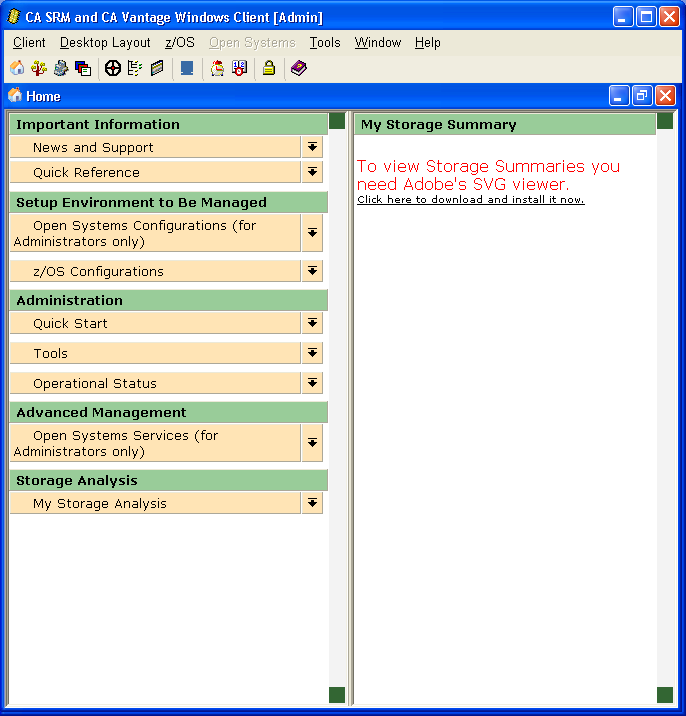
To start the Windows Client, click Start, Programs, CA, CA Storage Resource Manager, and select Windows Client. If no Windows Client login is required, the Windows Client Main Window appears with the Home Form dialog displayed.
| Copyright © 2012 CA. All rights reserved. | Tell Technical Publications how we can improve this information |