Installation Guides › Implementation Guide › Installation Overview › How to Install SOA Security Manager
How to Install SOA Security Manager
Installing SOA Security Manager requires you to install and configure several components, all of which are shown in the following diagram of a basic sample installation:
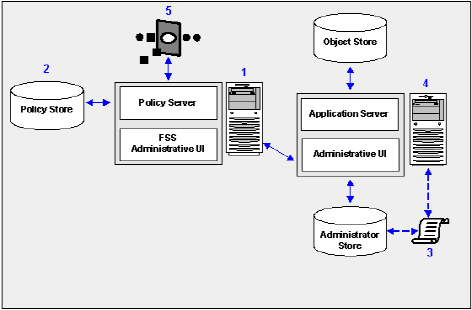
You should install and configure the SOA Security Manager components in the order shown in the sample illustration, as follows:
- Policy Server and FSS Administrative UI
- The Policy Server provides policy management, authentication, authorization, and accounting services.
- The FSS Administrative UI is installed with the Policy Server and is only used to manage CA SiteMinder Federation Security Services features. If you will not need to generate WS-Security SAML tokens, use of the FSS Administrative UI is not required. Although part of the core Policy Server installation, the FSS Administrative UI must be registered with the Policy Server before it may be used. Registering the FSS Administrative UI is completed through the Administrative UI. Therefore, you must install and configure the Administrative UI before registering the FSS Administrative UI.
- Policy store ‑ The policy store contains all of the Policy Server data. You can configure a policy store in a supported LDAP or relational database.
- Directory XML file—A directory xml file (directory.xml) describes how objects such as users, groups, and organizations are stored in your administrator user store. Prior to installing the Administrative UI, you configure a supported directory server or database-specific directory XML file so that the Administrative UI is able to locate your administrative users in the administrator user store.
- Administrative UI—You use the Administrative UI to manage SOA Security Manager administrator accounts, objects, and policy data through the Policy Server. You configure a directory XML file, an administrator user store, and an object store when installing the Administrative UI:
Note: CA recommends installing the Administrative UI on a system that is not hosting the Policy Server.
- SOA Agent (or SOA Security Gateway)—A SOA Agent is integrated with a web server or application server. The Agent lets SOA Security Manager manage access to web services according to predefined security policies. A SOA Agent is also integrated into the SOA Security Gateway, which provides XML gateway functionality in addtion to SOA Security Manager access control.
Note: CA recommends installing SOA Agents and SOA Security Gateways on systems that are not hosting the Policy Server.
Note: Information on installing the Policy Server, FSS Administrative UI, Policy Store, and Administrative UI exists in the SOA Security Manager Policy Server Installation Guide.
This guide describes how to install SOA Agents (including the SOA Security Gateway) and the following optional components which can be installed at any time during the process:
- SOA Security Manager Documentation
- SOA Security Manager SDK

