

|
|
|
To upgrade a SOA Security Manager deployment with multiple Policy Servers and SOA Agents, remove one of the Policy Servers and SOA Agents from the SOA Security Manager environment. While these components are being upgraded, the remaining Policy Servers and SOA Agents continue to protect your resources. Continue removing and upgrading SOA Security Manager components until all components are upgraded or operating in mixed-mode compatibility.
The following figures illustrate an r12.0 environment and detail:
Note: Each figure depicts a single policy/key store. Your environment may use separate policy and key stores.
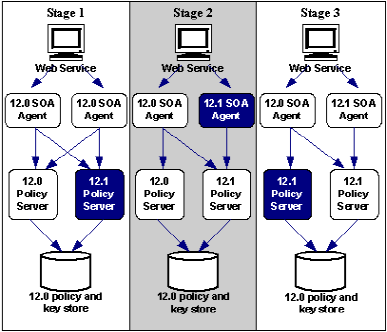
Important! The Policy Server installer replaces the r 12.0 Policy Server User Interface with the FSS Administrative UI during the upgrade. The r12.1 SP3 Policy Server continues to provide access control and generates log files that contain auditing information. However, you cannot administer the r12.0 policy store through the r12.1 SP3 Policy Server until the Administrative UI is installed..
Note: The FSS Administrative UI is for managing CA SiteMinder Federation Security Services and is required only if you use WS-Security SAML tokens. Although installed with the Policy Server, the CA SiteMinder Federation Security Services must be registered with the Policy Server before it may be used. You use the Administrative UI to register the FSS Administrative UI.
Important! If you are using WS-Security SAML tokens, the existing SOA Security Manager key database (smkeydatabase) must be upgraded to r12.1 SP3 or the existing keys and certificates must be migrated to an r12.1 SP3 SOA Security Manager key database. A r12.1 SP3 Policy Server can only communicate with a r12.1 SP3 key database. The SOA Security Manager installer lets you upgrade an existing key database to r12.1 SP3 or create a r12.1 SP3 key database during the Policy Server upgrade.
Important! Although the Policy Servers continue to protect resources and you have access to the Policy Server Management Console, you cannot administer the Policy Servers. The Policy Server installer replaced the Policy Server User Interface with the FSS Administrative UI during the upgrade. You cannot record policy information in the policy store until you have installed the r12.1 SP3 Administrative UI. Account for this time as you plan your migration.
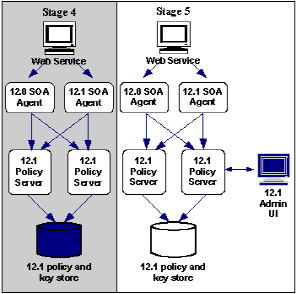
Note: For more information about registering a FSS Administrative UI and installing the Report Server, see the Policy Server Installation Guide.
| Copyright © 2011 CA. All rights reserved. | Email CA Technologies about this topic |