

|
|
|
To test single sign-on in a SOA Security Manager-to-SOA Security Manager network, use the web pages included with the sample application. You must have previously run the sample application script to access the web pages. If you do not run the sample application, use your own web pages to test single sign-on.
The sample application web pages are located in the following two folders.
policy_server_home/samples/federation/content/idpsample
policy_server_home/samples/federation/content/spsample
Specifies the installed location of the SOA Security Manager Policy Server.
Important! If you have run the sample application, the idpsample and spsample folders are automatically copied into the document root directory of your web server.
If you use your own HTML page to test SP-initiated single sign-on, the HTML page must contain a hard-coded link to the AuthnRequest service. For this deployment, the sample link for POST binding is:
http://www.sp.demo:81/affwebservices/public/saml2authnrequest?ProviderID=idp.demo
The AuthnRequest Service redirects the user to the Identity Provider specified in the link to retrieve the authentication context of the user. After the Identity Provider authenticates the user and establishes a session, it directs the user back to the target resource at the Service Provider.
Note: The ProviderID in the Authnrequest link must match the IdP ID field value specified by the SAML authentication scheme at the SP. The IdP ID field is located on the Scheme Setup tab of the Authentication Scheme Properties dialog.
After you run the sample application, test single sign-on.
To test federated single sign-on
http://www.idp.demo:server_port/idpsample/index.jsp
http://www.sp.demo:server_port/spsample/index.jsp
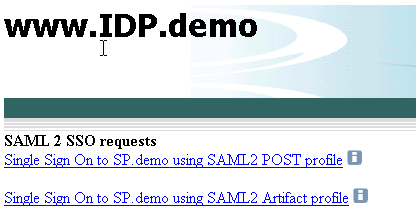
The following figure is the IdP.demo home page:
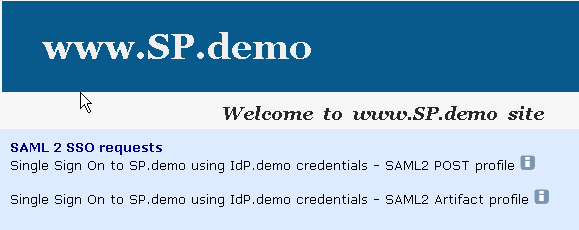
The following illustration is the SP.demo home page:
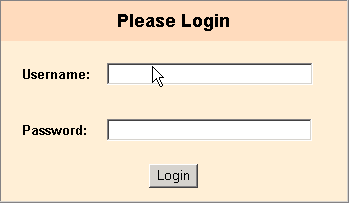
The following login challenge appears:
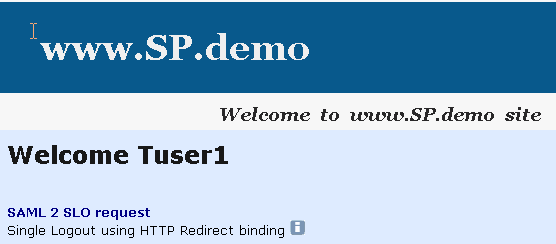
If single sign-on is successful, the following welcome page appears:
| Copyright © 2011 CA. All rights reserved. | Email CA Technologies about this topic |