

|
|
|
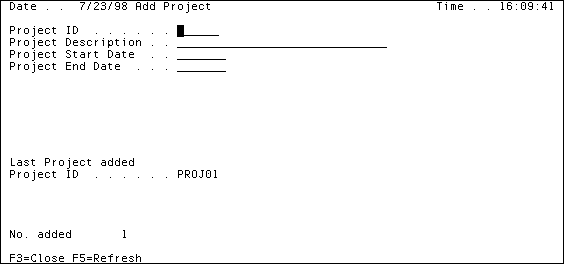
To add a new project:
|
Value |
Enter |
|---|---|
|
Project ID |
PROJ01 |
|
Project Description |
McCready database app. |
|
Project Start Date |
121098 |
|
Project End Date |
010199 |
The display changes after you enter a project.
|
Value |
Enter |
|---|---|
|
Project ID |
PROJ02 |
|
Project Description |
Email client for IS |
|
Project Start Date |
030199 |
|
Project End Date |
040499 |
|
Value |
Enter |
|---|---|
|
Project ID |
PROJ03 |
|
Project Description |
Chg McCready app to ODBC |
|
Project Start Date |
050599 |
|
Project End Date |
060599 |
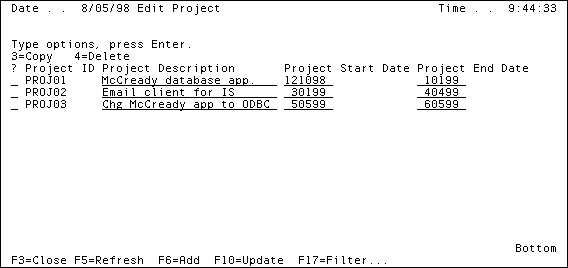
For now, do not delete or change any of the projects you entered in the preceding steps. The following steps show you how to do so.
| Copyright © 2012 CA. All rights reserved. | Tell Technical Publications how we can improve this information |