

|
|
|

To open the Object Browser, choose Object Browser from the Tools menu, or click the New Object Browser toolbar button. By default, CA Plex opens an Object Browser when you open a local model, even if an Object Browser is already open.
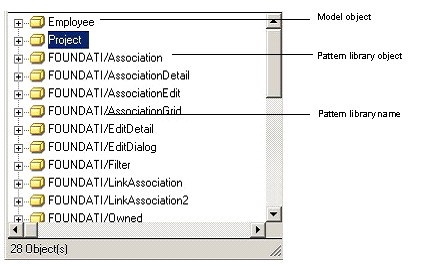
The Object Browser is the bucket that displays all of the objects in a model. In it, you can see the available library objects, and the objects that you define in your model (you will define objects in your model later in this chapter).
A library is a collection of objects that you import into your model. CA provides a set of class libraries with CA Plex; in this tutorial, when you see the term library, it refers to those libraries. However, any model that you import into your model is a library.
You can keep the Object Browser open while you work and use it as a palette from which to drag the objects you need. When it overlaps other CA Plex windows, it always appears on top.
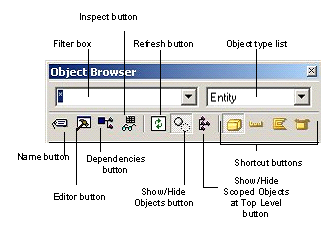
You select which type of object you want to view in the Object Browser (you see one type of object at a time). Notice that the Object Browser has shortcut buttons for displaying entities, fields, and functions. Setting the Object Browser to display functions only displays unscoped functions. Functions that are scoped to another object (such as an entity or a view) are displayed only when the Object Browser is focused on that object type.
| Copyright © 2012 CA. All rights reserved. | Tell Technical Publications how we can improve this information |