
|
|
You can generate and build the tutorial reference model immediately, without having to do anything to it.
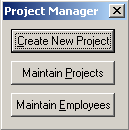
To generate, build, and run the tutorial reference model:


CA Plex expands the selected entities and highlights all of the generatable objects under it.
CA Plex generates those objects, and then summarizes the generation process.
CA Plex starts Microsoft Visual Studio to compile the generated source files.
Note: You will see several warnings in the Message Log during the compilation process that indicate that no source for the various views (views are the files that end with the extension VIW) were submitted to the ODBC generator. Do not worry about the warning; your application will function properly.
You can tell that your build is done when the label on the Microsoft Visual Studio task bar button changes from the name of the model to Microsoft Visual C++ or, if you have opened the Visual Studio window so that you could watch the build, you can tell that it is finished when the cursor returns to the top of the build summary.
PlexInstallationDirectory/Tutrefer/Gen/Release
Note: For more information, see Testing the Application in the chapter “Putting It All Together.”
| Copyright © 2012 CA. All rights reserved. | Tell Technical Publications how we can improve this information |